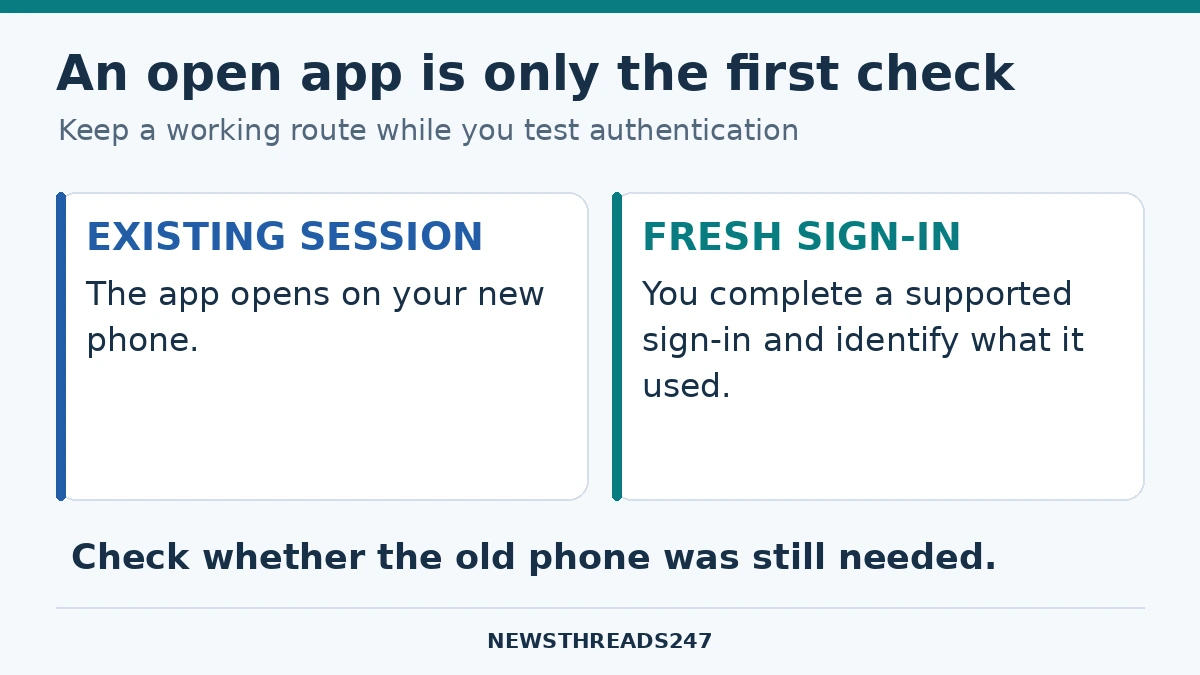
The new phone opens your email, your messages and the apps you use every day. That is reassuring, but it does not tell you how the next sign-in will work after a session expires. Before erasing or trading in the old phone, check where your passkeys are saved and prove that you can get back into your important accounts.
The essential check: Keep the old device and an existing working session available while you test a fresh sign-in on the new device. Confirm the passkey provider, its recovery requirements and another supported way into each important account. Treat successful sign-in—not the presence of an app icon—as the point at which you can consider retiring the old device.
What actually needs to move?
A passkey is a credential used to sign in to an account. Your fingerprint, face recognition or device lock authorises its use; it is not a password you copy into a notebook. Apple’s security explanation describes a public key held by the service and a private key used by the device. The service does not need your biometric data to verify that response.
The practical question is where the usable credential is held. The FIDO Alliance distinguishes synced and device-bound passkeys. A synced passkey may become available on compatible devices through its provider. A device-bound credential needs a different backup plan if the device or security key containing it is lost. Switching to a platform that does not support your existing provider can also interrupt access.
| What you find | What to establish before retiring the old phone |
|---|---|
| A synced passkey in a credential manager | Which provider/account holds it, how to unlock it on the new device and whether that combination is supported. |
| A device-bound passkey or hardware security key | Whether the service has another registered credential or an account-recovery route you can use. |
| An app that is already signed in | Whether a fresh sign-in works; an existing session is not the same test. |
| A school or employer account | What the organisation allows and which support route applies. |
Make a short access inventory before changing anything
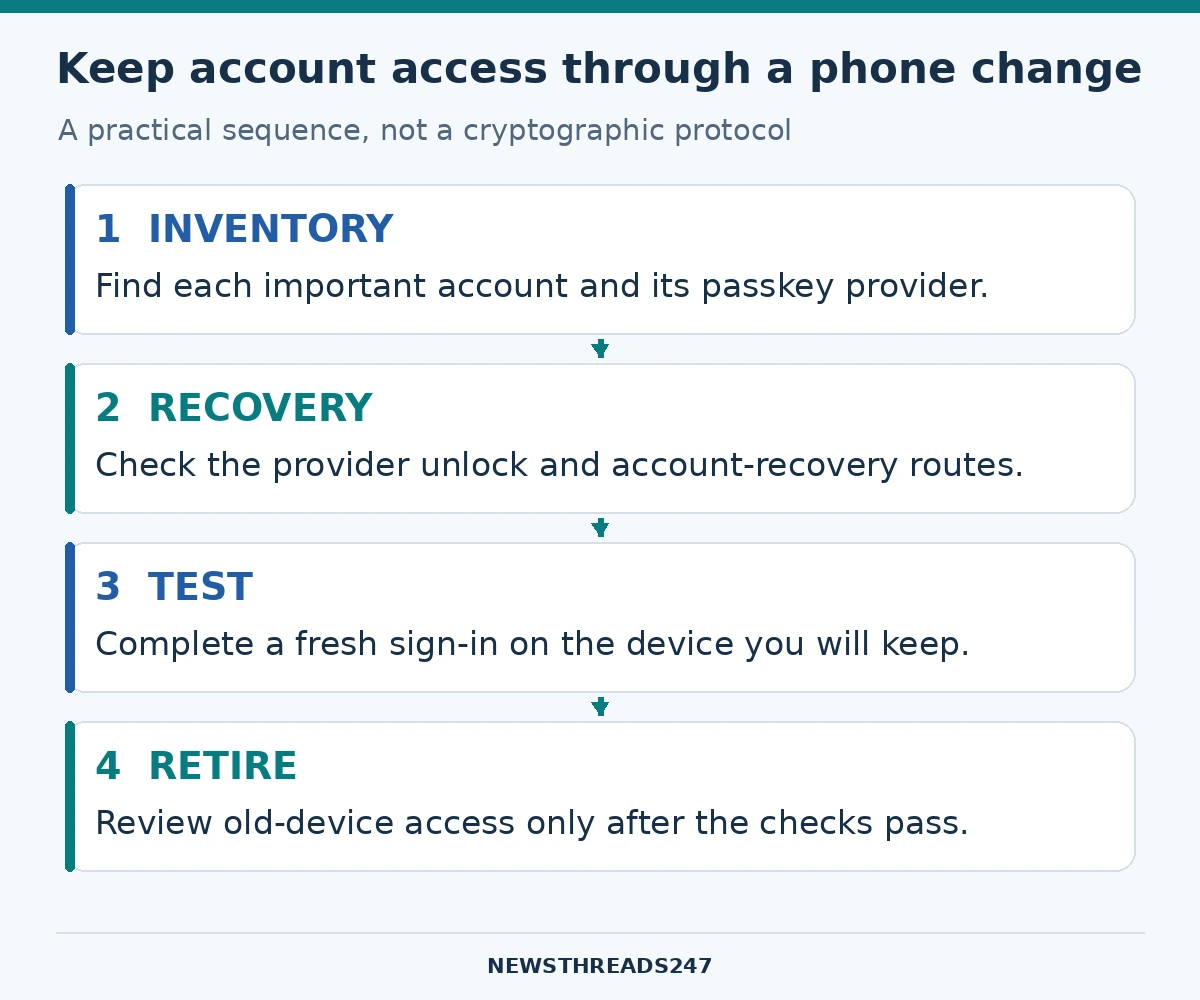
Start with the accounts whose loss would stop you recovering others: your main email, the account used by your credential manager, and any account needed for work or study. Add other services that matter to you. There is no need to record secret credentials in this inventory. Record the account name, provider, devices you can use and where to find official recovery instructions.
Open the account’s security settings and the credential manager you actually use. Do not assume that every saved passkey belongs to the phone manufacturer’s default service. Note whether an account has a separately registered security key or another supported sign-in method. For a managed account, ask the organisation’s administrator before changing authentication settings.
Keep the inventory private. A list of account names can be useful without containing passwords, recovery codes or full personal identifiers. The goal is to see dependencies: if restoring one account requires access to another, make sure the second account remains reachable during the change.
Google Password Manager: check the account and the unlock method
Google’s Android passkey guidance explains that saved passkeys can be managed through Google Password Manager or the relevant Android/Chrome settings. It also describes recovering passkeys on a new Android device by signing in to the account and supplying the old device’s security PIN, pattern or password. Follow the prompts for your actual account and device.
On a computer, Google’s documentation describes a separate Google Password Manager PIN that may be created when saving a passkey. Its PIN support page says this PIN cannot be created or reset on Android; supported previously used devices may provide the reset route. Do not repeatedly enter a phone’s SIM PIN or another unrelated code into a prompt you have not identified.
Before the old device is wiped, read the recovery instructions that apply to your setup and confirm you can satisfy them. If a prompt is unclear, stop and identify whether it belongs to the website account, the credential manager or the device. Those layers can use different credentials. An account password alone should not be assumed to unlock every encrypted credential store.
Apple devices and a change of ecosystem
Apple describes passkeys synchronising through iCloud Keychain and recovery being protected by additional checks. Its Platform Security guide explains that recovery is designed to protect encrypted keychain data. Knowing an Apple Account email address is not sufficient evidence that you will be able to restore that data.
Check the Apple Account, trusted recovery arrangements and the relevant Passwords/iCloud Keychain settings while the old device still works. Follow the current instructions displayed for your devices rather than a walkthrough made for a different operating-system version.
If you are changing between Android and iPhone, separate the goal from the method. The goal is continuing access to each service. Depending on the service and provider, you may use supported synchronisation or transfer, or sign in through an existing authorised route and register an additional passkey. Do not assume an ordinary phone-data transfer automatically proves that every account can now authenticate.
Run a fresh sign-in test without sacrificing your only working session
- Keep the old device charged, connected and under your control.
- On the new device, open the service through its genuine app or independently located website.
- Use a supported sign-in flow that actually asks you to authenticate; merely reopening an existing logged-in app is not a fresh test.
- Confirm which credential/provider completed the sign-in. If you needed the old phone to approve it, note that dependency.
- Check that the account shown is the intended one, then establish a supported independent route before retiring the old device.
For the test, use the provider’s normal supported environment. Google notes that some systems or browsers cannot create or use passkeys in Incognito mode. A failed private-window attempt may therefore reflect that environment, rather than the disappearance of your credential.
A successful QR-code sign-in also needs interpretation. Google documents using a nearby phone’s passkey to sign in on a computer. That proves the phone can authorise the request; it does not, by itself, demonstrate that a new independent credential has been stored on the computer. The test should answer whether the device you plan to keep can work without the device you plan to give away.
If the passkey does not appear
Work through the layers in order: the correct service account, the correct credential-manager account, a supported device/browser combination, the provider’s unlock requirement and the service’s available sign-in choices. Check for an enabled screen lock. Do not begin by deleting every saved passkey or resetting the whole credential store.
For Google Accounts, Google’s passkey help provides the alternative-sign-in option and explains that some new passkeys may need time to become available. If you cannot establish access, preserve the working device and use the service’s official recovery process. A deadline for a trade-in is a reason to arrange more time, not to gamble with your only working route.
Retire the old phone with the credential type in mind
Once access is established, review the service’s registered devices and credentials. Google gives different instructions for a passkey you created and one automatically registered by an Android device. Follow the matching procedure. Do not delete an entry simply because its name resembles the old phone: first establish whether it is the credential your new setup is also using.
For a synced credential, check the provider’s deletion behaviour before removing it. Retiring a device and deleting a credential from a synchronised store are different operations. Finish with the manufacturer’s official preparation and erase procedure for a sale or trade-in, after the access tests and any required data backups are complete.
Do not create personal passkeys on a shared or shop-assistance device. Keep account recovery information and device-unlock secrets to yourself. If the phone is already missing, use the service’s lost-device/account-security instructions; the calm migration sequence in this article assumes you still control the old device. Our Android theft-protection guide covers the separate device-lock and recovery preparations.
A few common misunderstandings
Does adding a passkey always remove the password?
No. The service decides its supported sign-in methods. Google says adding a passkey does not remove existing authentication or recovery factors. Check each account rather than assuming every website behaves identically.
Is a screenshot or password CSV a passkey backup?
Do not rely on either. A picture of a sign-in screen is not the credential. Google’s Chrome import/export documentation separately describes password CSV handling; it does not establish that a password export is a complete passkey-migration plan. Use the credential provider’s supported process and test the result.
Must I erase the old phone immediately after the new one signs in?
No. First complete the checks for all important accounts and understand any dependency on the old device. Keep control of it until you have a reliable route for the services you need.
Sources and editorial note
Official documentation checked on 23 October 2026: Google Account passkeys; Google Password Manager on Android; Password Manager PIN; Apple passkey security; iCloud Keychain recovery; and FIDO Alliance deployment guidance. The inventory and migration checklist are editorial guidance, not a claim of hands-on testing. Interfaces and support vary by account, device and provider.