
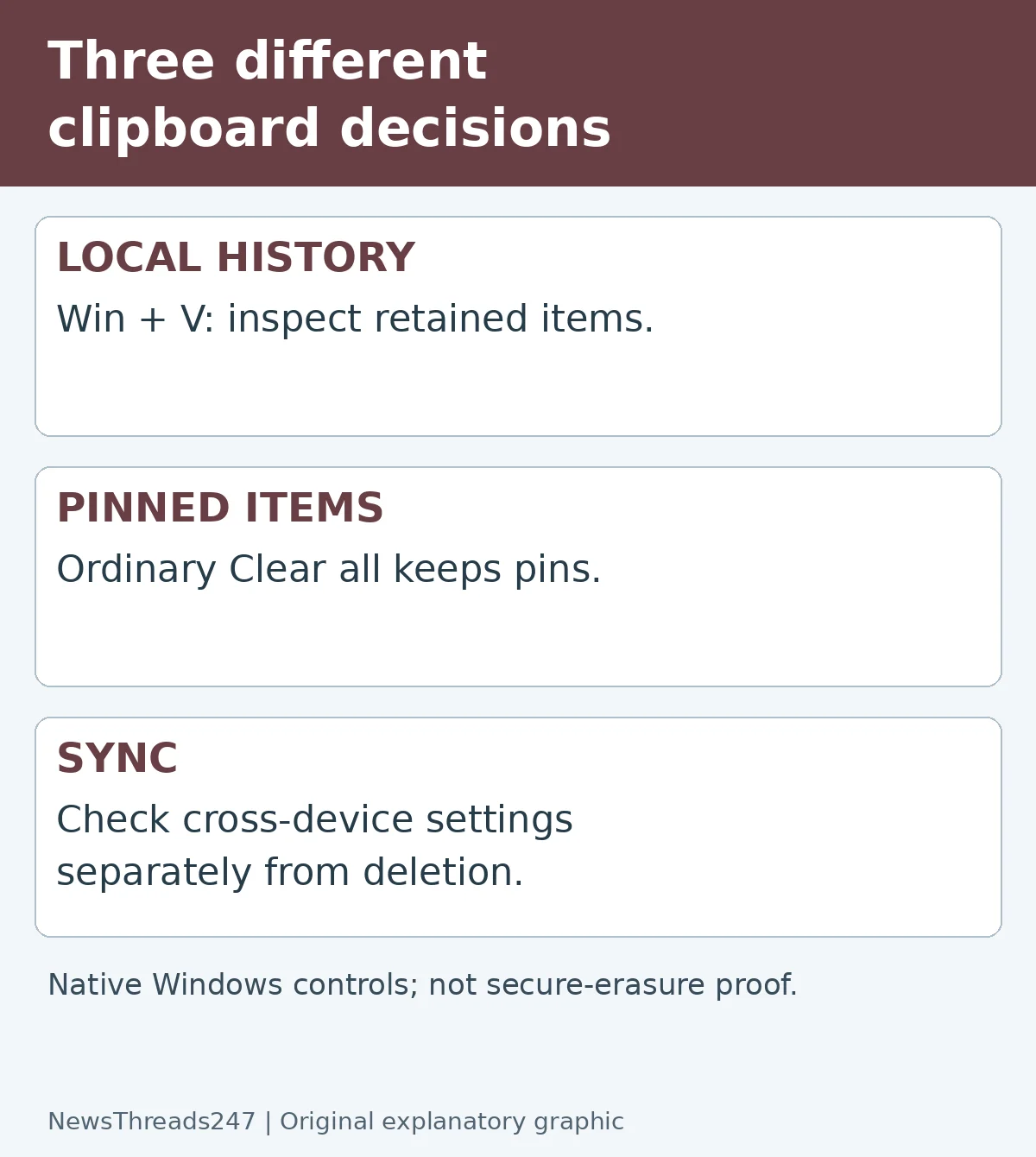
You press Windows key + V, select Clear all, and a copied address is still sitting there. Before assuming Windows ignored the command, check whether the item is pinned. Pinned snippets are deliberately retained.
On Windows 11 PCs in India and the US, three decisions deserve separate attention: what remains in local clipboard history, what is pinned, and whether eligible copied text is syncing across devices. Clearing one list is not the same as proving that every copy of a document has gone.
What Clear all actually leaves behind
Microsoft’s clipboard support page says the ordinary clear operation excludes pinned items. It also explains that unpinned history is cleared on restart, while pinned items remain. Pinning is useful for a reusable delivery instruction; it is a poor place to forget a private identifier.
Open history with Windows key + V and inspect the surviving entries. To remove a particular item, use its menu and Delete. If you want the item to remain temporarily but stop being preserved, unpin it and verify the result after clearing. Read the control offered by your Windows build rather than following a diagram as if it were an exact screenshot.
Do not choose what to remove by appearance alone. Two snippets may start with the same words while only one contains private information farther down. Review safely on your own screen, not while screen-sharing the history panel with someone else.
Choose the action that matches the problem
For a single wrong snippet, individual deletion is the targeted action. For routine cleanup of unpinned history, Clear all is appropriate. For a snippet that survives that cleanup, inspect its pin status. For unwanted movement between devices, inspect sync settings separately.
Consider a hypothetical work session. You copied a public product name, a delivery address and a reusable greeting. The greeting is pinned. Clear all removes the unpinned history, but the greeting remains. That is expected behavior. If the address was pinned by mistake, repeating Clear all will not address the reason it survived.
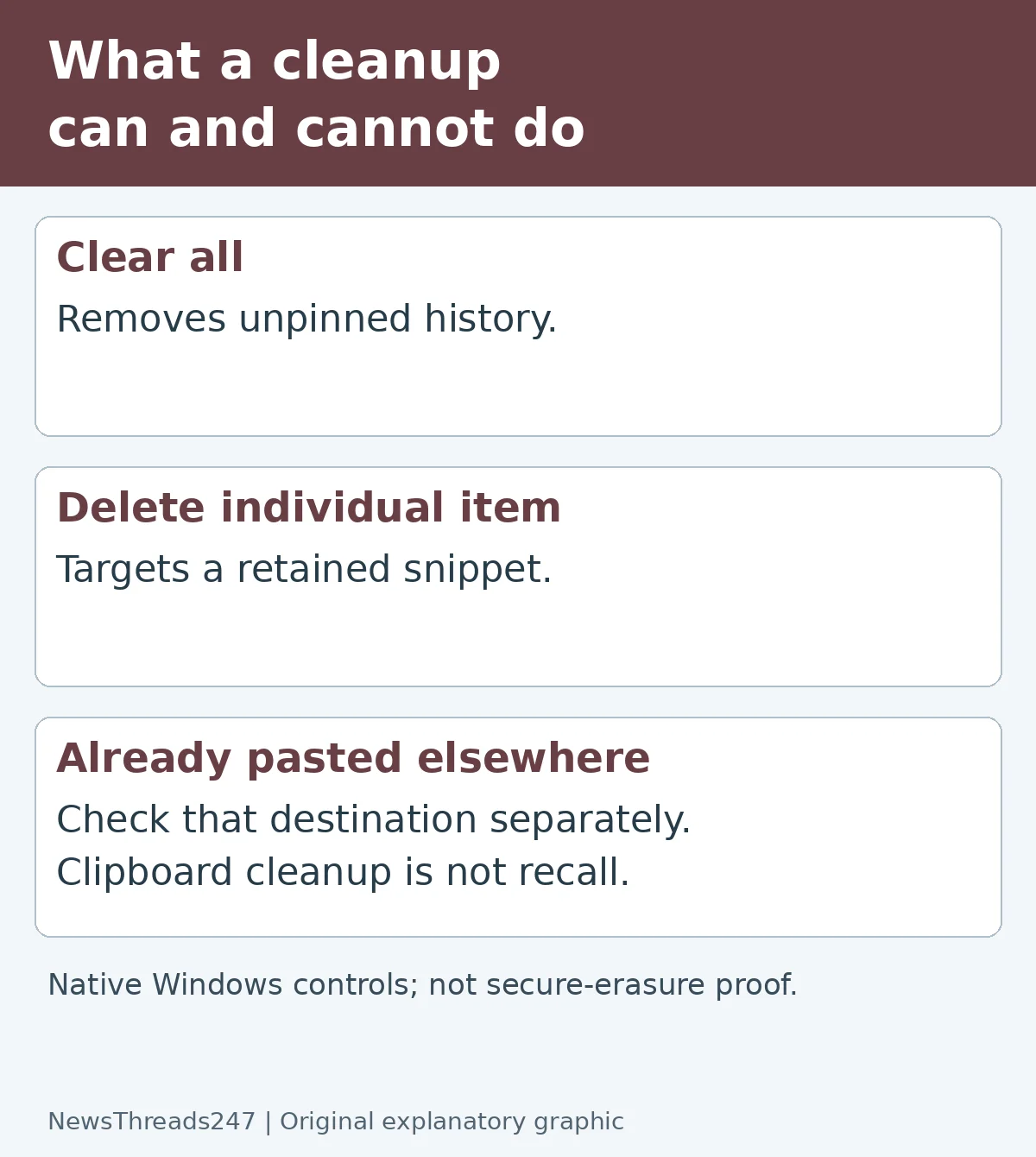
The practical lesson is to verify the remaining list instead of equating a clicked button with a completed privacy task. This is a workflow illustration, not a test of your PC or an assertion about a particular employer’s setup.
Local history and cross-device sync are separate
In Settings → System → Clipboard, inspect whether cross-device history is enabled. Microsoft documents account-linked sync and an option to sync copied text automatically or manually. Its Windows 11 explainer also advises considering sync settings on shared devices. Turning off sync is a choice about future transfer; inspect retained items separately.
Use a question that is easy to answer: “Do I need this text on my other PC?” If not, enabling automatic sync merely to solve one failed paste may be unnecessary. If your employer manages the device, follow its IT policy instead of trying to unlock a disabled setting.
The Settings clear-data control is described by Microsoft as clearing device and cloud clipboard data except pinned items. Do not stretch that statement into a claim that previously pasted content vanishes from another app, document, email draft or external clipboard manager. Those are different destinations with their own saved copies.
Cleanup cannot recall something already pasted
Suppose you copied an address into a spreadsheet and saved it. Deleting the clipboard entry does not delete that spreadsheet cell. The same reasoning applies to a chat message already sent or a document copied into a shared folder. Clipboard cleanup removes a convenience copy; it is not a recall mechanism.
Before sharing a screen or handing over a PC, close unnecessary documents and review what the recipient will actually see. If the machine has another clipboard manager installed, check that application’s history too. Do not assume Windows controls manage a third-party program’s storage.
If a password or access token has been exposed to someone else, deleting a history item does not make the credential secret again. Use the relevant service’s official security process to replace the exposed credential and review access. Do not send the credential to someone offering to check whether it is safe.
Test your intended workflow with harmless text
You can understand the feature without copying anything private. Create two clearly fictional snippets, such as “Example A — meeting room” and “Example B — stationery.” Pin one, clear unpinned history, and observe what remains. Delete the pinned example afterward. Do this only on a device you are authorized to manage.
If you use sync, verify its behavior with similarly harmless text on your own supported devices. Check the account and selected sync mode. A delay or missing item is not a reason to enter private information as a test. Keep the experiment small and stop when the result answers the question.
This is a suggested reader check, not a claim that NewsThreads247 tested Windows on a particular machine. Interface wording and organization policies can vary. The current Microsoft instructions are the reference when your panel differs.
Know when history is the wrong tool
Use a saved document for an important reference, not clipboard history. Microsoft documents a limited history list, so it should not be treated as a durable archive. If a snippet disappearing would disrupt your work, store the information in an appropriate file or approved application with its own retention process.
For repeated public text, pinning can save effort. For private records, choose a tool designed and approved for that kind of information. The useful distinction is purpose: quick reuse, durable storage and secret management are different jobs.
Suspicious copied links are a separate issue. Our Gmail phishing and blocking guide explains how to distinguish inbox actions before following a questionable message. Deleting a copied link is not a substitute for deciding whether it is safe to open.
Sources and visual credits
References: Microsoft clipboard support and Microsoft Windows 11 clipboard guide. This article explains native Windows clipboard controls; it does not certify secure erasure or replace an organization’s data-handling policy. Featured artwork is an AI-generated concept, not a Windows screenshot. Both diagrams are original editorial graphics.