
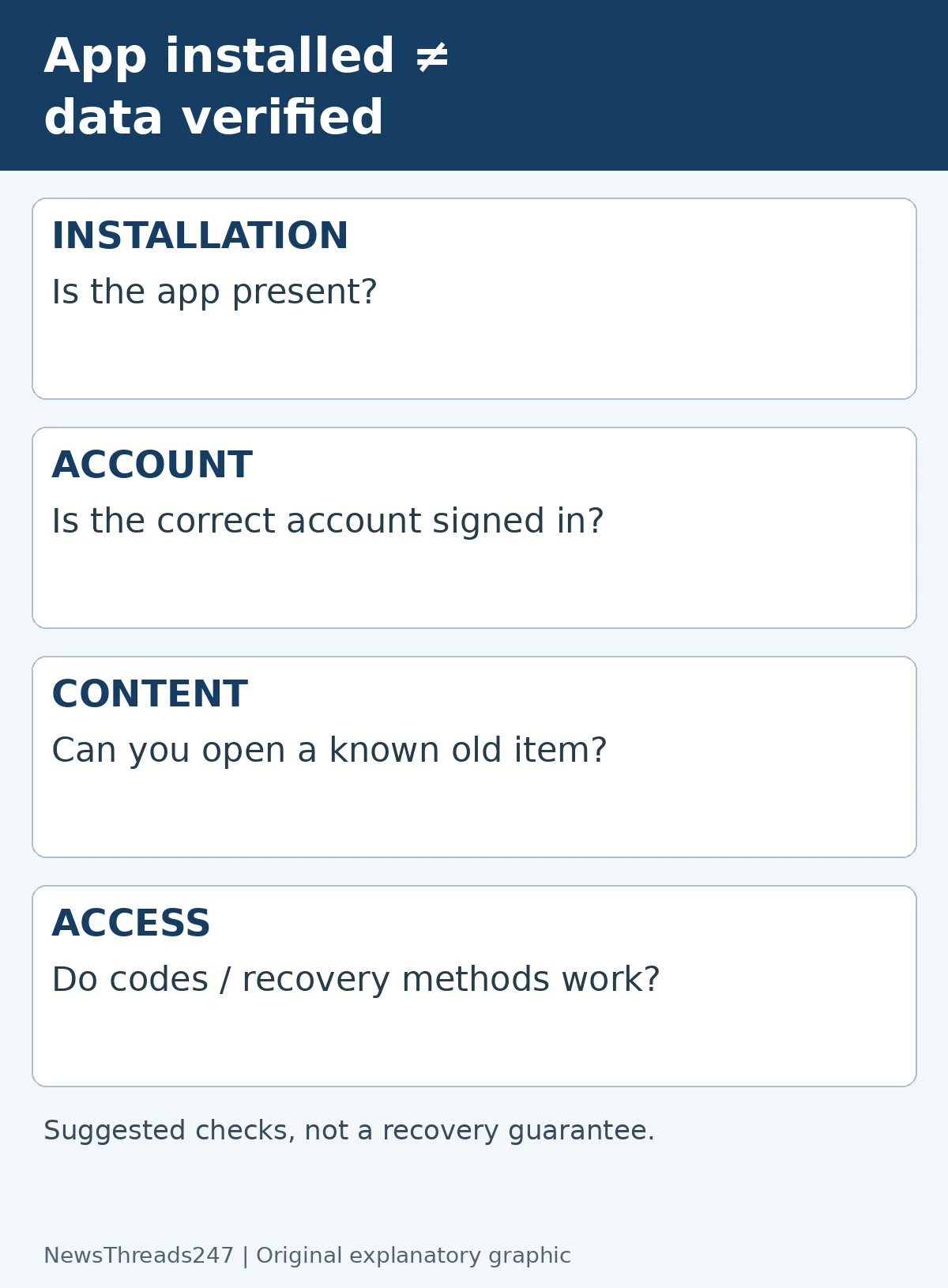
Your new phone has the same app icons as the old one. Then you open a notes app and find an empty screen. The transfer may have restored the app without restoring the information you expected inside it.
For Android-to-Android moves in India and the US, the useful question is not simply “Did backup finish?” It is “Which service holds each piece of data, and can I open it on the new phone?” Keep the old phone intact until you have answered that for the things you cannot afford to lose.
An app icon is only the first layer
Google’s Android backup guidance explicitly says not every app can back up or restore all settings and data. Restoration also varies by phone and Android version; a backup from a newer Android version cannot be restored onto an older version. A successful device backup is therefore useful evidence, but not an inventory of every file in every app.
Separate four layers in a simple record: the installed app, its signed-in account, its stored content, and the credentials needed to enter. A missing layer leads to a different remedy. Downloading the app again can fix installation; it cannot recreate a note that was never backed up.
For example, suppose an app returns but shows a welcome screen. First check the account you previously used. A personal email, a work login and a second personal email can produce three different views. Do not create a replacement account and assume the original content has disappeared.
Build a small restore checklist before troubleshooting
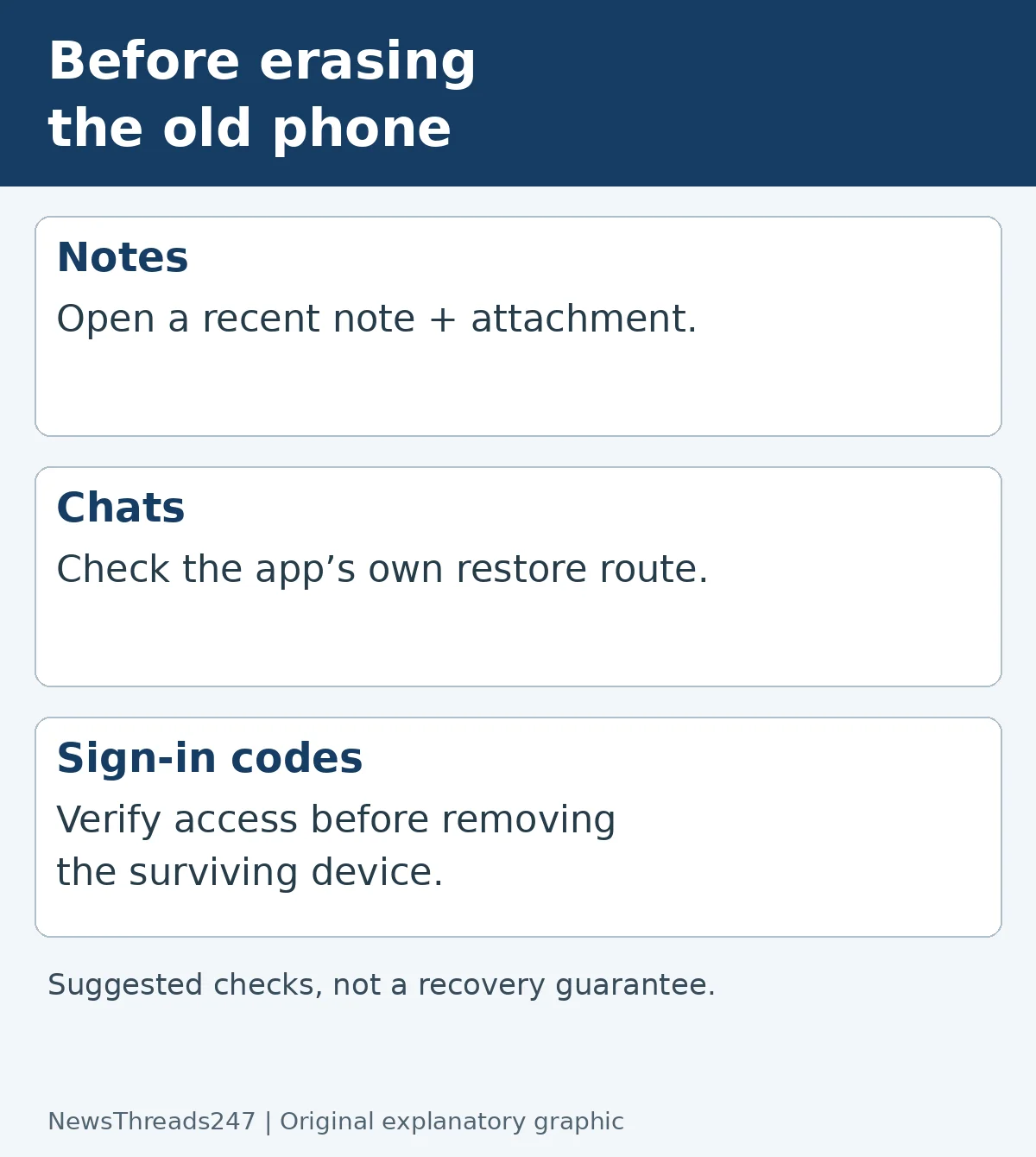
Choose concrete evidence for each important app. For notes, open a recent note and an older attachment. For a document app, open a file that was available offline. For contacts, check a few people you added recently. This is a suggested checking method, not a claim that these apps all use the same backup system.
Write down the app name, account used, last backup or sync indication, and the item you checked on the new phone. “Installed” and “verified” should be separate columns. You do not need to put passwords or recovery codes in this record.
A useful status is specific: “Old phone has the file; new phone does not; app account matches.” It tells you where the surviving copy is. “Transfer broken” gives the app developer much less to investigate.
Check the device backup account and the actual restore route
Use the phone’s backup settings to identify the Google Account and the available backup. Google’s device-copy instructions distinguish copying from an old device and restoring an existing Google Account backup. Menu names can vary; follow the instructions for your model instead of treating one screenshot as universal.
Keep both phones charged and connected while an authorized transfer is still running. Do not interrupt it simply because a few icons have appeared. Equally, do not assume waiting indefinitely will restore data that the app never included. Inspect the app’s own support guidance once the expected transfer has finished.
If the old phone is unavailable, identify what copies actually exist: device backup, app cloud account, an exported file, or another verified device. Do not delete an existing backup as a troubleshooting experiment. That can remove the very source you need.
Chats have their own restoration requirements
Google’s WhatsApp transfer instructions say to sign in on the new Android phone with the same phone number. Its steps distinguish transfer from the old phone from restoration from backup. Follow the applicable route and check the Google Account used for a cloud backup. The presence of WhatsApp on the new home screen does not establish that its chat history has arrived.
Before relying on the new installation, inspect a conversation you recognize and any important attachment you need. Do not send someone a screenshot of a verification code to “help restore” it. Use official app support rather than a person offering recovery through a direct message.
This guide does not promise that unbacked-up, deleted or corrupted history can be recovered. If the expected backup is absent, preserve the old phone and read the app’s current recovery instructions before changing registrations or reinstalling repeatedly.
Sign-in codes need a separate check
In Google Authenticator, codes can sync through a signed-in Google Account; a device-only setup instead has a manual transfer route requiring the old device. Check which arrangement you actually use. Installing the same authenticator app is not, by itself, proof that your codes are present.
Use the service’s normal sign-in process to confirm access while another recovery method remains available. Keep any backup codes securely, outside public notes and shared screenshots. Work or school accounts may require the organization’s approved registration process; do not try to defeat that process with a copied app folder.
Passkeys are another layer. Our passkey transfer and recovery guide covers that separate check. This article concerns missing app content, not a guarantee that all sign-in methods transfer together.
Decide when the old phone can be erased
Use a verification gate: important content opens on the new device; sign-ins work; needed offline files are present; and a usable backup has been confirmed. Where something remains missing, record the surviving copy and resolve that app before erasing the old device.
Imagine five critical apps: four are verified and one local notebook is not. The decision is not “80% success, so erase.” The unresolved notebook may contain the only copy of something important. Give the decision to the value of the missing information, not the number of icons that returned.
When asking official support for help, provide the model, Android versions, app version, restore method and the symptom. Exclude passwords, one-time codes and private documents unless an authenticated support process specifically needs a suitable redacted example. No firsthand device test or universal recovery result is claimed here.
Sources and visuals
Primary references: Android backup, copying apps and data, WhatsApp transfer, and Google Authenticator. Featured artwork is an AI-generated concept, not a device or interface photograph. Diagrams are original editorial explanations.