
Your phone says it is up to date, yet another phone has a newer Android version or a feature you cannot find. That message is not necessarily wrong. It may describe one update channel on one device, while you are comparing something else.
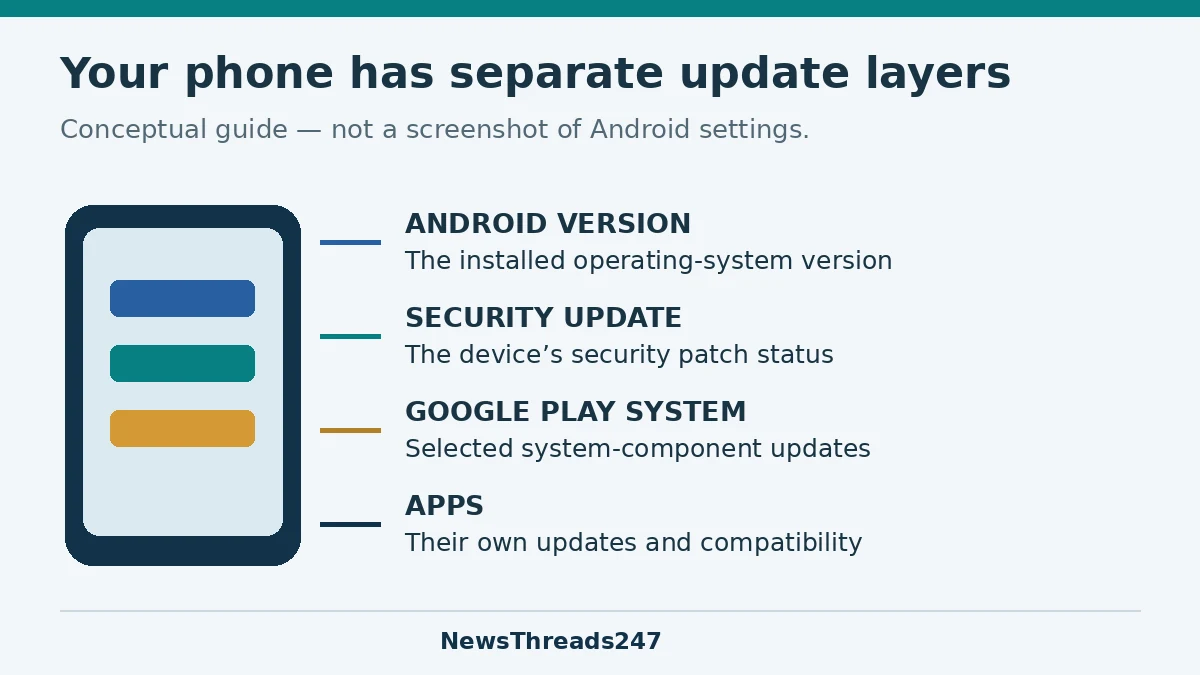
Check the Android version, Android security update and Google Play system update separately. Then check the app involved. A recent app update does not establish that the phone’s security patch is current, and a Google Play system update does not mean the phone has received a new Android version. Before troubleshooting, identify which layer is missing or failing.
What each update actually tells you
Google’s Android-version support guidance lists the Android version, security-update status, Google Play system status and build number as separate entries in Settings. Record them together when asking for help. The build number is especially useful when two phones have the same headline Android version but different installed software.
| Layer | What you are checking | What it does not establish |
|---|---|---|
| Android version | The installed operating-system version offered for this device. | That every app or security component is current. |
| Android security update | The device’s reported security patch status. | That the phone will receive every future Android release. |
| Google Play system update | The update status of selected system components. | That the full operating system or all manufacturer components were upgraded. |
| App updates | The installed version and requirements of the particular app. | That the operating system has received a security patch. |
The technical reason for a separate Google Play system check is Android Mainline. It allows selected system components to be updated outside the normal Android release cycle. Those updates can arrive through Google Play system updates or a partner’s supported over-the-air mechanism. “Selected” matters: this is not a replacement for every other layer of maintenance.
Check what is available for your exact phone
The official Android update guide describes checking Settings, then System and Software Update, with separate security and Google Play system checks. Menu labels differ between manufacturers and software versions. If the path does not match your phone, use the manufacturer’s instructions or Settings search rather than a menu screenshot from a different model.
Write down the full model identifier, not just the product family. Note the market in which the phone was sold and whether a mobile operator supplied or manages its software. Google says update schedules vary by device, manufacturer and operator. Someone else receiving an update is a reason to check your model’s support information, not proof that your installation is broken.
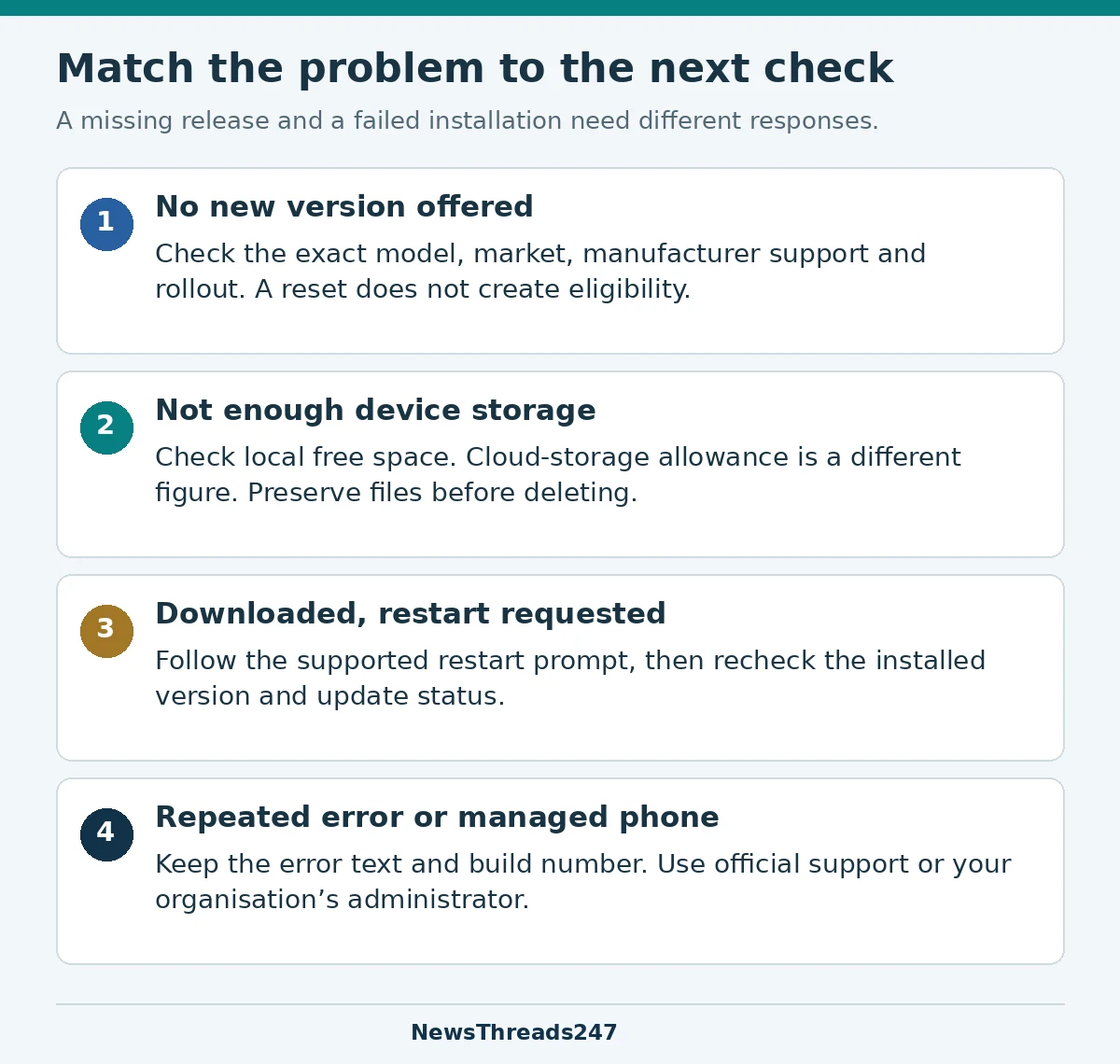
‘The latest Android version available for your device’ and ‘the newest Android version released anywhere’ can therefore be different things. An older model may no longer qualify for a major upgrade. Before attempting repairs, ask the manufacturer whether that model should receive the release you are looking for. A factory reset cannot turn an unsupported model into a supported one.
A new feature may arrive through an app instead
Google’s Android feature-release explanation distinguishes operating-system releases from features delivered through apps and Google Play services. Availability can depend on hardware, account, region and other requirements. Readers in India and the US should check their own eligibility rather than assume a demonstration from the other market applies.
For a feature inside a particular app, identify the app first and consult its official help page. Check its installed version and the requirements for that feature. Updating the entire operating system repeatedly is an inefficient response to a feature that depends on an app rollout or a device capability your phone does not have.
The reverse is equally important. A familiar app continuing to work does not prove that the phone is receiving manufacturer security support. Keep the security and support question separate from the question of whether today’s apps still open.
If an update is offered but will not finish
An available update that fails is a different problem from an update that has not been offered. Read the exact message before making changes. Note whether failure occurs while downloading, while preparing the installation, during a restart, or only when you open an app afterwards.
- Use the official update screen and a dependable connection. Follow the on-screen charging and connection requirements for your device.
- If the message concerns space, check the phone’s local storage. A cloud-storage subscription does not add free space to the phone’s internal storage.
- Preserve important files before deleting them. Review downloaded videos and other replaceable items before removing data you cannot recreate.
- If the update asks for a restart, use the supported restart process and recheck the installed status afterwards.
- If the same error returns, keep its wording and the build number for manufacturer support. For a work-managed device, ask the organisation’s administrator.
Google’s support page says an unfinished download can be retried automatically over the following days. It also explains that downloaded Android updates on Pixel devices become active after a restart, while other devices can restart as part of installation. Do not assume every manufacturer uses an identical sequence or force an interruption because another phone completed faster.
Read the dates as separate evidence
Imagine a fictional phone with a recent app update, an older Android security-patch date and a Google Play system date from another month. That is a set of different maintenance records, not a mathematical inconsistency. The useful next step is to check the device manufacturer’s promised support and the availability of each update, rather than trying to make all three dates match.
After an installation, return to the relevant status screen and record what changed. Did the Android version change, did the patch date move, or did only the app version change? That short before-and-after note makes a support request much clearer than ‘the update did nothing’. Avoid posting serial numbers or other unnecessary personal information with a screenshot.
Support also has limits within individual update channels. The current Mainline documentation states that Mainline support for Android 11 and lower concluded in the fourth quarter of 2025. That is a statement about Mainline, not a complete support verdict for every manufacturer or app. Check the remaining support position with the relevant provider.
Do not start with a factory reset
Google’s factory-reset guidance explains that a reset erases data from the phone and uninstalls apps and their data. Treat it as a deliberate recovery step supported by the relevant troubleshooting advice, not a routine way to request a release that has not been offered.
Before any reset recommended by official support, inspect your actual backup details and the account you would restore from. Google warns that not every app can back up or restore all its settings and data, and a backup from a higher Android version cannot be restored to a lower version. A “backup on” switch is not evidence that every important file or account is recoverable.
Check access to important accounts too, especially where the phone helps you authenticate. Our passkey migration guide explains the separate sign-in and recovery checks before retiring or erasing a device. Keeping an update record and preserving account access are different preparations; both matter before a disruptive repair.
What to send when you ask for support
A useful support note contains the exact model, Android version, build number, security-update date, Google Play system date, the error wording and the stage at which it appears. Add the connection and local-storage checks you already performed. State whether the device is personally managed or controlled by an organisation. This lets the provider distinguish release eligibility from an installation fault without asking you to repeat the whole story.
Sources and scope
Official documentation checked on 24 October 2026: Google’s update-status guidance; Android update guide; Android Mainline; Android feature releases; Android backup guidance; and factory-reset guidance. The troubleshooting order and fictional example are NewsThreads247 editorial explanations, not claims of hands-on device testing. Manufacturer instructions and current device eligibility take precedence.