
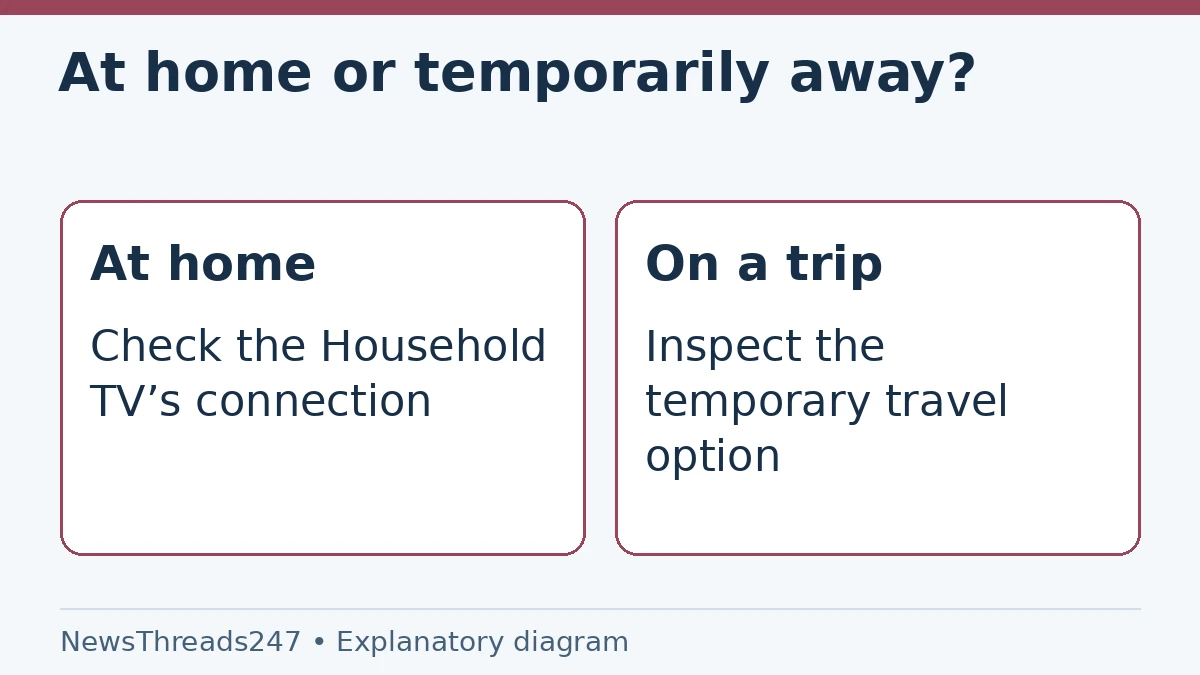
You sign in to a hotel television and Netflix says the TV is not part of your Household. Updating the Household to the hotel may seem like the obvious fix. First decide whether you are travelling temporarily or have actually changed the main place you watch. Netflix provides different routes for those situations.
A Household check is also separate from a password failure, a plan’s simultaneous-stream limit or an expired download. Read the message on the affected device before changing account settings. This guide explains Netflix’s published process checked October 26, 2026; menu wording and available account options can vary by device, location and plan.
What Netflix means by a Household
Netflix’s Household explanation describes devices associated with the main place you watch, using the internet connection, device identifiers and account activity. It says GPS is not used to determine devices’ precise physical location. A Household is therefore not simply another word for the list of profiles.
Adding a profile does not by itself establish that a person lives within the Household. Nor does successfully signing in prove that every device and location is permanently eligible. Treat the error as a request to identify the situation through the provider’s current controls, rather than a reason to keep changing the password.
For a useful first check, write down the exact message, device type, whether you are at home or away, and whether the account owner recognises the sign-in. These four details narrow the problem much faster than trying every ‘Netflix not working’ instruction found online.
At home, check the connection first
Netflix’s Household-error instructions tell users on a phone or computer at home to confirm the connection matches the Household TV’s Wi-Fi. A device connected through mobile data, a guest network or another internet service may not be using the connection you think it is.
Check the actual network on the TV and affected device. Similar Wi-Fi names are not evidence of the same external connection. If the problem persists, follow the official update and restart or refresh instructions appropriate to that device. Avoid resetting unrelated equipment before identifying what differs.
If the account has no TV or streaming device available, Netflix’s help page describes reviewing recently active devices and signing out unfamiliar ones. Do not sign out devices indiscriminately when other household members are using them; identify what belongs to you and follow the account owner’s intended changes.
A temporary trip has its own verification option
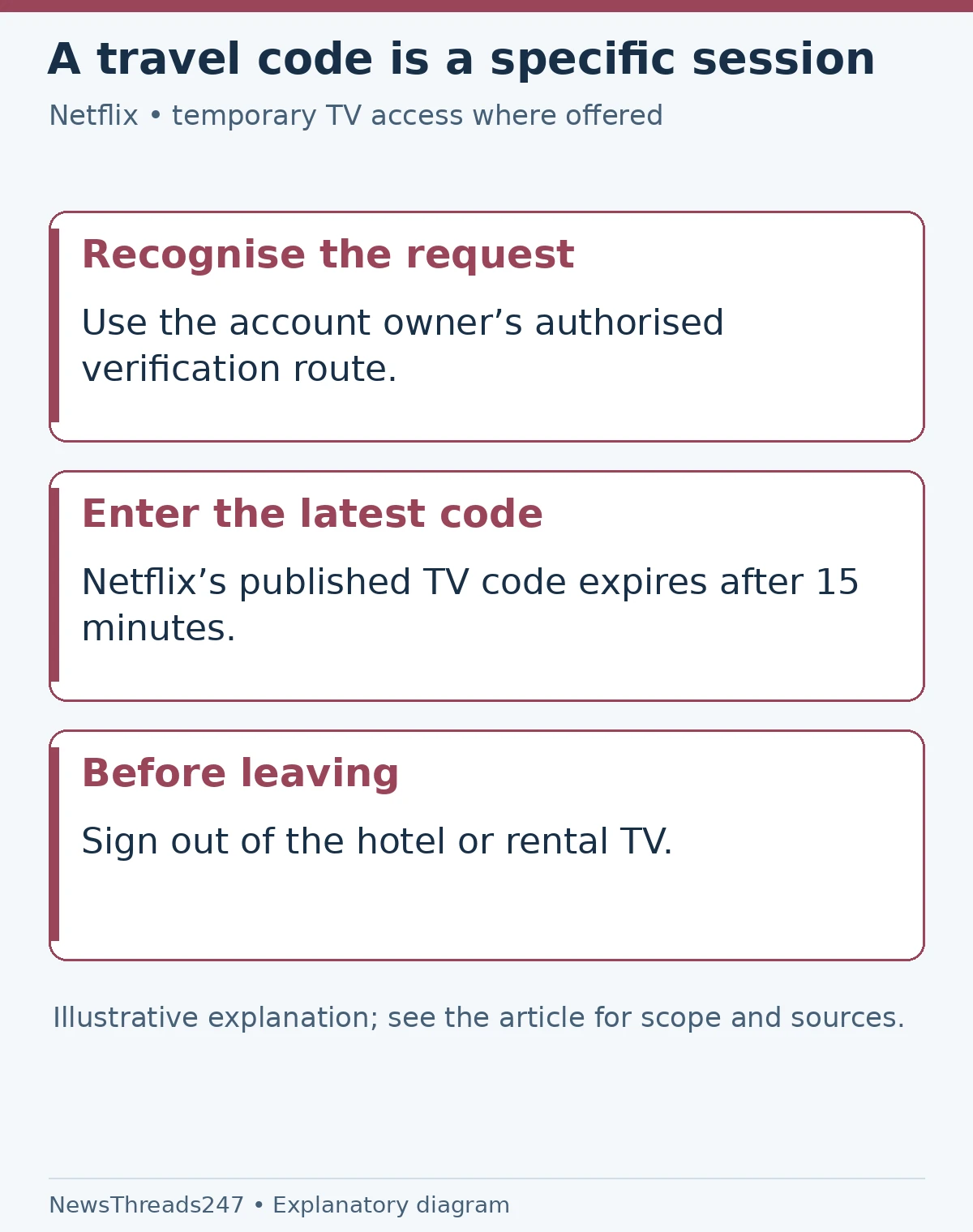
For an affected TV or TV streaming device away from home, Netflix describes selecting ‘I’m Traveling’ from a non-Kids profile. On a phone or computer, the corresponding route is ‘Watch Temporarily’. Follow the wording shown on the actual device rather than looking for a button from a different device’s instructions.
The account owner receives the verification route. Netflix’s error guidance says the temporary TV code is four digits and expires after 15 minutes. Request it when you are ready to enter it on the device, not while still arranging transport to the hotel. Check that you are using the latest requested code and the correct session.
If the travel option is absent, read the reason before repeatedly requesting codes. Netflix says account-contact problems can affect availability, and a TV can reach its temporary-code request limit. There is no published universal reset time in the instructions used here. Contact Netflix rather than assuming another request or a Household change will override that limit.
Updating home is a different action
The official Household-update guide uses a TV connected to the intended home internet connection. It directs users through Get Help or Settings, Manage Netflix Household and the update option, followed by account-owner verification. Some TV devices do not show the required menu; Netflix says another TV device may be needed.
That action makes sense when establishing or correcting the main Household. It should be a deliberate choice by the account owner, not a reflexive response to every temporary hotel sign-in. Read the verification email and confirm only an action you actually initiated.
If several people use the account at home, tell them before making the change. Confirm which internet connection should be associated with the Household and check the intended TV afterward. A successful confirmation on a phone is useful, but the practical test is whether the appropriate home device now follows the intended arrangement.
Match the situation to the next step
| Situation | Check first | Appropriate route to inspect |
|---|---|---|
| Phone blocked at home | Is it on the Household TV’s connection? | Home-network and device troubleshooting |
| Hotel TV during a temporary trip | Is this the owner’s recognised sign-in? | I’m Traveling, where offered |
| Main home has changed | Which TV and connection should define home? | Deliberate Household update |
| Unrecognised verification request | Was this action actually initiated? | Account-security and device review |
In a fictional example, a family’s home TV works while one traveller’s hotel TV is blocked. The first issue to investigate is temporary access for that hotel device. Repeatedly changing the main Household would address a different question and can make the account harder to understand.
Frequent travel does not turn two places into one
Netflix’s outside-home guidance describes a routine for a second home or repeated travel: periodically establish a connection from the main location using a mobile device or computer, then follow the stated steps at the second location. Read the current page for the account’s country rather than treating a forum’s abbreviated version as universal.
This travel guidance is not a general permission to maintain unrelated households on one subscription. Netflix’s account-sharing guidance explains that people outside the Household need an appropriate account arrangement, including extra membership where supported. Availability and terms depend on the account and location; do not assume a US option or price applies in India.
If the real situation is a move rather than a visit, use the provider’s moving guidance linked from its travel page. Account region, billing and viewing availability are separate questions from entering a temporary device code. Describe the actual change accurately when seeking support.
Do not approve a code you did not request
A verification message is an account-security prompt, not a request to help an unknown person watch. If you do not recognise the device or action, do not approve it or forward the code. Open Netflix independently, review device activity and follow its security guidance for unfamiliar access.
After using a hotel or holiday-rental TV, sign out before leaving. If you forgot, use the official device-management options from the account rather than asking hotel staff or a stranger to handle your password. Keep the code and password out of public support screenshots.
If the account’s email or phone is outdated, correct it through the legitimate account process when authorised. Repeated code requests will not repair an address you cannot access. Tell Netflix support whether the problem is delivery, code expiry, a missing travel option or a device the owner does not recognise.
A working sign-in does not settle every playback issue
Travel can change the available catalogue, language options and ratings, as Netflix’s outside-home guidance explains. If the Household message is gone but one title is unavailable, investigate that title’s availability instead of restarting verification. Likewise, a download can have its own restrictions and expiry.
Our Netflix download guide covers the separate offline-viewing checks. For the Household problem, finish by confirming the intended device works, the main home remains correctly identified and temporary devices are signed out when the trip ends.
Sources and visual credits
Sources: Netflix Help Center’s Household, error-message, update, travel and account-sharing pages linked above, checked October 26, 2026. No account or device was tested for this article. Featured image: AI-generated conceptual illustration, not a Netflix interface. Situation and verification diagrams: NewsThreads247.