
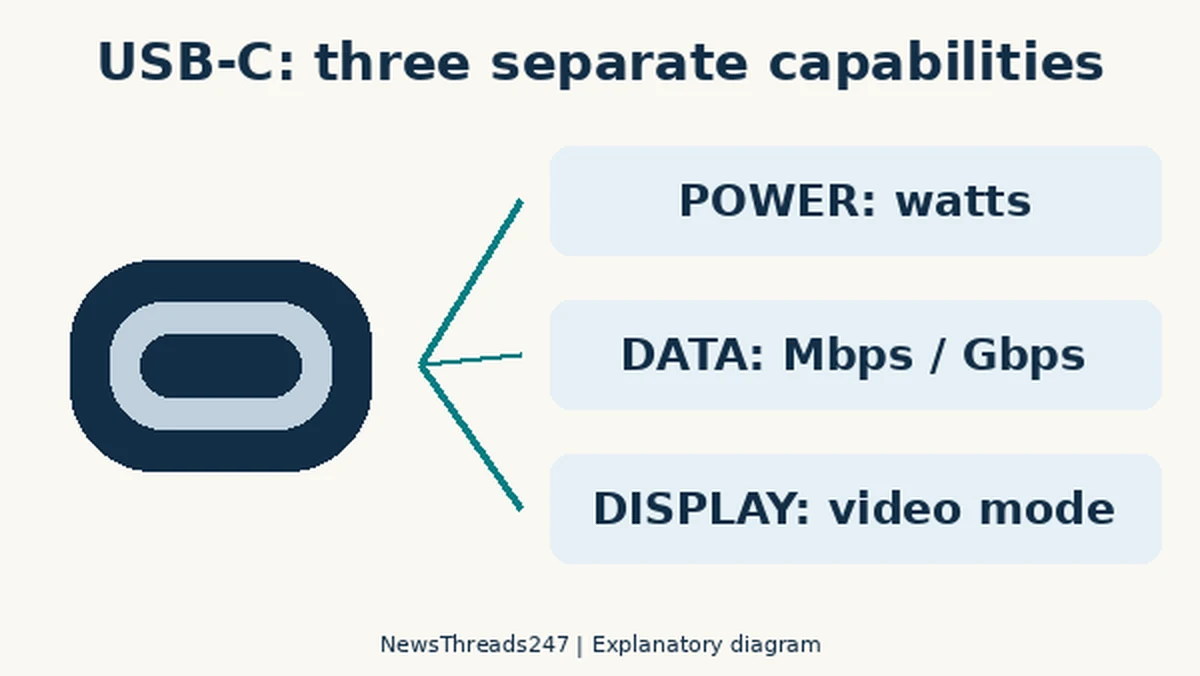
Your laptop charges through a USB-C cable, but the external drive connected with that cable copies files painfully slowly. The cable may be working exactly as specified. A high charging rating does not promise a fast data link, and a reversible plug does not promise that a monitor will receive video.
Read three specifications separately: power in watts, data rate in Mbps or Gbps, and the supported display connection. Then check the ports and devices at both ends. USB-IF’s January 2026 cable-logo guidance explicitly includes USB 2.0 Type-C cables rated for 60W or 240W while carrying data at up to 480Mbps. The power number alone cannot answer your file-transfer question.
What the numbers on a cable actually describe
USB-IF’s cable-logo guidelines distinguish the power rating from data-performance markings. Watts describe a power capability. Bits per second describe a data signalling rate. Treat them as separate fields on the same product, not as a ladder on which a bigger watt number automatically means every feature improves.
That distinction is useful in India and the United States alike, especially when replacing an included charging lead or assembling a laptop-and-dock setup. This guide explains specifications, not a ranking of brands. The USB-IF document is dated January 2026; it is not a new cable standard announced this weekend.
For a concrete manufacturer example, Apple’s Thunderbolt 3 cable comparison says the USB-C Charge Cable discussed there supports charging but has 480Mbps USB 2.0 data and no video support. The lesson is about that documented product distinction. It should not be stretched into a claim that every Apple cable, every charging cable or every USB-C port has those same limits.
Start with the job the connection must do
| Your task | Specification to verify | What does not establish it |
|---|---|---|
| Charge a phone or laptop | Compatible charging protocol, required power and cable rating | USB-C plug shape alone |
| Copy large files to an external drive | Host, cable and drive data capabilities | 60W or 240W printed on the cable |
| Connect a monitor or dock | Supported display mode and complete connection requirements | Charging successfully through that cable |
Write a short requirement before opening a shopping page: for example, ‘charge this laptop at its supported rate’ or ‘connect this computer to this monitor at its required resolution and refresh rate’. The same cable might satisfy one task and fail another. A product listing that says only ‘fast’ has not supplied a measurable answer.
Record the full device and cable model, including length or revision where the manufacturer distinguishes them. A review of a similarly named product may describe different hardware. If a seller’s headline and specification table disagree, resolve that before buying rather than assuming the most impressive number applies to the item in your basket.
Charging is a negotiation across the connection
USB-IF’s Power Delivery explanation describes a system in which the power source and device work with supported power capabilities. A 240W-rated cable does not turn a lower-power charger into a 240W supply or make a device demand that much power. The charger, cable and device must support the intended arrangement.
Before replacing a cable for slow charging, check the device manufacturer’s charging instructions, the adapter’s supported outputs and any limitations when several adapter ports are used. A large total wattage on a multiport charger is not necessarily the output assigned to the particular port in use. Use the adapter’s own specifications for that allocation.
In a fictional setup, a device supports up to 45W, its compatible adapter can supply 65W and the cable is rated above both. The 240W marking on an alternative cable does not by itself create a reason to expect the device to charge above 45W. This example illustrates a limit, not a charging-speed test or a recommendation for a particular product.
For files, find the slowest supported part
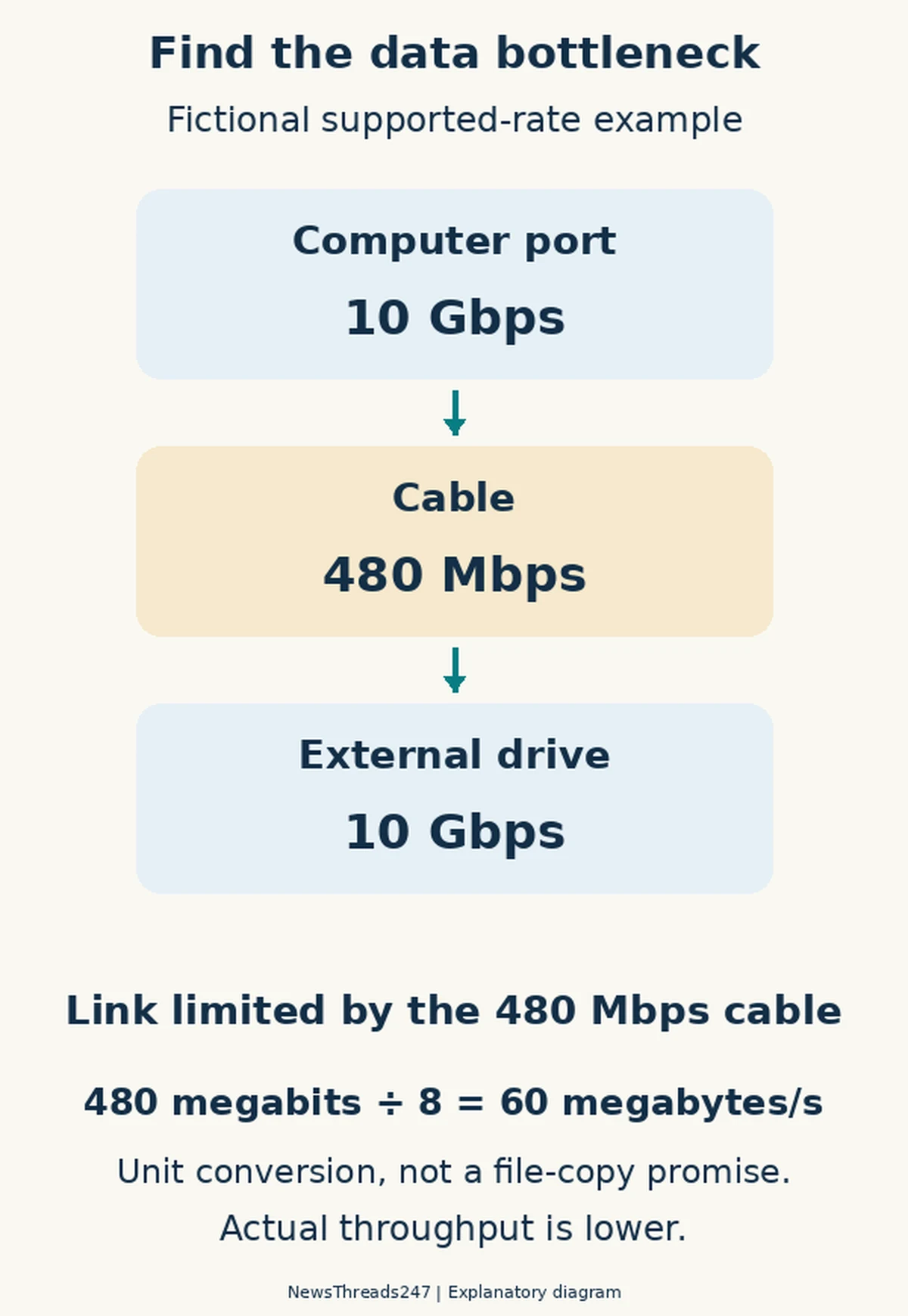
A fast drive cannot establish the rate of the cable or computer port between it and the machine. Texas Instruments’ USB Type-C primer separates the connector from the USB data interfaces needed for higher transfer rates. Read the port specification as carefully as the cable listing; two ports on one computer need not offer identical capabilities.
A rate printed in bits per second is also different from the bytes-per-second figure a file-copy window may show. As a unit calculation, 480 megabits per second divided by eight equals 60 megabytes per second. That is not a promise of 60MB/s of file copying: protocol overhead, storage speed, software and the files themselves affect actual throughput.
A useful comparison changes one part at a time. Keep the same source files, destination drive and computer port, then use a cable with a clearly documented suitable data rating. Repeat on another documented port if necessary. Record what changed. This is a troubleshooting method readers can use, not a claim that NewsThreads247 tested these devices.
A dark monitor needs a display-path check
USB-C is the connector; the display capability must be supported by the relevant equipment. VESA’s DisplayPort FAQ explains DisplayPort Alt Mode over USB-C and the adapter arrangements it supports. Check the computer’s output capability, the dock or adapter, the cable and the monitor’s input requirements together.
A monitor showing that it is charging a laptop does not prove the video path is supported. Nor does the fact that a cable transfers ordinary files establish the resolution and refresh rate of a display connection. Read the manufacturer’s connection instructions and select the intended monitor input before assuming that a new cable will fix the picture.
If a product claims display support, look for the actual mode and conditions rather than treating ‘4K’ or ‘8K’ as a complete specification. Resolution, refresh rate, the source and display capabilities, and the intervening equipment all matter. Avoid buying an expensive maximum specification that your computer’s output cannot use.
Check certification without treating a logo as a universal promise
The USB-IF certified-product search can help check a claimed certified model. Match the exact manufacturer and product details. Certification claims and logos should be verified against their stated scope; they do not turn a power-only specification into evidence of every possible data or display mode.
Keep the invoice and the manufacturer’s specification with the cable’s model. A small label on your own lead can record ‘charging’, its documented data rate or the display setup it serves. Label only what you have established. A drawer full of visually identical cables becomes less frustrating when each has a known purpose.
Stop using a visibly damaged cable or connector and follow the manufacturer’s safety guidance. This specification check is not a method for repairing exposed conductors or bypassing a charging warning. For travel, battery capacity and airline restrictions are another question: our power-bank flight guide explains why a cable’s watt rating does not establish whether a battery is permitted on a flight.
Before replacing anything, fill in the missing field
Put the device’s requirement beside the charger, cable and port specifications. Identify which field is missing or insufficient: power, data or display support. Ask the manufacturer about that specific gap. This approach gives you a reason for a replacement and a specification to buy, rather than another lead that merely fits the socket.
Sources and illustration credits
Sources linked above are USB-IF’s January 2026 logo guidelines, Power Delivery explanation and product directory, Apple’s product comparison, Texas Instruments’ primer and VESA’s DisplayPort FAQ, checked on October 25, 2026. No product was tested for this article. Featured image: AI-generated editorial illustration of generic equipment. Original specification diagrams: NewsThreads247.