
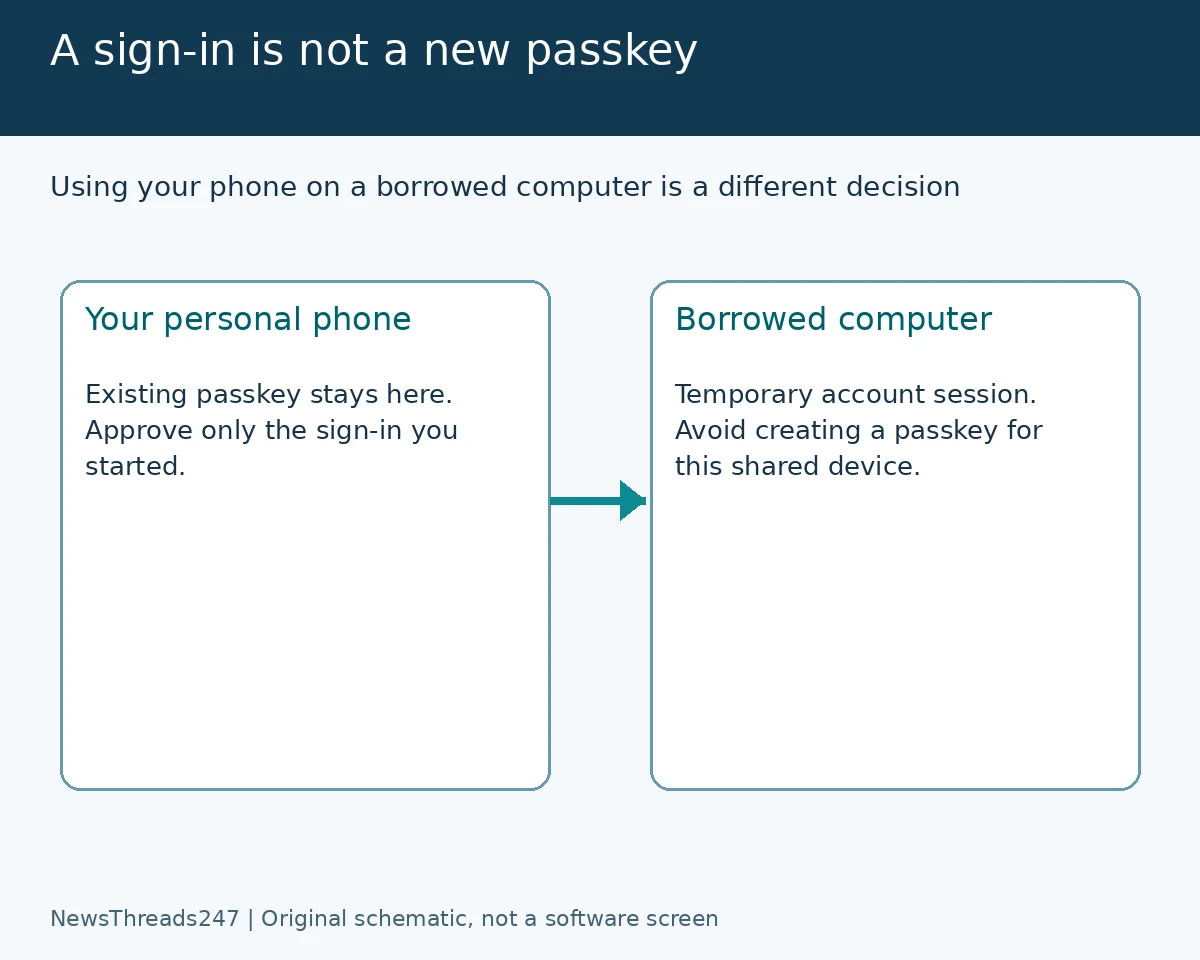
Signing out of a Google Account is not the same as removing a passkey created on that device. Google’s current passkey guidance warns users to create passkeys only on devices they personally own and use: someone able to unlock a device with that credential may be able to sign in again. That is a practical reason to pause before accepting a passkey-creation prompt on a shared computer.
Google’s October 8, 2026 setup explainer explains the simpler sign-in method. The shared-device caution is existing guidance, not a newly discovered breach or a reason to claim passkeys have stopped working. This guide concerns Google Account decisions for users in India, the US and elsewhere; other services and managed accounts can have different controls.
Separate a temporary sign-in from a new credential
Using your personal phone to approve a sign-in on a borrowed computer and creating a passkey for that computer are different actions. The first addresses access for the task in front of you. The second creates a way to authenticate again. Do not treat every prompt in that sequence as a necessary part of opening one document.
Google’s original passkey explanation describes using a phone’s existing passkey for a temporary sign-in on another device. The current account-help page supplies the supported sign-in instructions and requirements. Follow the official account flow; do not scan an unsolicited sign-in QR code merely because a message calls it a passkey check.
Before approving anything, ask whether you started this sign-in, whether the account is the one you intended and whether the prompt is asking to use an existing credential or create another. A familiar-looking computer does not make those questions unnecessary.
Who can unlock the device?
A passkey uses a device’s supported unlock mechanism. A fingerprint is one possibility, but a screen-lock PIN may also be used. Keeping the account password secret therefore does not answer every question about who can authenticate on a shared device.
Consider a fictional household laptop where several people know the same unlock PIN. One user creates a personal-account passkey and then signs out of the website. The important follow-up is whether that credential remains available on the shared device, rather than whether the browser now displays a sign-in button.
This is not an accusation against family members or colleagues. It is a way to align the authentication choice with how the device is actually used. A device described as ‘mine’ may still be routinely unlocked by someone else.
Guest browsing and passkey storage answer different questions
For temporary use of a computer that is not yours, Google’s borrowed-device guidance recommends private browsing and describes Chrome Guest mode. Closing the Guest window clears that browsing session’s history, cookies and site data.
Do not turn that browsing guidance into a claim that every passkey or credential manager is automatically cleared. If you deliberately created a passkey, follow its removal guidance. If you downloaded a file, treat that file as a separate item too. A tidy browser window is not a complete inventory of what happened on the device.
For a fictional library visit, decide what is needed before signing in: perhaps one document download or one email attachment. Decline an unnecessary credential-creation prompt, complete the task through the supported route and finish the session. Avoid expanding a temporary task into a lasting account setup on the computer.
If you created one by mistake, check the credential
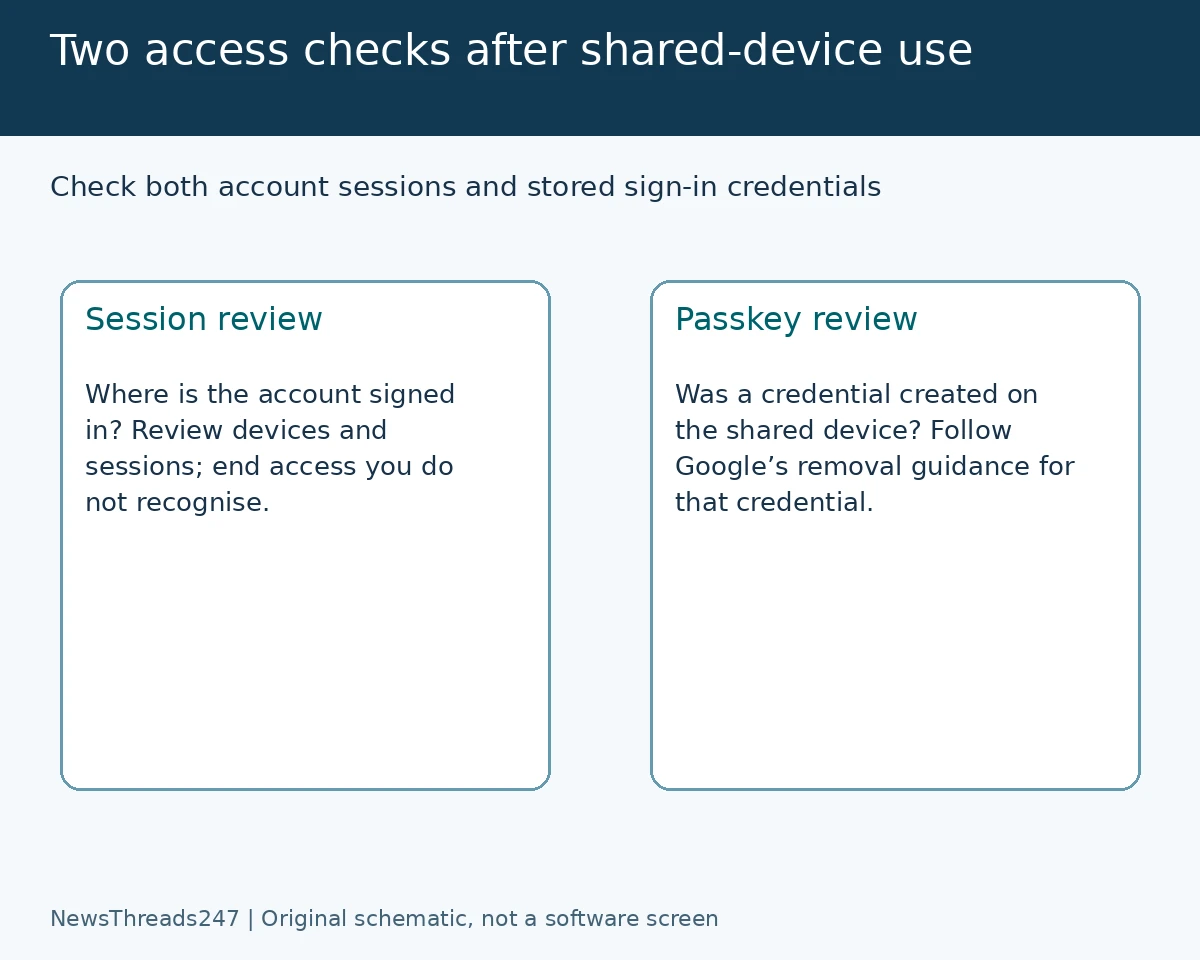
From a device you trust, use the Google Account’s Security & sign-in section and Passkeys and security keys to identify the credential in question. Google’s account-help page describes removal of a passkey you created, and treats automatically created Android credentials separately. Follow the route for the actual credential type.
Read the device label and surrounding information before removing something. Do not delete every credential simply because one device name looks unfamiliar. Keep a working trusted sign-in route while resolving the shared-device concern.
If a removed credential still appears in a sign-in prompt, Google says to check a third-party credential manager you use and follow that manager’s removal instructions. An old-looking prompt does not, by itself, prove that account-side removal failed. Identify which store is presenting it.
Then review account sessions separately
Google’s device-access guide directs users to review devices and sessions in their account. A session is a period of signed-in access through a browser, application or service; multiple sessions can legitimately belong to one device.
This is a separate check from the passkey list. You may need to end a session on a computer you no longer use, review a credential created there, or both. A useful personal note has two columns: ‘signed-in access reviewed’ and ‘credential reviewed’. Mark what you actually completed rather than writing ‘account cleared’ after only one action.
If a session is unrecognised, use Google’s official account-security guidance and the information shown in the account. Do not assume a remembered device name proves that every session is yours, or that multiple entries automatically mean an intrusion.
Work and school accounts need their own policy check
Google’s current passkey help explains that Workspace administrators can control whether users sign in with a passkey alone. A personal-account demonstration is not proof that an employer or school account will behave identically. Ask the organisation’s support team if its policy blocks or changes the available route.
If you are changing phones rather than borrowing a computer, our passkey transfer and recovery guide addresses that separate problem. Do not erase the old phone as a supposed solution to a credential left on a different shared device.
The useful habit is to keep three decisions distinct: approving this sign-in, storing a future sign-in method and ending existing access. You can benefit from passkeys while still choosing carefully where they belong.
Sources and visual credits
Google’s October 8 setup article and its current account, borrowed-device and session guidance were checked October 28, 2026. The 2023 security post supplies background, not a new launch date. Fictional examples do not describe an observed incident. This article does not claim to inspect your account or guarantee security. Featured artwork is AI-generated; the two original schematics are not Google interfaces or usable sign-in codes.