

You open a document that worked yesterday. Now it is empty, damaged, renamed or gone. A OneDrive folder on your PC makes this more confusing: the file looks local, yet a deletion or accidental edit may have synchronized to the cloud. OneDrive file recovery begins with a simple distinction: was the information deleted, overwritten, moved or never uploaded?
Quick answer: If a OneDrive file was deleted, start with the OneDrive web Recycle Bin. If a file is still there but its contents changed, use Version history. If many synced files were damaged, eligible Microsoft 365 subscribers can use Restore your OneDrive to roll back changes within its supported window. For files that were never in OneDrive, look for local backups such as Windows File History. Each tool answers a different question.
The distinction matters because clicking Restore in the wrong place can replace newer good work or fail to address the actual storage location. This guide covers personal and work/school accounts, but organization administrators can change some recovery and retention settings.
On this page: Choose the correct recovery route · Deleted files · Previous versions · Whole OneDrive · Local-only files · Suspected ransomware · Before restoring · Real-world examples · Sources
First, identify what happened to the file
Sign in to OneDrive on the web with the account that owns the file. Search there, check the Recycle Bin and look at the account displayed in the browser. A business account and personal account can have similarly named folders, and a shared file owned by someone else may not be recoverable from your own bin.
If the item exists on the web, the problem may be a local sync delay or Files On-Demand state. If the web file itself is missing, check deletion and ownership. If the web file exists but its contents are wrong, inspect Version history. If a whole set of files changed at once, stop and consider a larger restore before making additional edits.
| What you see | First place to check | Main caution |
|---|---|---|
| File missing from OneDrive web | OneDrive web Recycle Bin | Permanently deleted items may not be recoverable |
| File exists but was overwritten | Version history | Restoring an old version makes it current |
| Many files changed or encrypted | Restore your OneDrive (eligible Microsoft 365) | A rollback affects many files and later changes |
| Only the PC copy is missing | Windows Recycle Bin or File History | Local copies may never have synced |
| Shared file owned by someone else | Owner or organization administrator | Your own Recycle Bin may not contain it |
Deleted file? Start with the OneDrive web Recycle Bin
Microsoft says deleted OneDrive files may be restored from the web Recycle Bin. For a personal account, the usual retention window is up to 30 days. For work or school accounts, the default can extend to 93 days, unless the administrator changes retention. Those figures are not promises: a permanently deleted item cannot be recovered through the ordinary bin, and organizational policies may differ. See Microsoft’s recovery overview.
- Open OneDrive on the web and sign in to the correct Microsoft account.
- Select Recycle Bin in the navigation.
- Find the item by name and, if shown, its deletion date or original location.
- Select the item and choose Restore.
- Check the restored folder and open the file to confirm its contents, rather than relying only on a success notification.
A file that has been permanently deleted from the OneDrive Recycle Bin may be beyond these self-service tools. In a managed organization, contact the administrator promptly because organizational recovery policies and second-stage bins can differ. Do not treat the personal 30-day window as a universal rule.
File present but changed? Use Version history
Version history is for a file that still exists but now contains an unwanted edit. Microsoft documents previous-version restoration for Microsoft 365 files and other types including PDFs, photos and videos. Its current support page states that file version history is retained for 30 days; for work or school accounts, administrators may turn versioning off or change settings. Official Version history instructions.
- On OneDrive web, right-click the affected file and choose Version history.
- Inspect timestamps and versions carefully before choosing an earlier copy.
- Use Restore on the version you intend to make current.
- Reopen the result and confirm the relevant content. If uncertain, preserve an independent copy before making further edits.
On a PC with the OneDrive sync app, Microsoft also documents a Version history option in File Explorer’s right-click menu. The restored historical copy becomes the current version, while the former current version is retained as another version where supported. This can be useful after an accidental spreadsheet overwrite, but it is not a substitute for a separately tested backup.
Many files damaged? The whole-account Restore feature is different
For an eligible Microsoft 365 subscriber, Restore your OneDrive can roll back actions across many files and folders to a point within the preceding 30 days. This can help after mass deletion, corruption or ransomware-related changes. It is different from restoring a single file’s older version. Microsoft notes that files created after the selected restore point are moved to the OneDrive Recycle Bin during the rollback, so review the consequences before you proceed. See Microsoft’s whole-OneDrive restore guide.
Do not assume this subscriber feature exists for every free or organizational account. Confirm what your signed-in account offers. If this is a work or school tenant, your administrator’s retention and response process may be the right first route.
What if the missing file was only on your Windows PC?
OneDrive can protect files included in synchronized folders, but it is not a guarantee that every file on the computer was backed up. A document stored elsewhere may have remained local-only. Before using cloud recovery, search File Explorer and the Windows Recycle Bin, then check any independent external-drive backup.
Windows File History is a separate local-backup method that can restore previous versions of files and folders that were actually included in its backup configuration. Microsoft’s File History guide explains how to browse saved versions and restore a chosen one. A backup drive that was never configured or connected cannot supply versions it never captured.
If you reset Windows recently, verify whether files were cloud-synced, stored in a local user folder or kept on an external disk. See our separate Windows Recall snapshot-control guide for a different privacy-and-history issue; Recall is not a file backup or OneDrive recovery mechanism.
If files look encrypted or a ransom note appears
Do not begin a mass restore on a still-compromised computer and simply allow it to sync altered files again. Disconnect the affected device from networks when safe, follow your organization’s incident process if it is a work machine, and use trusted security assistance. Microsoft describes OneDrive ransomware detection and recovery for eligible Microsoft 365 subscribers, but availability does not guarantee that every file or attack is recoverable. Microsoft ransomware recovery guidance.
The recovery order matters: contain the threat, identify a clean recovery point, restore using a trusted environment, and verify a sample of documents before resuming normal synchronization. Avoid uploading suspected malware or sensitive customer files to random online recovery sites.
Three checks before you press Restore
- Confirm account and ownership. Work, school and personal OneDrive accounts can behave differently. Someone else’s shared item may be controlled by its owner.
- Preserve recent good work. A rollback to an earlier date can change newer content. Save independently any unaffected items you will need afterward.
- Verify the result. Open representative restored files and test content. A restored filename alone does not prove the data is complete.
For important records, maintain a separate backup outside the same synchronized account. Sync is excellent for access across devices, but deletion and unwanted edits can also synchronize. A second independent copy, with periodic restore testing, changes what you can recover when the cloud recovery window has passed. For a related example of why local and cloud copies are not interchangeable, see our Google Photos Free Up Space vs Delete explainer; its controls differ from OneDrive’s.
Three examples that change the right answer
A family budget was overwritten yesterday
The file is still visible in OneDrive but the formulas disappeared after an accidental edit. Start with Version history for that exact workbook. A whole-account rollback would affect unrelated documents and is unnecessarily broad.
A folder was deleted from a shared laptop
Search OneDrive on the web with the right account, then check its Recycle Bin. If the content belonged to another person or team, the original owner or an administrator may need to act. The Windows Recycle Bin on one laptop may not tell the whole story.
Hundreds of synced documents changed overnight
Do not restore files one by one until you understand the cause. Review security first and check whether an eligible whole-OneDrive restore can return the library to a known-good date. Record any newer documents that need to be preserved separately.
Official sources, limitations and disclosure
Primary Microsoft references: Recover deleted OneDrive files; Version history; Restore an entire OneDrive; Ransomware response; Windows File History. Checked for this editorial on 3 November 2026. Support pages and account entitlements may change.
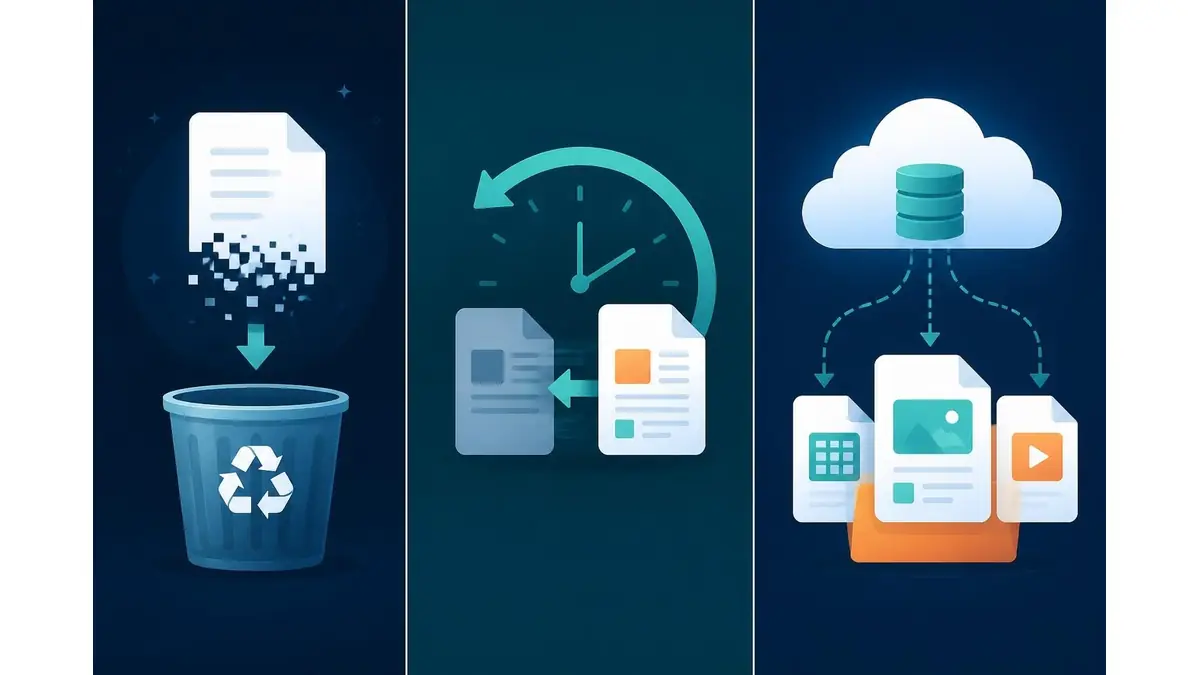
Disclosure: Images are original AI-generated editorial illustrations, not product screenshots or claims of hands-on testing. Information is general; recovery results vary by account, retention settings, backups and the nature of the incident.