

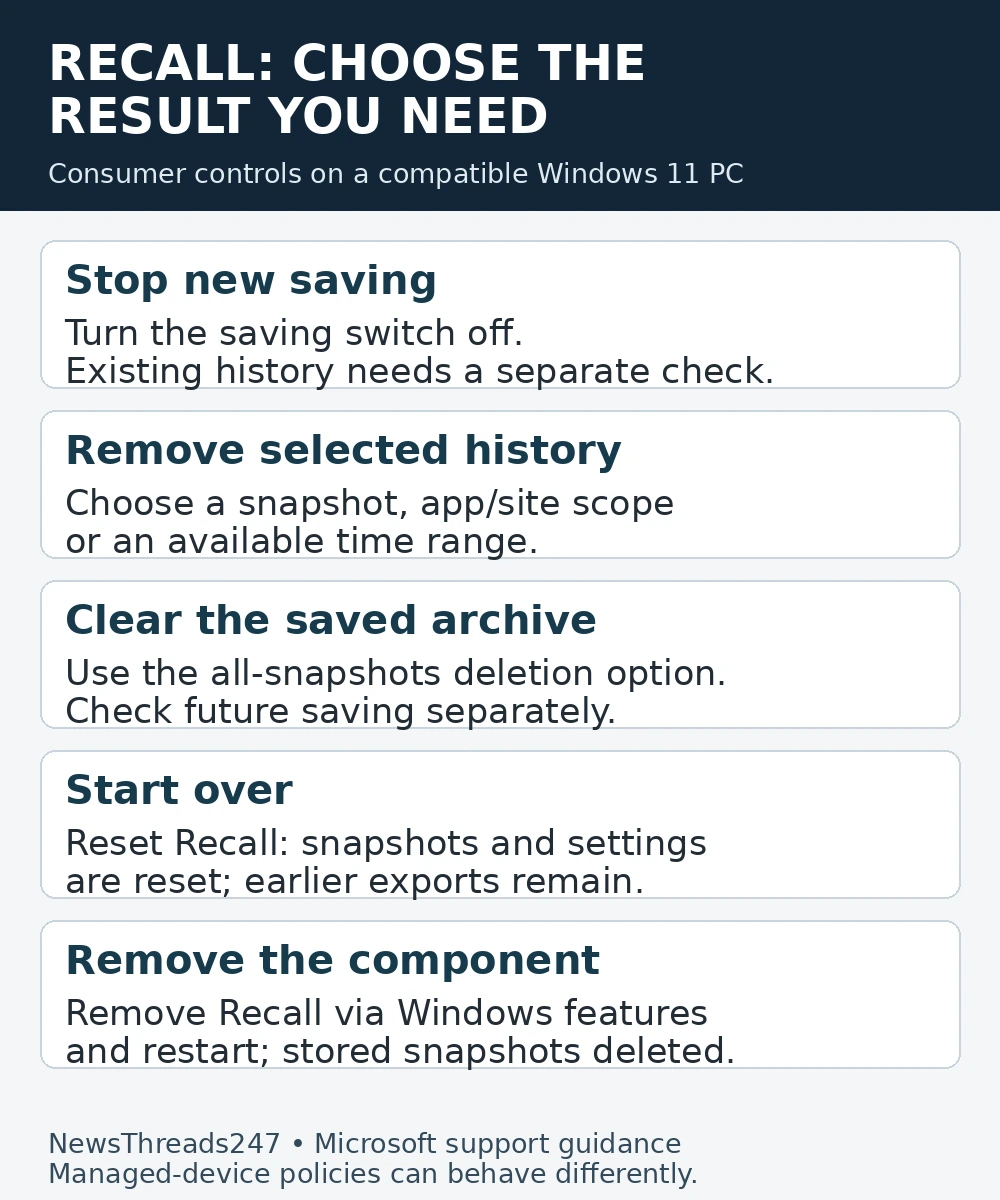
Turning off Windows Recall’s snapshot-saving switch stops new snapshots; clearing what Recall already stored is a separate action. If your aim is to stop collection and remove the existing history, check both controls. A pause, a deletion, a reset and removal of the feature have different consequences.
This guide is for Windows 11 users on compatible Copilot+ PCs in India and the US. It reflects Microsoft’s current support instructions checked on 30 October 2026. Recall is not a feature of every Windows 11 computer, and a work or school device can have different controls.
Decide what you want to remove
Start with the result you need. Someone taking a short break from Recall has a different problem from someone who wants to erase a sensitive afternoon, stop using the feature altogether or remove its components. Treating every action as “disable Recall” makes it easy to leave something behind—or erase more than intended.
Microsoft’s snapshot-management instructions describe separate saving, storage and deletion settings. A practical way to choose is to write down two answers: should Recall save anything from now on, and should the history already on this PC remain?
For example, imagine you enabled Recall while researching a purchase, then used the same computer for private paperwork. You might want to remove only that later period. By contrast, if you no longer want the feature, clearing one afternoon while leaving collection on does not achieve your goal. These are illustrative situations, not reports from testing.
Stop future saving, then address the history
Open Windows Settings, go to Privacy & security, then Recall & snapshots. Set the snapshot-saving control to off if you do not want further collection. Read any Windows Hello prompt before authorizing the change. Do not assume that the tray icon disappearing means the existing archive has been erased.
In the same settings area, expand the deletion controls. Choose the option for all saved snapshots if that is your intention, or select an available time range for a narrower cleanup. Check the scope before confirming: deleting a whole archive is a different decision from removing a recent session.
If you want to keep most of the history, Recall also offers controls from individual search results. Microsoft describes deleting one snapshot or removing saved snapshots associated with a selected app or website. Read the count and confirmation shown on your own PC; an app-wide cleanup can cover more than the item currently visible.
Why a pause or filter is not the same cleanup
A temporary pause is useful when you expect to resume saving. It is not a substitute for reviewing earlier captures. Similarly, adding a website or app to a filter list is a rule for collection; it should not be treated as proof that earlier material has disappeared.
Microsoft’s privacy documentation describes opt-in saving and local processing on the device. That is useful context, but local storage still needs your attention. A document does not become appropriate to retain merely because it is stored on your computer rather than uploaded.
Filters also have limits. Microsoft warns that filtering does not stop a browser, website, internet provider or organization from observing activity through their own systems. Clearing Recall is therefore a Recall cleanup, not a universal deletion of browsing records or online accounts.
Resetting and removing Recall
If you want to start over, Microsoft documents a reset under the advanced Recall settings. Resetting deletes the stored Recall snapshots and returns its settings to the initial state. Review the confirmation before doing it; resetting is broader than deleting a selected period.
If you want to remove the optional feature, Microsoft’s Recall guidance directs users to Windows features, where they can clear Recall and restart the PC. Its support documentation says previously saved snapshots are deleted when Recall is removed. Use the interface available on your supported device rather than copying registry commands intended for a different setup.
There is a separate boundary for material that has already left Recall. Microsoft’s export and reset documentation says a reset does not erase earlier exports or copies retained by a third-party app or website. Export availability is region-dependent; the documented export experience applies in the European Economic Area. Do not assume the same export controls are offered in India or the US.
Check the result against the original goal
After a change, return to the settings and confirm the saving state. If you intended to remove old history, reopen Recall and check the affected period or search results. An empty recent view alone is weaker evidence than checking the period you actually wanted to remove. If you removed the feature, complete the required restart before evaluating the outcome.
Keep the check proportionate. You do not need to create new sensitive material to test whether saving is off. Nor should you re-enable collection just to prove that deletion worked. Review the controls and history that are already there.
When the computer belongs to work or school
A managed PC is a separate case. Microsoft’s administrator documentation distinguishes organization policies from the ordinary consumer saving switch. Some policies delete snapshots when applied, and availability can depend on IT settings. That does not change what the consumer switch does.
If a setting is unavailable or managed, give IT a precise request: stop future Recall saving, remove existing snapshots, or remove the component. Avoid asking only to “disable the AI.” Do not try to bypass organization policy with a registry edit or a downloaded removal tool.
For another Windows cleanup where a label can hide a separate retention rule, see our guide to clipboard history and pinned items. Check each feature’s own controls rather than assuming one cleanup removes every kind of saved information.
Sources checked: 30 October 2026. This is a documentation-based explainer; it does not claim hands-on testing. Menu availability can vary by Windows build, hardware, region and organization policy.