
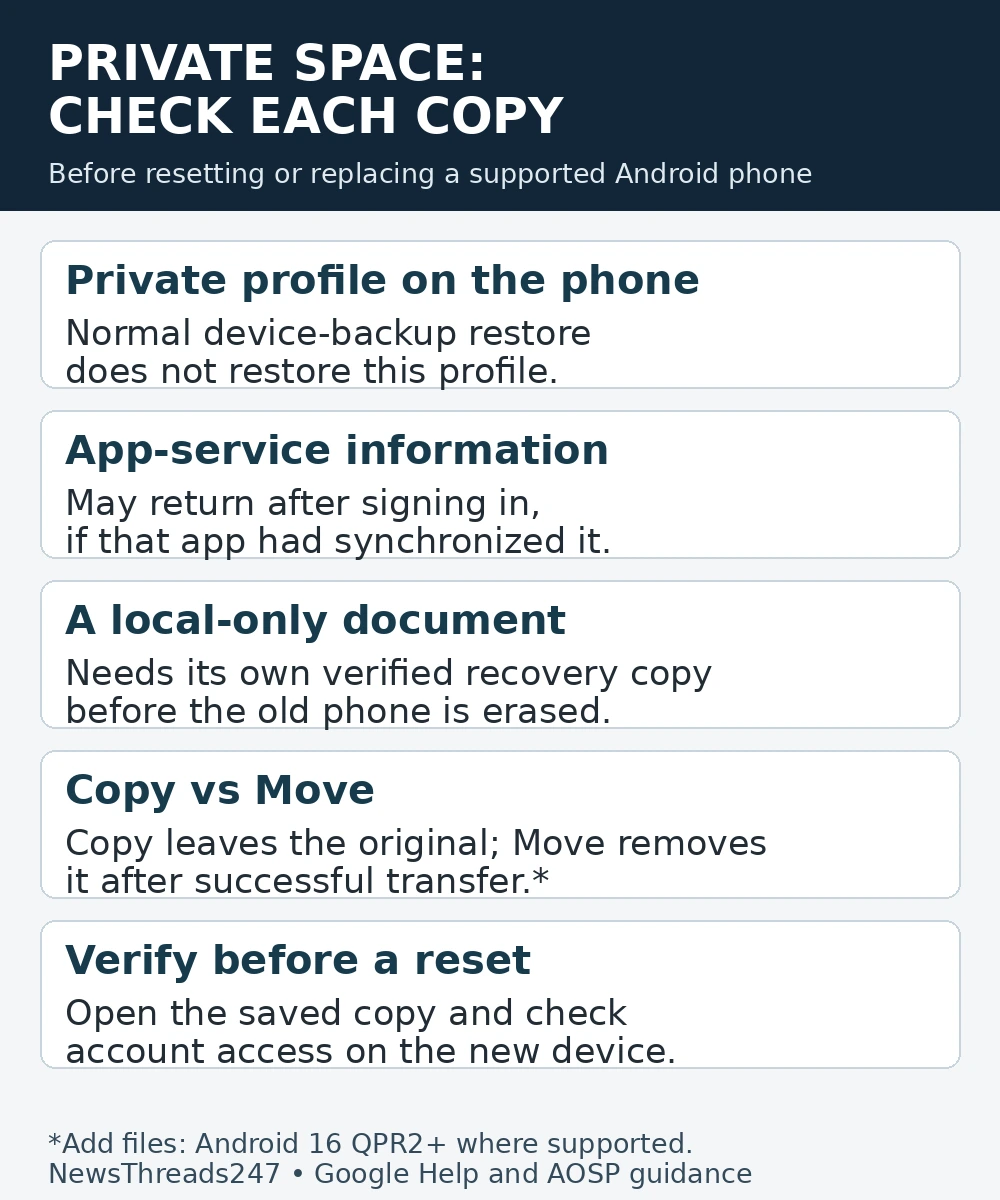
Android’s Private Space is not included in the normal device-backup restore. Before resetting, replacing or trading in a phone, check the data inside it separately. Signing back into an app may recover information held in that app’s cloud account, but it cannot be assumed to recover files stored only in the private profile.
That distinction matters more now that supported Android versions can move existing files into Private Space. Moving a document into a hidden area can improve separation on the phone while leaving you with only one copy. Privacy on the device and recovery after losing the device are separate questions.
First establish which feature your phone uses
This guide covers Google’s Android Private Space on supported Android 15-and-later devices, including eligible phones used in India and the US. It does not assume that another manufacturer’s similarly named vault, secure folder or private mode uses the same backup rules.
Open the feature’s settings and identify it before following reset advice. Google’s Private Space help page sets out eligibility and manufacturer restrictions. Android version alone does not establish that the feature is available on a particular phone.
Separate the profile from the account
The Android Open Source Project documentation, updated on 30 September 2026, describes Private Space as a separate profile. Installing an app there creates a fresh installation rather than transferring the main-profile app and its data. The same app icon can therefore lead to a different signed-in account or local collection.
Before a phone change, make an inventory by opening the private profile. For each important app, note which account is signed in and whether the information you need is local, synchronized with its service, or separately exported. Do not record passwords in an unprotected checklist.
A useful inventory entry is specific: “three PDFs visible in the private file manager, copied to the chosen secure destination and opened successfully.” “Phone backup complete” does not answer that question. The first checks the item; the second checks a different backup system.
Copy and Move leave different recovery positions
Google’s developer documentation says Android 16 QPR2 and higher can offer an Add files shortcut inside Private Space. Copy leaves the original in its earlier location; Move removes the original after a successful transfer. Devices on another build or using a different launcher may not present that shortcut.
Suppose you move five travel documents from the main profile into Private Space, then later erase the phone believing the regular device backup covers everything. The move has changed where the files live; it has not created an independent backup. This is an illustrative example, not a claim that the backup failed on a tested device.
Before erasing anything, locate those five files inside the private profile, choose an appropriate recovery destination and verify each copy there. A filename appearing in a list is only the first check. Open the copy and confirm that its contents are usable, especially if several documents have similar names.
Build a recovery plan without undoing the privacy goal
The right destination depends on why you used Private Space. Copying private material into an ordinary shared photo account might preserve it but expose it to people you intended to keep it from. A recovery copy should be both accessible to you later and appropriately restricted.
Work through one app at a time. Use that app’s documented synchronization or export process where offered. Confirm the destination account and what its process actually includes. A service may retain your messages or notes while leaving unrelated downloads on the old device. Avoid assuming that being signed in proves every item is uploaded.
Google’s consumer guidance distinguishes app-server synchronization from device backup: synchronized information can return after you sign in, while Private Space itself is not restored from the standard phone backup. For the broader backup layers, our Android app-restoration guide explains why an installed app is not proof that its information returned.
Check account access before surrendering the old phone
A preserved file is useful only if you can access its destination. Before a trade-in, confirm the account you will use on the replacement phone and the recovery method for that account. If an important app requires an approval from the old device, resolve that while you still have it.
Do this without weakening account security for convenience. Do not send recovery codes or passwords to a buyer, shop assistant or unknown “data recovery” service. If the phone belongs to an employer or holds regulated work information, follow the organization’s transfer and retention process rather than choosing a personal cloud destination.
Treat a successful sign-in as one checkpoint, then verify the specific material. For example, finding an old note proves that note is available; it does not prove a recently downloaded attachment was saved with it. Check the items you would be unable to replace.
Do not use deletion as a way to recover the lock
Google documents a deletion route using the device lock for someone who cannot unlock the private profile. That resets the space by erasing it; it is not a way to reveal its contents or recover the private lock. If the data is still needed, stop before confirming deletion and review any existing app-service copies first.
Deleting the private profile removes its apps and local data. It does not mean that every online copy associated with those accounts has been erased. If the goal is account-data deletion rather than a phone trade-in, that is a different task and needs the relevant service’s own controls.
The checks to finish before a reset
Before wiping the old phone, be able to answer four concrete questions: which feature did you use; which essential items existed only inside it; where can you now open the recovery copies; and can you access the required accounts without relying solely on this phone? If any answer is missing, the transfer is not ready.
A separate Google Account can improve separation between the main and private profiles, as Google recommends. It also creates another account you need to remember and recover. Keep that choice connected to an explicit recovery plan rather than relying on the word “private” as a promise of either perfect secrecy or automatic restoration.
Documentation checked: 30 October 2026. This guide describes Google’s supported Private Space behavior, not firsthand phone testing. App recovery varies by provider; check its current instructions before deleting local information.