
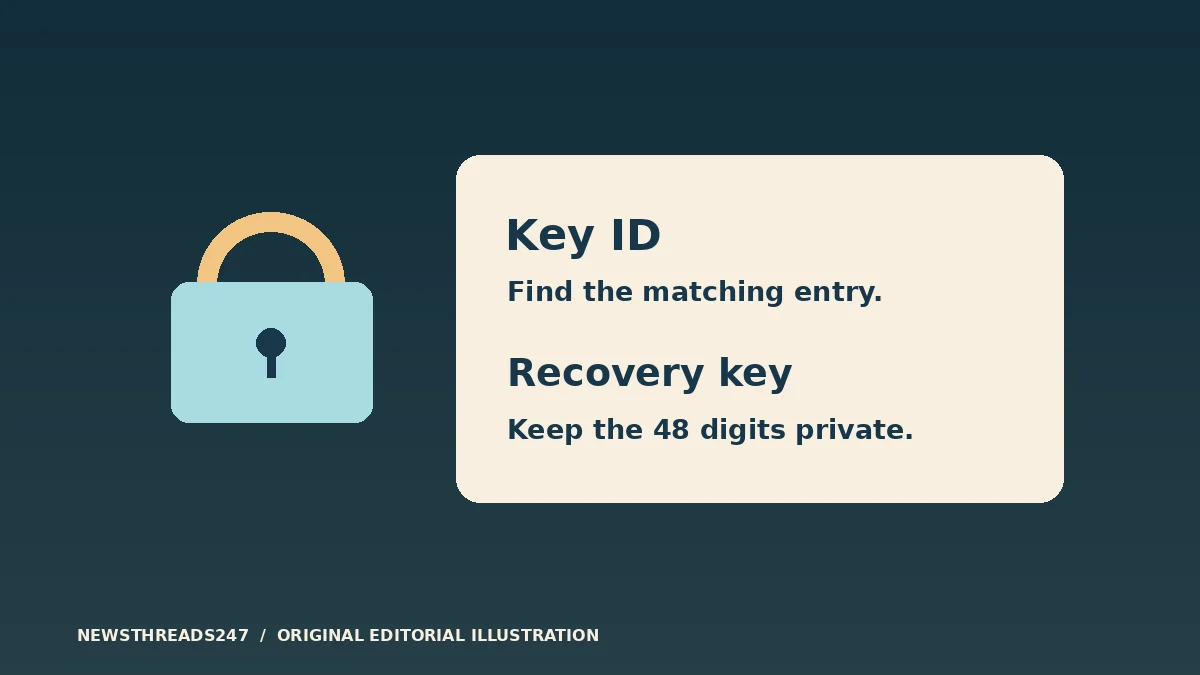
A BitLocker recovery screen shows a key ID to help you find the right recovery key. The ID is the label; the 48-digit recovery key is the secret that can unlock the drive. Before you reset the PC, note the displayed key ID and check the account or safe storage location where the device’s key was saved. A reset can remove the files you are trying to recover.
In this article
Use the identifier to match the right recovery key
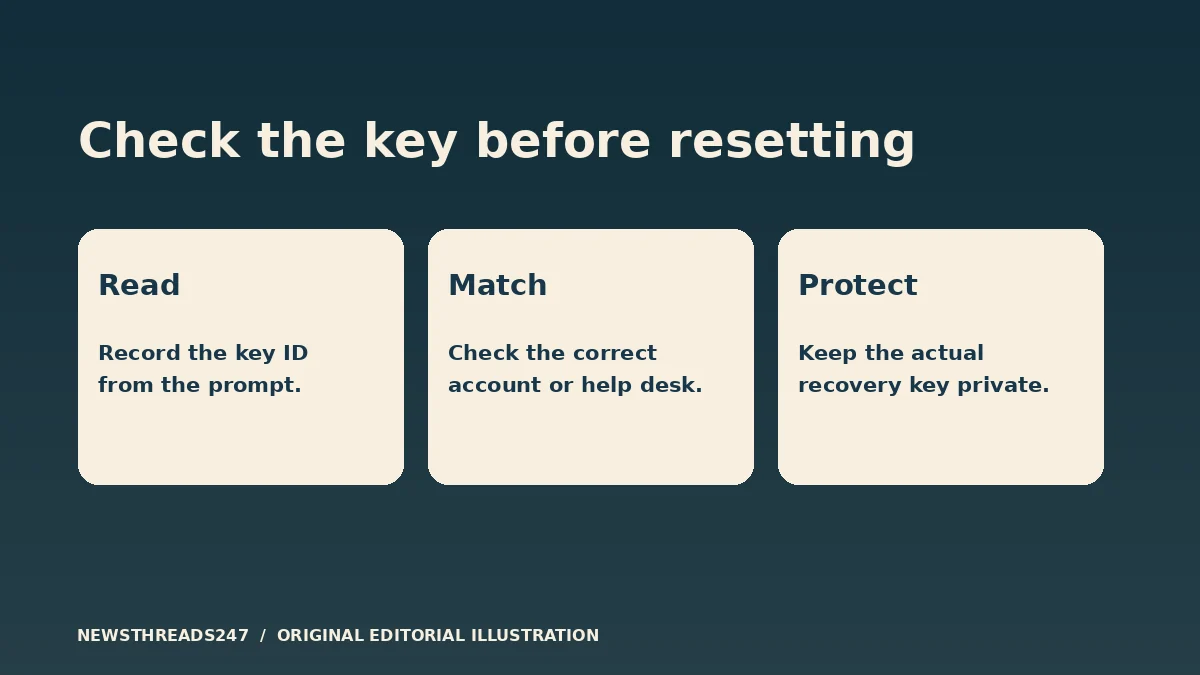
A Windows sign-in password or PIN does not answer the BitLocker recovery prompt. The screen appears when the encrypted drive cannot unlock normally. Microsoft’s recovery-key guide recommends noting the first eight digits of the recovery key ID so you can match the prompt to the right entry. You might find several entries with a familiar device name; match the ID rather than choosing by name or assuming the newest entry is right.
If you need help, share the fact that Windows is asking for BitLocker recovery through your organization’s approved channel. A technician may ask for the key ID to locate the record. Do not post the recovery key, a screen showing it, or your account credentials in a forum, public chat or unsolicited support conversation. Treat a printed or saved recovery key like a key to the device’s files.
Check where the key could have been saved
On a personal PC, use another trusted device to check the Microsoft account used to set up or enable encryption. Follow the account link in Microsoft’s recovery guide rather than using a search advertisement. In Windows 11 version 24H2 and later, Microsoft says the recovery screen may show a hint about the associated account. A hint can narrow the search, but the ID match still matters.
If someone else set up the PC or turned on encryption, the key may be in that person’s account. Have them check their own account; do not ask for their password. Also look for a printout or a USB drive if you saved the key that way. Work through plausible locations before deciding that it never existed. A device name in your account, by itself, is not evidence that its current key is saved there.
Route a work or school device to its administrator
If the machine is managed by a workplace or school, use its help desk. Microsoft’s BitLocker recovery overview explains the distinction between personal accounts and keys backed up to an organization’s directory. Which people can retrieve a key depends on the organization’s setup and access policy.
A personal device used for work may still have its key under a personal account; an organization-managed device can have a different process. Ask where to submit the key ID and how the administrator will confirm the device. Do not try to enroll, remove management from or change the security settings on a managed PC to resolve the prompt yourself.
Compare the ID before you make an irreversible choice
Imagine a family has two entries that both look like the same laptop. One key ID starts with “ABCD,” and the prompt shows “A1B2.” These shortened labels are fictional; neither is an actual key. The visible laptop name is not enough to use the first entry. Continue looking for the record with the matching ID and use the separate 48-digit value only after you have identified it.
If a matching key fails, recheck the digits and seek the vendor’s or administrator’s official help. Stop before changing firmware settings, clearing a security chip, or formatting the disk. Those steps can make recovery harder, and a firmware or hardware change may be the reason the recovery screen appeared. If you know exactly what changed, Microsoft’s guide describes the possibility of reversing that change; for a managed PC or an uncertain change, ask support instead of experimenting.
Microsoft says its support team cannot recreate a lost recovery key. If you cannot find the key and cannot undo the change that triggered recovery, the reset option described by Microsoft removes files. Establish which copies you can actually recover before going further. On a separate device, check whether the files you need open from your backup. A cloud folder appearing on a new PC does not prove that all files on the locked drive were synced; the Windows backup and OneDrive guide explains that difference.
Make the next recovery easier after Windows opens
Once you have access again, check how the current recovery key is backed up, follow the policy for the device and confirm you can retrieve the matching entry without relying on the affected PC. Keep the key somewhere protected and separate from the encrypted machine. Keep independently recoverable copies of important files. If prompts recur, record when they began and seek official guidance before modifying encryption or firmware.
Recheck the procedure after a Windows version change, hardware repair, ownership transfer or change in workplace management. The useful habit is simple: know where the key lives, and know whether your files can be restored separately if the drive cannot be opened.