
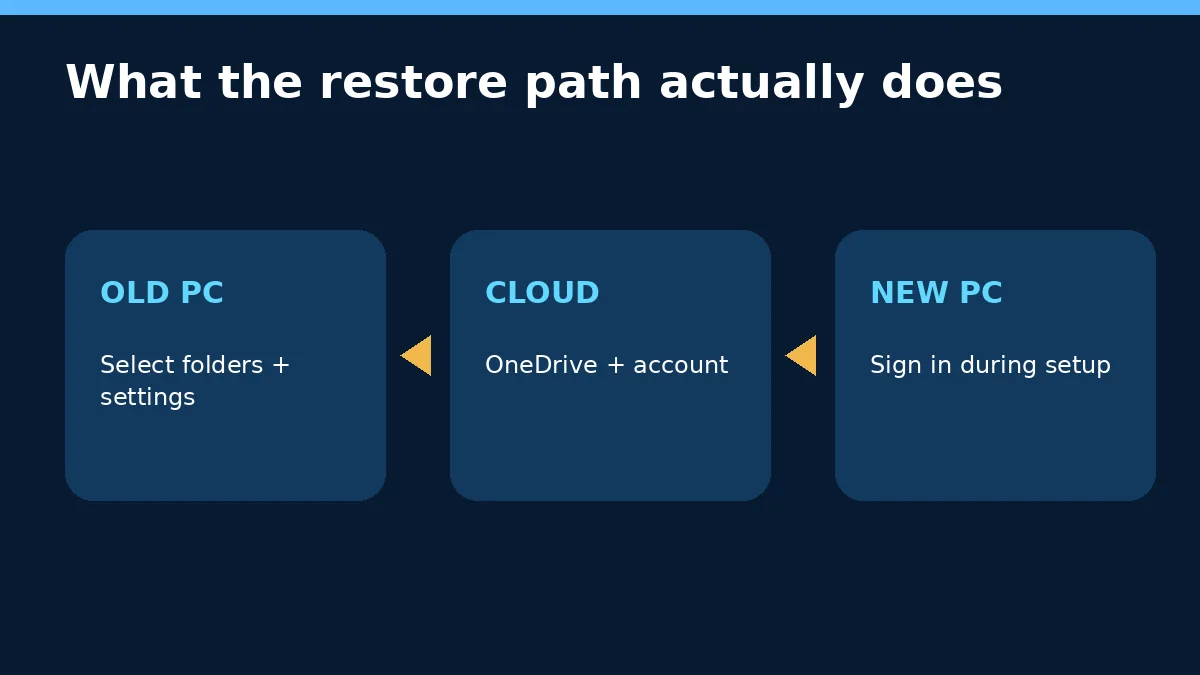
Windows Backup helps move selected files, settings and app references to a new PC, but it is not a complete disk image. Its folder protection uses OneDrive sync, while Windows settings and the remembered app list travel through your Microsoft account. Programs, local folders outside the selected set and every app’s data do not automatically reappear.
That distinction matters before a reset, repair or computer replacement. A screen that says “Backed up” can be accurate for one layer while an important project folder, desktop program or licence remains only on the old drive. The safer method is to identify each data type and test the restore path before erasing anything.
What Windows Backup includes
Microsoft’s consumer Windows Backup app can protect selected folders through OneDrive, remember many Windows preferences, and retain a list of installed applications. It is designed around signing into a new or reinstalled PC with the same personal Microsoft account during setup.
| Layer | What is retained | Main limitation |
|---|---|---|
| Selected folders | Desktop, Documents, Pictures, Videos and Music when their toggles are on | They use OneDrive storage and sync status must complete |
| Windows settings | Many accessibility, account, Wi-Fi, personalisation and language preferences | The exact setting catalogue varies; not every app setting is included |
| Installed apps | A remembered app list and Store restoration links where supported | Traditional desktop apps may need downloading, installation and sign-in again |
| Other local data | Only if separately copied or placed in a protected folder | Downloads, custom folders, virtual machines and archives can remain local |
Why OneDrive folder backup is still sync
When Windows Backup turns on folder protection, the chosen folders are synced into OneDrive. That gives you cloud access and makes those files available on another signed-in PC. It also means normal sync behaviour applies: changes and deletions can propagate, storage limits matter, and a blue cloud icon does not mean every file has a local offline copy.
Check the OneDrive status before relying on it. Open the cloud icon, look for “Up to date,” and inspect any sync error. Microsoft says a sign-in problem, insufficient storage or another OneDrive issue can stop the folder part of Windows Backup from completing.
What it does not reinstall for you
The app list is not the same as a captured copy of each program. Microsoft Store applications may be offered during restoration, but desktop programs can require a fresh installer, licence key, activation or vendor sign-in. Work and school accounts also follow different rules; Microsoft’s consumer Windows Backup workflow is centred on personal Microsoft accounts.
Application data needs its own check. Browser profiles, email archives, accounting databases, game saves, virtual machines, development folders and specialist program settings may live outside the selected folders or use their own cloud service. Microsoft’s enterprise FAQ is explicit that Windows settings backup restores settings and the Store app list rather than every app setting.
A new-PC restore is not the same as disaster recovery
The consumer workflow is strongest when moving to a new Windows 11 PC or completing setup after reinstalling Windows. It does not provide the same result as a sector-by-sector disk image that can reproduce an entire drive. If the old storage fails before unprotected data is copied, the Windows Backup status cannot recreate data it never uploaded.
Use a second copy for irreplaceable files. Microsoft lists an external hard drive or network drive as an appropriate option when internet access is limited or the data set is large. A cloud copy plus an independent offline copy also reduces dependence on one account or one sync state.
Before erasing the old computer
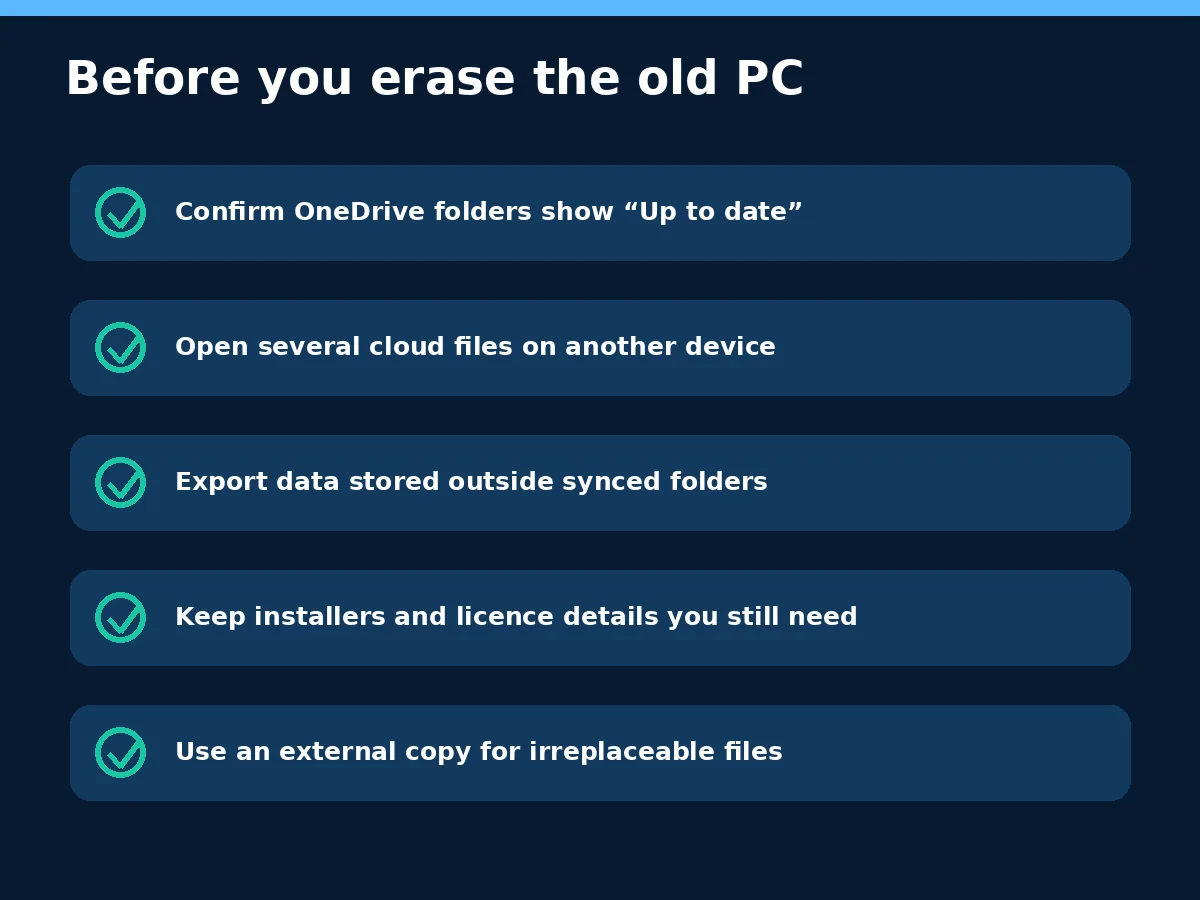
- Open Windows Backup and verify each selected category rather than relying on one headline status.
- Open OneDrive and resolve storage, sign-in or sync errors.
- On another device or in OneDrive on the web, open several recent files instead of only checking filenames.
- Copy Downloads, custom folders, local email archives and other data outside protected folders.
- Save installers, licence information and recovery codes needed for programs and accounts.
- Keep an external copy of irreplaceable files until the new PC has been tested.
If a file was deleted or overwritten
A completed sync does not guarantee that an earlier version remains forever. OneDrive has its own recycle-bin and version-history tools, and their availability depends on the account and file state. Our OneDrive recovery guide separates deleted-file, previous-version and whole-OneDrive recovery paths.
A practical migration test
Before resetting the old machine, sign into the same OneDrive account in a browser or on the new PC. Open a recent document, a photo and one large working file. Then list the programs that matter and confirm how each will be reinstalled and where its data is stored. A five-minute test is more reliable than assuming a green status covers every layer.
Files On-Demand needs one extra check
OneDrive can show an online-only file in File Explorer without storing the full file locally. That saves disk space, but it affects an offline migration. If you need a complete local copy, mark the important folder to remain on the device and wait for download to finish, or copy from OneDrive to an external drive while connected. Confirm by opening files after disconnecting from the network.
Do not copy OneDrive placeholder files from an old PC and assume the contents came with them. The dependable test is whether the file opens, has the expected size and is available from the destination you plan to keep.
Personal and work accounts are different
The consumer Windows Backup app uses a personal Microsoft account. A company-managed PC may use Microsoft Entra, organisation policies, enterprise sync or a separate backup product. Ask the administrator before moving corporate data, and do not mix work records into a personal OneDrive account merely to make a migration easier.
Sources and scope
Primary sources checked on 5 November 2026: Microsoft’s Windows Backup and restore guide, its backup-solution comparison, the OneDrive folder-backup guide, and the Windows settings backup FAQ. Menu labels and available options can vary by Windows version, account type and organisation policy.