
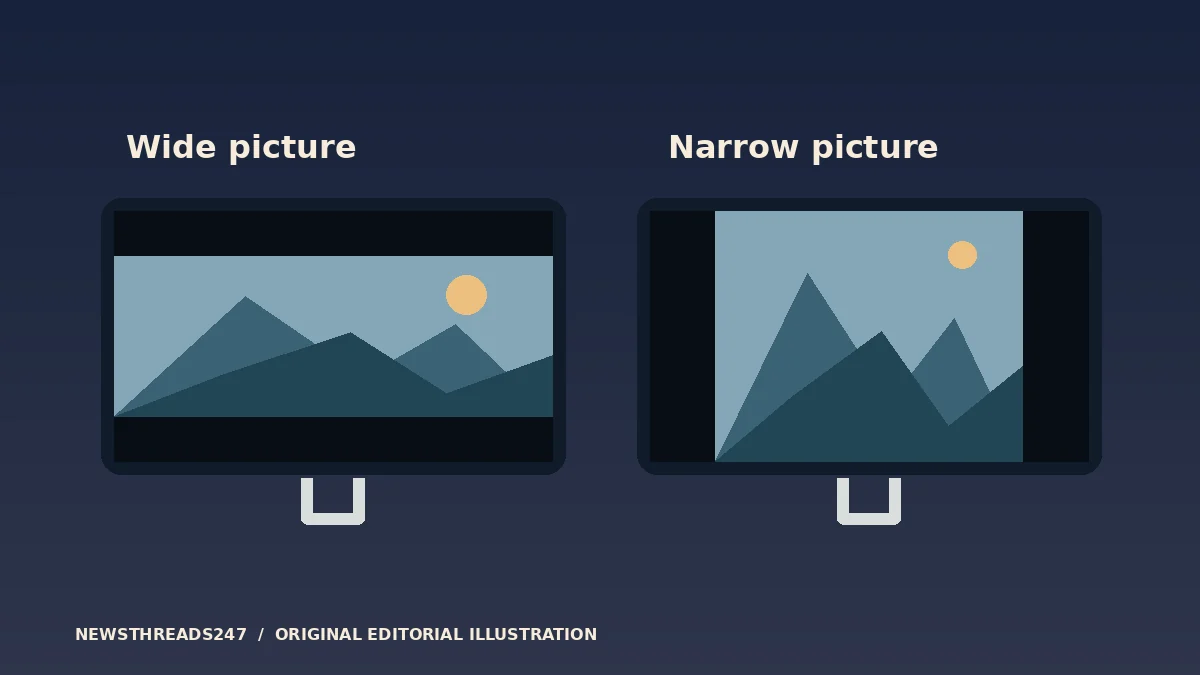
Black bars above, below or beside a movie can be the sign that your television is showing the whole picture. Before changing the screen size, check whether you can see the film’s edges and whether people look normally proportioned. If the image fits without stretching or cutting anything off, the bars may simply fill the space between the shape of the film and the shape of your screen.
In this article
A wider screen cannot make every film fill it
Aspect ratio describes a picture’s width relative to its height. A typical widescreen television is 16:9, or about 1.78 times as wide as it is tall. A movie with a wider image can fill the television from left to right while leaving unused space above and below. A narrower image can fill the height while leaving space at the sides. These arrangements preserve the composition of the picture.
Netflix’s black-bar explanation says that some titles use a format wider than the screen, so the bars allow the original picture to appear without stretching. That does not tell you that every black border is correct. A playback fault or an unsuitable television setting can also change how a picture fits. Look at the film and its surroundings before assuming one cause.
For example, a deliberately narrow older film can have bars on the sides even though its title menu fills the display. You are looking at two different pictures with different shapes. Making the menu fill the screen does not establish that the movie should fill it too.
See what a zoom would remove
Consider an illustrative 1920-by-1080 screen showing a film with a 2.39:1 image. To preserve the full film width at 1920 pixels, its height would be about 803 pixels. That leaves about 277 pixels of unused height, or roughly 138 above and below. The figures are rounded geometry, not a measurement of any particular streaming title.
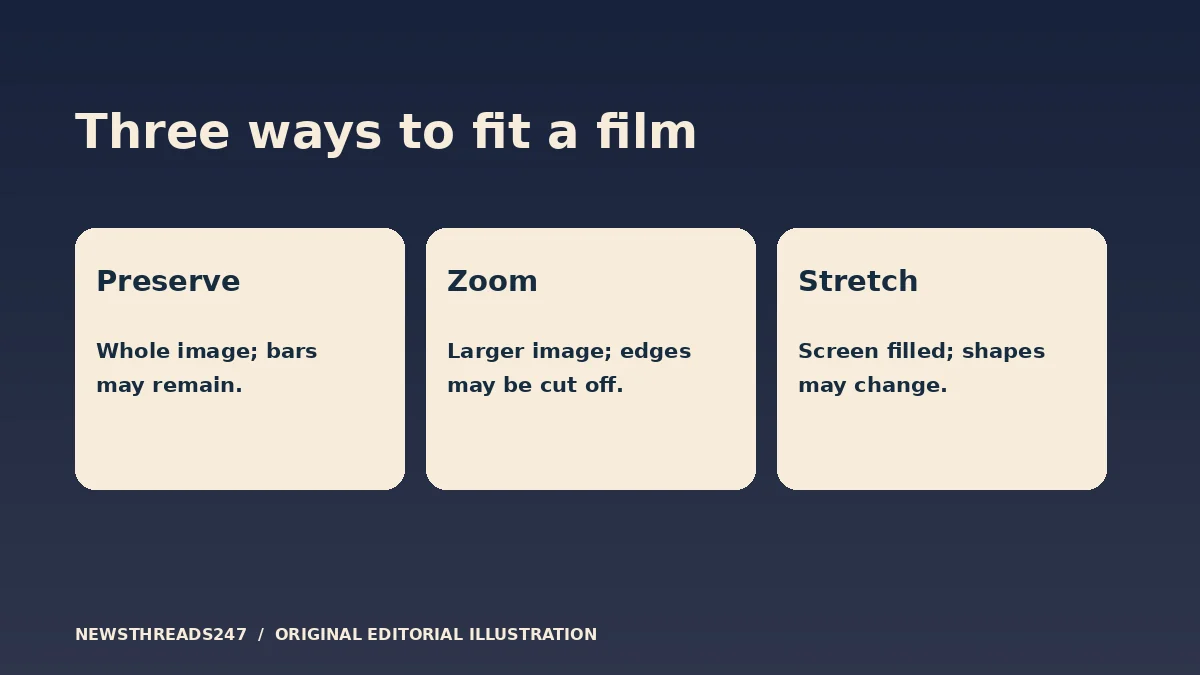
To fill the screen’s height, the same film image would have to become about 2581 pixels wide. The screen can show only 1920, so around 661 pixels of the enlarged width would sit outside the display. A centred crop would lose about 330 on each side. The bars have disappeared, but the missing space has been exchanged for missing picture.
Stretching is a different compromise. It reshapes the image to fit the display instead of preserving its proportions. A face may look wider or taller, a circle may become oval, or a carefully framed group may look unnatural. Cropping changes what is visible; stretching changes the shape of what is visible.
Compare the picture before changing settings
Choose a paused scene with people or objects near the edges. Read the screen-size or aspect-ratio instructions for your television and compare its normal fit with its zoom setting. Do this for the input you are actually watching: an app inside the TV can behave differently from a streaming box on an HDMI input.
Sony’s picture-size guidance explains that the way source material was recorded and the screen setting affect the result. Your model may use labels such as Full, Original, Normal, Zoom or a similar term. The names alone do not reveal whether an option crops or stretches. Consult the model’s manual, then look again at the same paused scene.
If the film remains correctly shaped with bars, that can be the appropriate setting. If subtitles are cut off, an actor near the edge disappears or the video looks enlarged, the Netflix zoomed-video guide is a better starting point than a search for ways to eliminate bars. Check the output and TV settings before blaming the movie file.
Some films change shape during playback
A title can contain scenes with different framing. Bars may grow, shrink or move as it switches between compositions. That observation by itself does not establish that the television is failing. Check whether the changes repeat at the same moments in the same title and whether the app’s controls and other programmes look normal.
Likewise, a trailer, a poster and the main feature may use different framing. Compare the same scene in the same edition before concluding that a service has cropped it. Our movie-edition guide explains why a theatrical cut and another release may differ for reasons beyond picture shape.
If the picture is unexpectedly surrounded on all four sides, or every title is cropped in the same way, gather details for support: title, app, device, input, selected picture mode and a description of what is missing. Avoid sharing private account details or a photograph of personal information. The relevant observation is the shape and location of the picture.
Choose the trade-off consciously
Preserving the full image is usually the simplest starting point for watching the intended composition. You can still choose a zoom for a particular viewing need, but check what it removes first. Bigger is not a separate version with more detail: a zoom enlarges the available image and may discard its edges.
Recheck the setting after changing a streaming box, television, app or input. If a correctly framed movie has black bars while another fills the screen, that is often the expected consequence of different image shapes. The useful question is whether the movie fits faithfully, not whether every pixel of the television is occupied.