
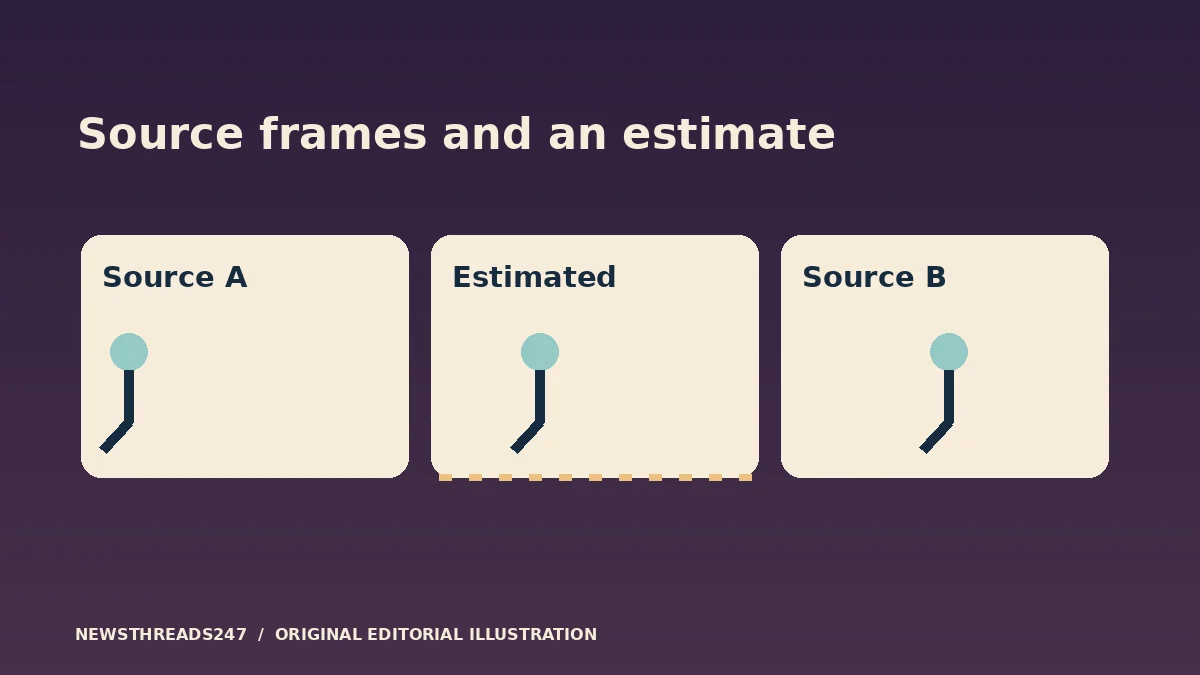
If a film suddenly looks like live studio video, your TV may be adding motion smoothing. Pause the search for a sharper stream and compare the same short scene with motion processing enabled and disabled. A slow camera pan or a person walking across the frame can help you decide whether the television is changing the movement you notice.
In this article
Motion smoothing changes timing, not just sharpness
Some televisions estimate extra frames between the frames supplied by a video. This can make movement look smoother, but it can also change the character of a movie or create visible errors around moving objects. The familiar “soap opera effect” refers to the unusually fluid appearance viewers sometimes notice when that processing is used on a film.
Do not equate this with every high-refresh-rate screen or every high-frame-rate production. The panel refresh rate, the frame rate of the programme and the processing applied to it are different things. A screen can refresh many times each second while showing each source frame more than once. Interpolation goes further by estimating images that were not in the source sequence.
Samsung’s motion-smoothing guidance describes how Auto Motion Plus or picture-clarity controls can affect the result. Sony’s Motionflow explanation describes its own motion technologies. Neither set of menu names is universal, and not every control within a motion menu does the same job.
Use one scene and one setting
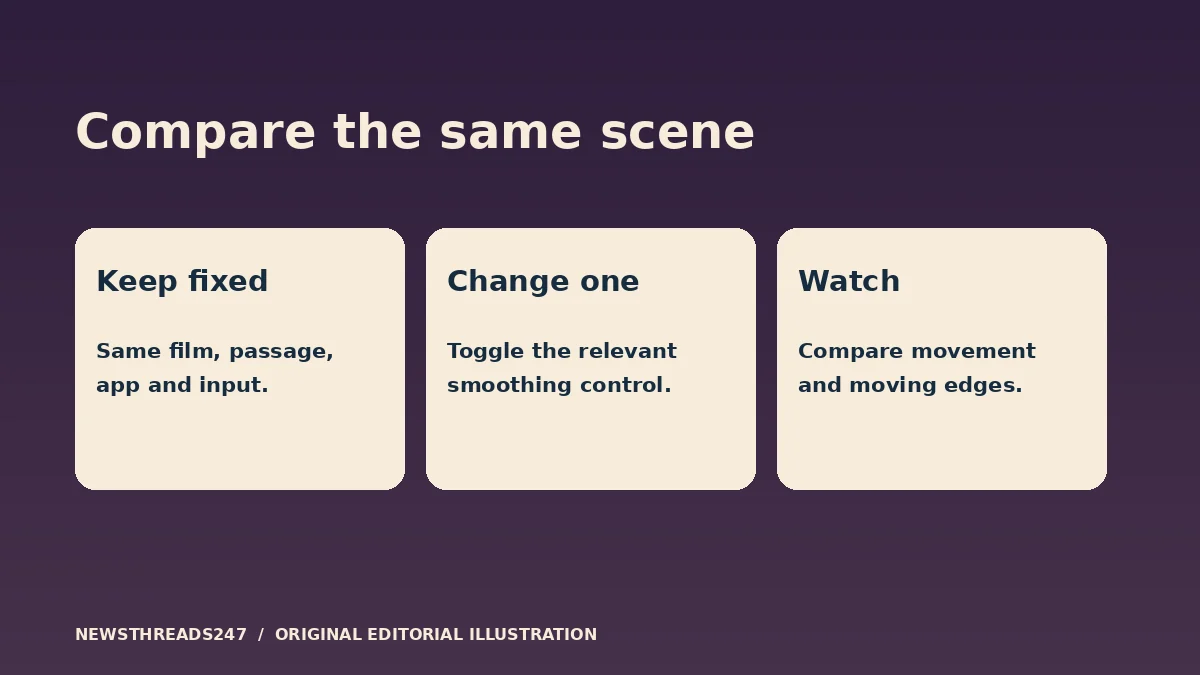
Write down or photograph the current setting before changing it. Choose a short scene you can replay, and use the same app, episode or movie edition and input each time. Compare movement with the relevant smoothing control enabled and disabled. Keep the picture mode and other settings steady while making the comparison.
Watch the edge of a moving person and the objects behind them, as well as how fluid the overall pan looks. If the effect disappears when you disable interpolation, that is useful evidence about the processing rather than the streaming connection. If playback is still stopping, buffering or freezing, those symptoms require a different check.
A low-frame-rate pan can show visible stepping when interpolation is off. That does not by itself mean the screen or source is faulty. You may prefer the stepped motion, a small amount of smoothing or a different preset. Decide from the scene you actually watch rather than from a claim that one numbered setting is right for every television.
What Filmmaker Mode changes
The Filmmaker Mode project presents its mode as a way to preserve creative intent, including the frame rate and image shape, while disabling processing such as motion smoothing. It is a coordinated picture mode, not a guarantee that every stream is the same master or that your room needs no other adjustment.
The project’s FAQ describes how supported TVs may offer manual selection or automatic switching. Availability and operation depend on the model and the content path. Look for your model’s instructions, especially if you move between built-in apps and an external player.
If you use a filmmaker-oriented preset, compare it under the lighting in which you normally watch. A mode that looks different from the shop display is not automatically too dull or defective. At the same time, a preset is not a substitute for accessibility choices that help you see and follow the programme. Keep those needs separate from a claim about the director’s intended motion.
A smooth movie and a full screen are different decisions
Turning motion smoothing off does not mean the film should lose black bars. Aspect ratio controls decide what portion of the image is shown and how it fits; motion processing decides how the movement is presented. Netflix’s black-bar guide explains why preserving the original shape can leave unused screen space. When diagnosing an odd picture, change one of these at a time.
A different movie edition can also have different framing or content. If you compare two services or versions, make sure you are watching the same passage before blaming a television setting. For a cleaner test of smoothing, keep the title and source fixed and change only the relevant control.
Sports, games and films can invite different preferences. You do not have to use the same motion setting for everything. Check whether a preference belongs to one input, one picture mode or all sources before assuming that changing it once has changed every app.
Leave yourself a way back
Save a short note with the app or input, picture mode and smoothing setting that worked for you. Recheck after a reset, firmware change or switch of player if the same artificial-looking movement returns. Avoid copying a stranger’s full calibration list for another model: unrelated adjustments can obscure the original problem.
If the fault remains with processing disabled, describe it precisely to support. “The pan moves in small steps,” “a halo follows the player” and “playback pauses every few seconds” point to different investigations. That description is more useful than assuming everything that looks unusual is the same soap opera effect.