
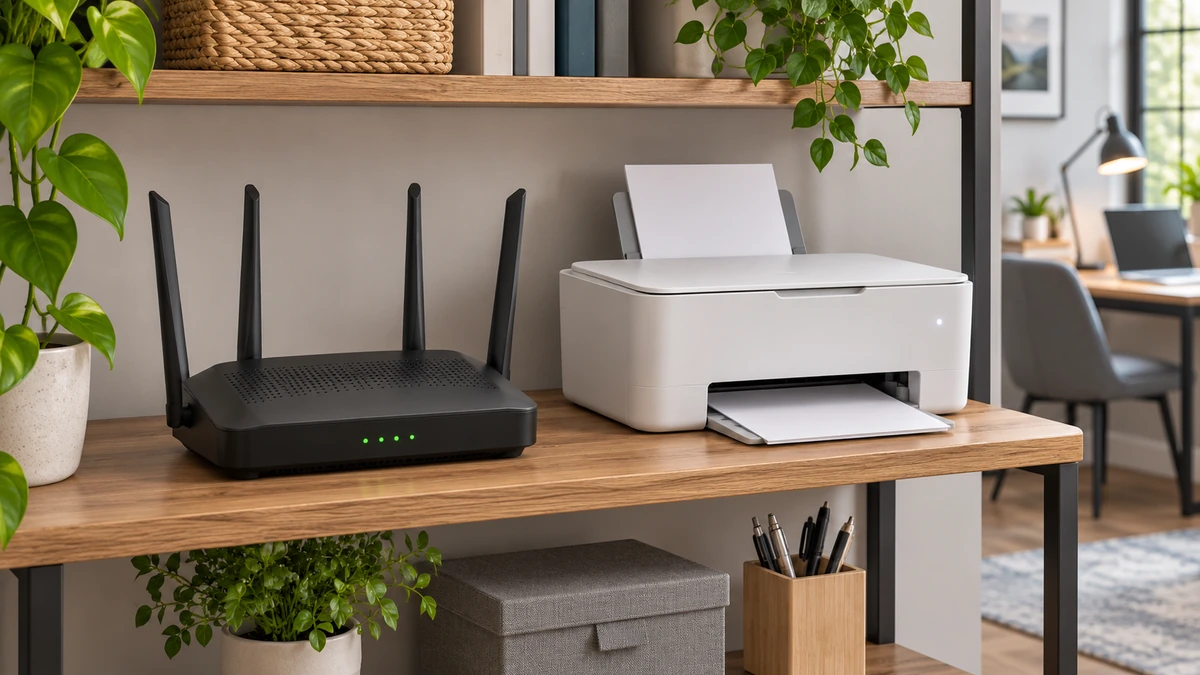
When an iPhone app asks to find devices on your local network, ask what you were trying to make it do. A printer setup app may need to discover a printer on your Wi-Fi. An app that has nothing to do with devices in your home may work perfectly well without that permission. You can decline, try the feature you actually need, and change the decision later.
In this article
What local network permission controls
Apple’s local network guidance says apps that want to interact with devices on your local network can ask for permission. A network can connect a phone to a printer, speaker or other nearby device even when that particular interaction does not require the internet. The permission is about reaching devices on that network in ways that need access; it is separate from permission to use your photos, microphone, Bluetooth or precise location.
Declining is not the same as switching your Wi-Fi off. An app can often still talk to its internet service, and Apple notes that some system services, including AirPrint or AirPlay, may still work even when the app itself cannot browse the local network. The app maker’s device-discovery feature and the system’s own print or playback interface can take different paths.
Start with the task you opened the app to do
Say you installed a printer app so you can find a printer that is already on your home Wi-Fi. The request has an obvious connection to that task. If instead you see it while reading an article in an unrelated app, you have less reason to grant it. Decline when the connection is unclear, and look for an explanation in the app’s help when something stops working.
Test printing with a blank or disposable sample first. That lets you isolate whether printing works without sharing a file unnecessarily. Check the printer’s normal setup instructions and which Wi-Fi name each device is using. A phone on the home network and a printer isolated on a guest network may fail to see each other even if the permission is on.
Change one app’s setting and retest
On supported iPhones, open Settings, choose Privacy & Security and look for Local Network. The list shows apps that have requested the permission. Change the switch for the app you are testing. Return to the app and try the same device-discovery action again. If the app has not requested access, it may not yet appear in the list.
The Apple iPhone user guide to privacy controls explains how permissions are managed. If the app offers two ways to reach your device, try them separately. For example, try the app’s own “find a printer” action, then an available system print action. If the latter works and the former does not, you have useful evidence that the failure is in one route. Recheck the phone’s settings labels when Apple changes iOS or if your iPad has a different software version.
Separate a permission problem from a network problem
Use a lawful home or office network you are authorised to use. First confirm that another permitted device can see the printer or accessory. If it can, check the app’s local-network permission on the iPhone and run the same discovery step twice, with one setting changed. If neither device can see the accessory, check whether the accessory is ready and reachable rather than flipping multiple permissions on the phone.
Our guest Wi-Fi local access guide explains one common complication: guest networks can restrict local connections, and some routers let the owner make exceptions. A request for Bluetooth during initial pairing may be another distinct step; read the maker’s instructions rather than assuming a Local Network switch also controls Bluetooth. Ask workplace IT before changing the configuration of managed equipment.
Keep the setting you actually need
Once a feature works, try turning the access off again if you only needed it for a one-time task. If discovery stops and you need the app regularly, the working test gives you a reason to keep access for that app. If both paths keep working without access, leave it off and use the narrower path. A permission audit is easier when based on a specific feature and repeatable test.
Apple’s privacy overview distinguishes several other controls, including location and access to information stored on the device. Opening the right permission screen saves you from making unrelated changes that do not solve the problem.