
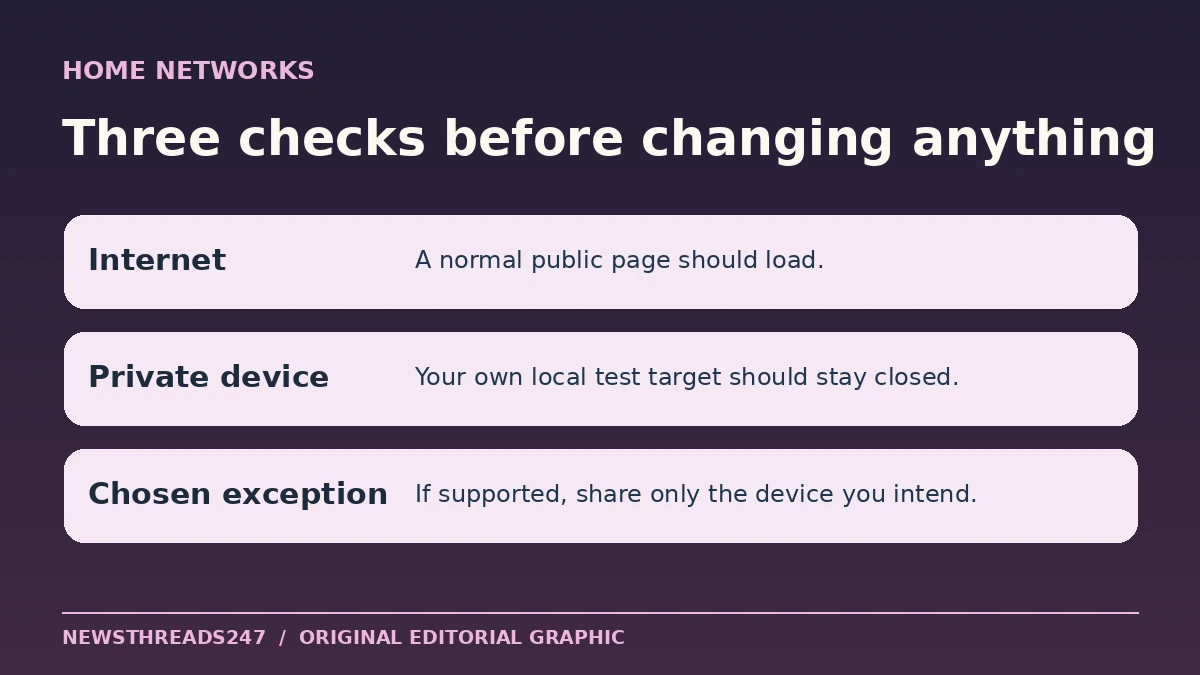
A guest Wi-Fi network is useful when it lets visitors get online without giving them access to the devices you want to keep private. A second network name and password alone do not prove that boundary. Check your router’s guest access settings, then use a guest device to test one private local target and any deliberate exception before you share the password.
In this article
Decide what visitors should be able to reach
Start with a concrete choice. A visitor might need a web connection and nothing else. A house guest might also need the living-room printer. Your personal laptop, network storage and router administration page generally do not need to be part of that arrangement. List one thing guests should reach and one thing they should not before opening the router app. A clear target makes the test easier to interpret.
Router vendors describe two different boundaries. TP-Link’s guest-network guidance distinguishes access to the main local network from communication between guests on the guest network itself. Preventing two visitors’ phones from talking to each other is a different setting from preventing either of them from reaching your home printer. The names can vary by model and firmware, so check what each setting does in the manual for your router.
Review local access before handing out the password
Use the official app or address you already use to manage your own router. Look for a guest or visitor network profile and read any option for access to the local network or intranet. On models covered by ASUS’s support instructions, turning off intranet access denies guests access to the internal network. That example illustrates the setting to look for; it is not a menu path that applies to every ASUS router or to other brands.
Use a guest password different from your main network’s password. Choose the strongest encrypted mode that your router and the intended guest devices support, rather than switching the network to open to solve a connection problem. If your router supports sharing specific devices, start with no exceptions and add only what you need. Other systems may offer no per-device choice.
Test from the guest side, then repeat on the main network
Use a phone or laptop you control. Disconnect it from the main Wi-Fi, join the guest network and verify the network name shown on the device. Temporarily turn off cellular data if you are using a phone, so a loaded webpage actually tests Wi-Fi. Try a normal public website. If that fails, solve the connection problem first; our guide to Wi-Fi connected but no internet helps distinguish connection from access.
Next, try reaching one device you own that you expect to keep private. A familiar local printer status page or a local service you already use is a better test than guessing addresses or scanning the network. First confirm that the same target is reachable from the main network on the same test device. Then repeat from the guest network. If it works on the main network and fails on guest Wi-Fi, you have evidence about that target and setup. If it fails on both, the test is inconclusive. A sleeping printer or a local device firewall can make both attempts fail.
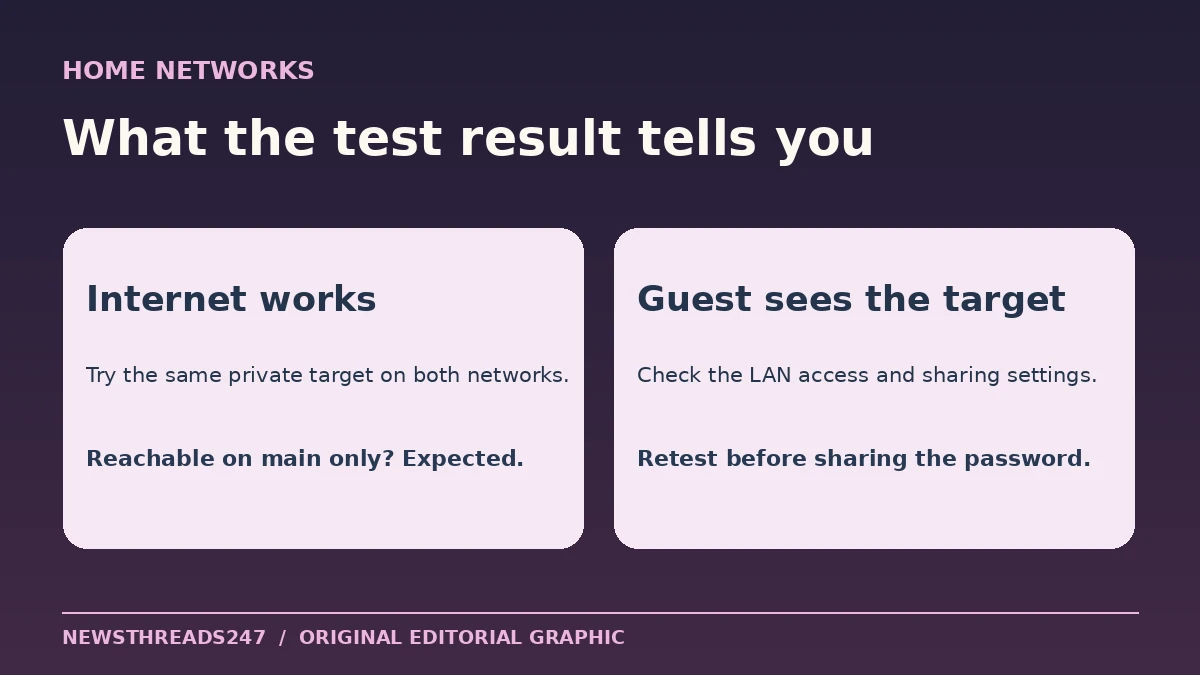
A device disappearing from an app does not by itself prove that traffic to it is blocked. Some apps discover devices automatically, and an existing sign-in to a cloud service can still show information that did not travel directly across your local network. A local address or another known local action makes the comparison more useful. One blocked test target is still only a spot check, not proof of complete network isolation.
Share one device deliberately, if your router allows it
Imagine a guest needs the living-room printer for a boarding pass. Keep the private-device test in place. On a system with selective sharing, add only the printer and try printing a harmless page from the guest device. Test the private target again afterwards. This gives two separate results: the convenience you wanted works, and the device you chose to keep private still fails the test.
If your router only offers an all-or-nothing local access switch, decide whether sharing the file another way is simpler. Turning on broad access for a single print job may make more devices reachable than you intended. If you changed an option temporarily, switch it back and verify again before sharing the guest password.
Retest when the network changes
Keep a short note of the guest settings, the private target you checked and any exception you allowed. Retest after a router replacement, a firmware upgrade, a reset or a switch in router or access-point mode. If your guest device unexpectedly reaches the private target, stop sharing the password until you understand the setting and have repeated the comparison. A tested boundary is more useful than a reassuring network name.