
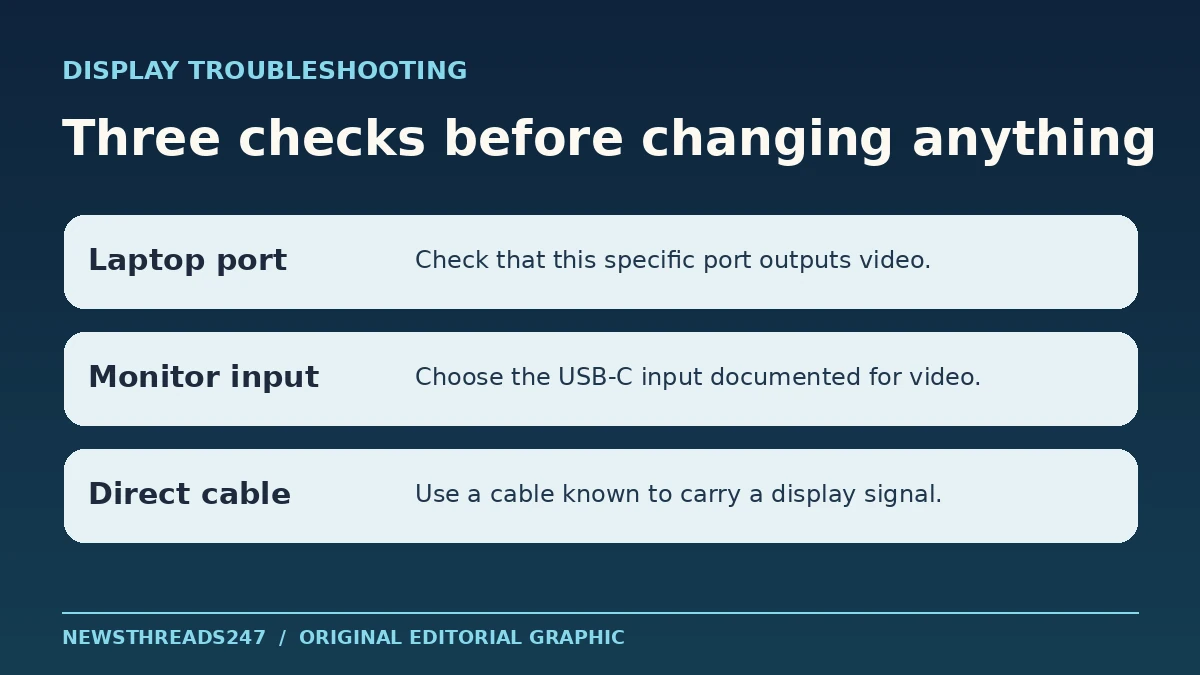
If a USB-C monitor charges your laptop but shows “No Signal,” start by testing the video connection directly. Use a laptop port documented for display output, the monitor input documented for USB-C video, and a cable known to carry that signal. Leave the dock out for this first test. The charging icon tells you that power is flowing; it cannot tell you whether the laptop has sent a picture.
In this article
Check the laptop port you actually used
USB-C describes the connector’s shape. Two ports on the same laptop can look identical while supporting different jobs. In the manual for your exact model, look for a diagram that identifies the port by side and position. Its description may say DisplayPort over USB-C, DisplayPort Alt Mode, or specify external-display support for that Thunderbolt port. If the specifications only mention charging or USB data, do not assume that port outputs video. VESA’s DisplayPort FAQ explains how the same connector can carry video, data and power together or support them separately.
A documented video output is still only one end of the connection. The Dell C2422HE family manual is one example: it distinguishes the USB-C video input from downstream ports and documents input selection. Check the monitor manual for the USB-C input intended to receive a picture from the computer. A nearby USB-C socket may instead be for accessories. Select the documented input on the monitor’s own menu even if you normally rely on auto-selection.
Make the simplest supported connection
Power the monitor as its manual specifies and wake the laptop. Connect the two documented video ports directly. Use the cable supplied for that monitor’s video connection, if available, or another cable you have already used for a comparable display setup. For this step, remove adapters, extensions and the dock. A cable’s power rating is not enough to confirm its video support; see our guide to reading USB-C cable claims.
If the monitor has an on-screen menu but says “No Signal,” you have established that the display itself has enough power to show its menu. If the laptop is charging too, you have also observed power on the connection. Neither observation confirms video. On Windows, check whether the external display appears in Display settings once you have tested the physical path. Microsoft’s USB-C troubleshooting guide covers unsupported alternate modes and power or connection messages. On other systems, use the manufacturer’s display settings rather than following Windows-only menu instructions.
Change one part at a time
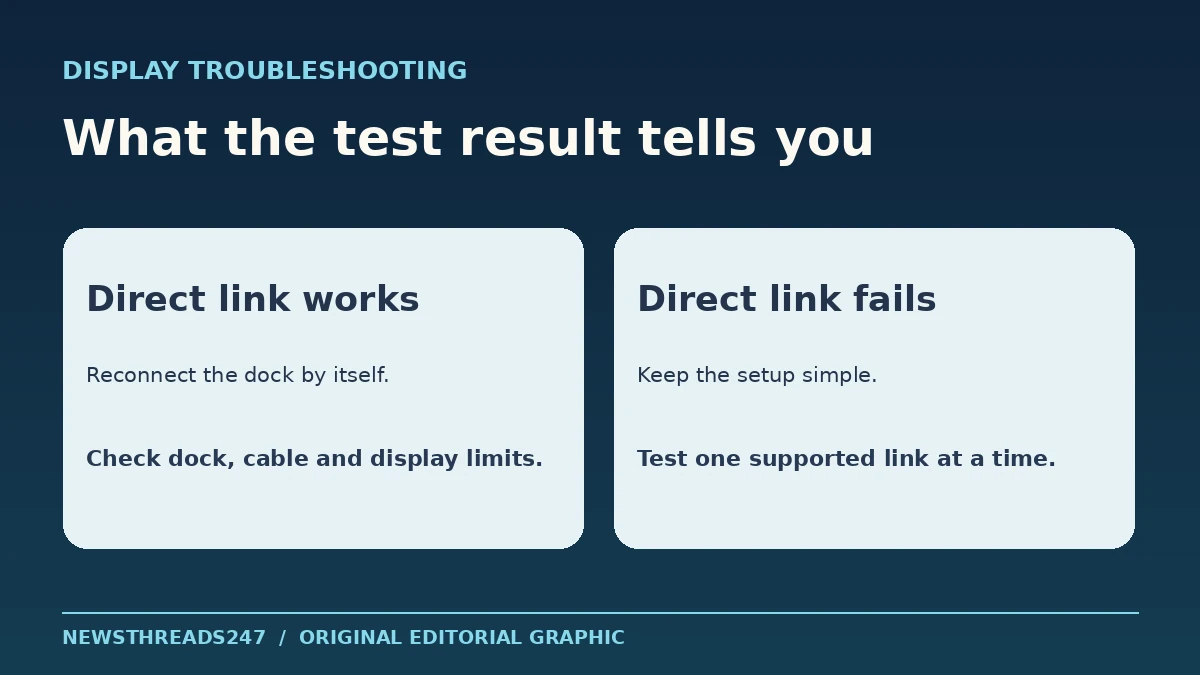
Suppose your laptop was charging through a monitor plugged into a dock, but the monitor showed no picture. You remove the dock and connect the same laptop directly to the monitor’s documented video input with its supplied cable. The picture appears. You now have a working baseline, but you have not proved that the dock itself is defective. The connection removed more than one variable: the dock, its upstream cable and possibly the monitor input used by the dock.
Reconnect the dock in the simplest configuration its manual supports, with just one display. Check that the dock’s upstream port and cable are the ones meant for the host, then confirm which display outputs the dock supports with your laptop. If this works, reconnect other displays individually. A dock that can drive one screen at a particular resolution and refresh rate may have different limits when several screens are connected. Look for the supported combinations in the dock and laptop documentation.
Use another input to narrow the fault
If the direct USB-C path still fails, leave the monitor’s power source unchanged and try a different documented video path, such as a laptop HDMI output connected to the monitor’s HDMI input. Select HDMI in the monitor menu. A working HDMI picture tells you that the monitor can display an image on that input; it does not show that the USB-C input works. If HDMI also fails, try a known working display or source if you have one, and check whether the laptop sees the screen before buying a replacement.
If there is no documented USB-C video output on the laptop, a simple USB-C-to-HDMI adapter that relies on DisplayPort Alt Mode cannot add it. Use a documented native display output, or consult the computer and dock makers about another supported approach. Read the adapter’s direction and requirements; a familiar connector at each end does not tell you which way the signal can travel.
Write down the setup that worked
Before shopping or contacting support, note the laptop model and port position, the monitor model and selected input, which cable was used and what happened with the dock removed. Add any message from the computer and whether the display appeared in its settings. That record separates an observed result from a guess. Recheck the same list when you change the dock, cable, monitor or display settings.