
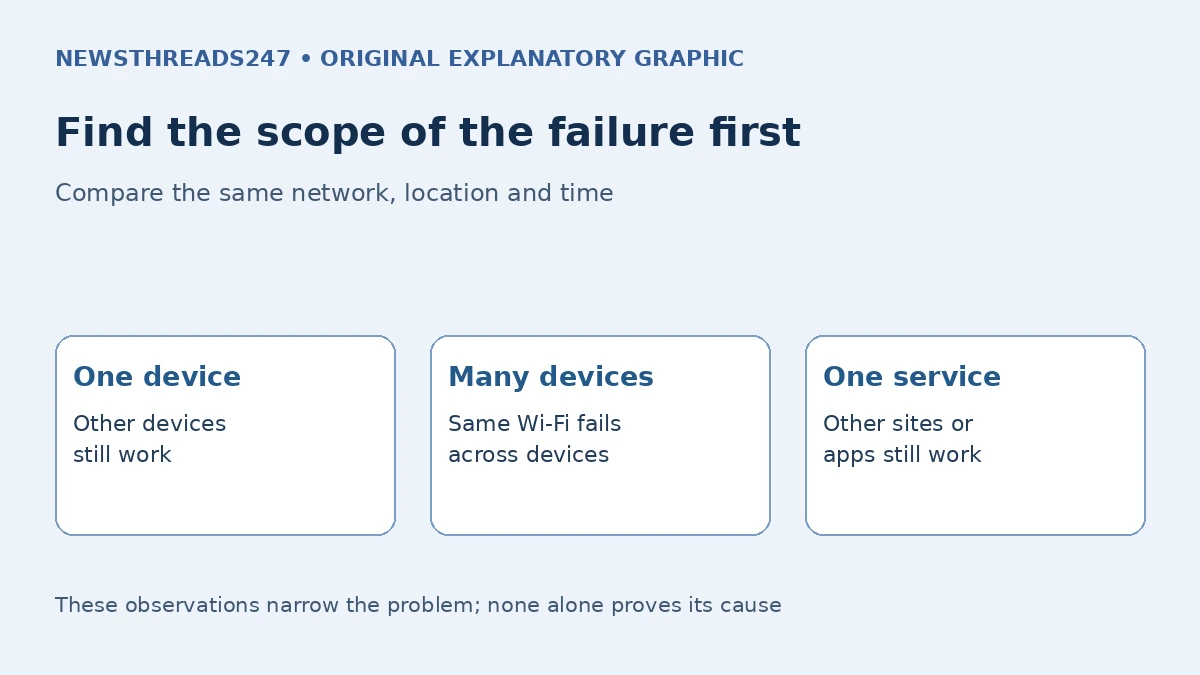
A Wi-Fi connection and an internet connection are different links. Your phone or laptop can join a router’s wireless network while websites still fail to load. Before changing a broadband plan or buying another router, establish whether the failure affects one device, several devices or one service. That comparison often tells you which support path is worth following.
This guide is for ordinary home-network diagnosis in India or the US. It does not promise that one reset fixes every fault. Provider equipment, router models, access restrictions and managed devices differ. The aim is to collect useful evidence, make low-impact checks and avoid replacing a working component because the Wi-Fi icon was misunderstood.
In this article — jump to a section
Read the connection in separate layers
Microsoft’s Wi-Fi troubleshooting guidance distinguishes a local wireless connection from internet access. A connected device may reach local equipment while still being unable to browse websites or stream online content. The status indicator is an observation, not a complete diagnosis of the router or provider.
Think of the route as device → local network → upstream internet service → the site or app you want. A failure can occur at more than one point. Strong signal bars describe the wireless link; they do not certify the provider’s connection, the destination service or every network setting.
An absent Wi-Fi network is another problem again. If the network name does not appear, check that Wi-Fi is enabled, that the device is within range and that the device supports the network. Do not begin with internet-plan changes when the device has not joined the local network at all.
Make one comparison before changing settings
| Observation | What it helps narrow | What it does not prove |
|---|---|---|
| One device fails; another works on the same Wi-Fi | A device-specific or device-policy issue becomes worth checking | That the failing device is physically broken |
| Several devices fail on the same network | Shared equipment or upstream service deserves attention | That the ISP is definitely at fault |
| Only one site or app fails | A service-specific or application issue is possible | That the entire internet connection is down |
Use the same network, roughly the same location and the same time for the comparison. On a phone, be aware that mobile data can hide a failed Wi-Fi test. Note whether a successful page load used Wi-Fi or cellular connectivity; do not count an automatic fallback as evidence that the home network works.
Try more than one familiar legitimate website or service. If one destination fails but others work, record that distinction. A single browser tab, cached page or app-specific error is weak evidence for replacing a router.
Start with reversible checks
Check the intended network name and whether the device is asking you to finish a legitimate sign-in page. On a home network, inspect the provider’s status information or app if available. Use an independent connection, such as mobile data, for an outage check when the broadband itself is unavailable. Do not enter credentials into an unexpected page just because it appears after joining Wi-Fi.
Reconnect Wi-Fi or restart the affected device using its normal controls. If restarting shared network equipment is appropriate, first note the lights and symptoms and consider whether other household members rely on it. Follow the equipment or provider’s sequence. A restart is not the same as a factory reset, which can erase configuration and make support harder.
For a work-managed laptop, school device or employer-provided network, stop before changing security, proxy, VPN or administrative settings. Give the observations to the responsible support team. This article does not recommend disabling protection or bypassing organisational access controls.
Separate coverage from an upstream failure
Google’s home Wi-Fi guidance identifies distance, barriers, device capability, frequency and interference as factors in wireless performance. Compare the same device near the router with its usual location before concluding that the broadband plan is too slow. If the problem changes with location, the wireless path deserves investigation.
If your equipment already offers separate 2.4 GHz and 5 GHz networks and your device supports both, a careful comparison can be useful. Neither band is a universal best choice for every room and device. A device limited to 2.4 GHz is not repaired by instructions to join a 5 GHz-only network; check its specifications and the router manual.
If a suitable device and existing cable allow a safe Ethernet comparison, that can help distinguish a wireless-path problem from a shared upstream failure. It is evidence, not proof: different ports, cables and device settings can introduce their own limits. Do not alter fixed wiring or provider equipment to force a test.
Write down a small test log
Consider a fictional household: a laptop loads two sites near the router, but a phone in the same room cannot load either site on that Wi-Fi. The laptop’s result makes a complete outage of the shared connection less likely. The next useful step is a phone-specific check or support request, not an immediate plan upgrade.
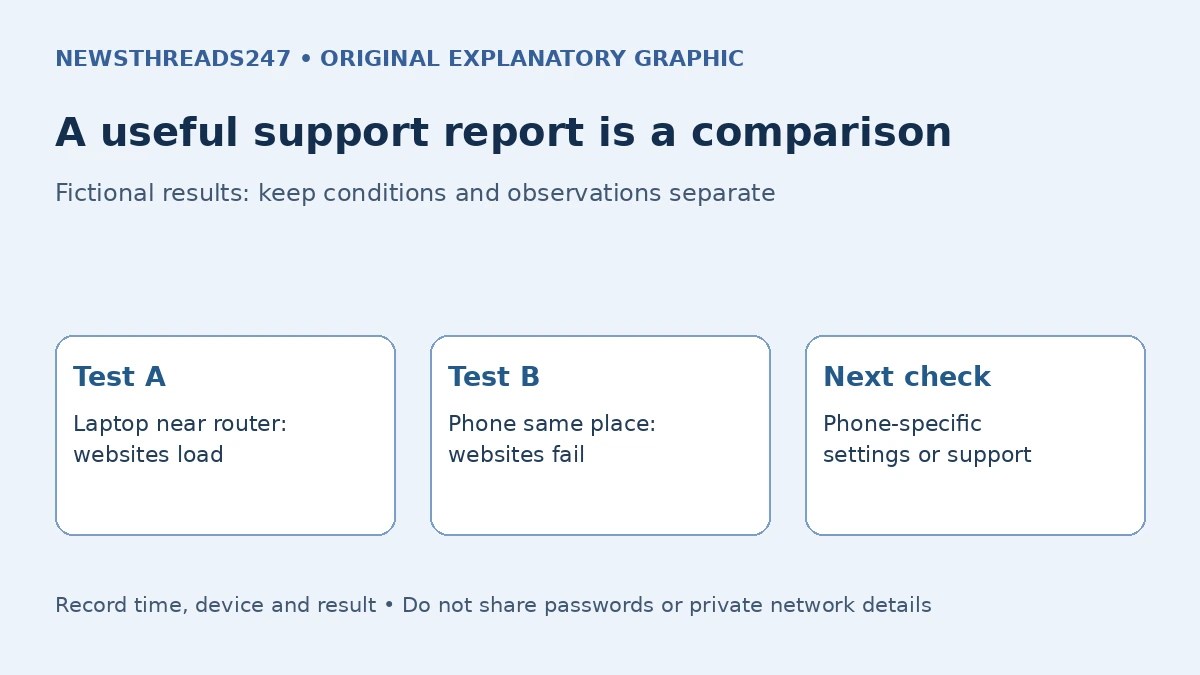
Now change the observation: the laptop, phone and television all lose access at the same time. Record when it began and the provider equipment’s displayed status. Check the provider’s service information and follow its troubleshooting. This pattern does not identify the exact failed component, but it gives support more useful evidence than “the internet is bad.”
Keep the log simple: time, device, network, location, destination tested, result and the single change made. Do not publish screenshots containing passwords, account numbers, private device names or network identifiers. Share sensitive diagnostics only through the provider’s verified support channel when actually needed.
Do not confuse no access with disappointing speed
A connection that loads nothing needs a different first check from a connection that works but is slow. For slow access, Google’s guidance also points to competing household activity, the device and the slowest equipment on the route. Test conditions matter: a download on another device can change a comparison made minutes later.
An advertised service speed is not a guarantee that every room, device and destination will achieve it. A faster plan cannot by itself make an unsupported wireless band compatible or remove a wall. Conversely, stronger local Wi-Fi cannot repair an outage upstream. Ask which link the proposed purchase would actually improve.
Our USB-C cable capability guide illustrates the same broader purchasing discipline: a prominent rating describes one capability, not every part of the connection. For networking, establish the limiting link before spending money.
Escalate with evidence and preserve the setup
TP-Link’s connection troubleshooting guide also separates one-device symptoms from shared failures. Use your exact router or provider’s current instructions for configuration work. Do not apply an internet command sequence simply because it worked for an unrelated model.
Contact the provider when several devices show a shared failure, the equipment reports an upstream fault or the basic prescribed checks do not resolve it. For one-device failures, the device manufacturer or authorised support may be more appropriate. Explain the comparison and any restart already performed so support does not have to reconstruct the history.
Sources and maintenance: Source-based editorial checked 6 November 2026 using Microsoft Support, Google Home/Nest guidance and TP-Link. The household tests are fictional demonstrations, not measured performance. Reverify menu paths and procedures after device, router or provider changes. No network inspection, speed test or hands-on router review is claimed. Graphics are original conceptual aids; they are not diagnostic evidence from a real home.