
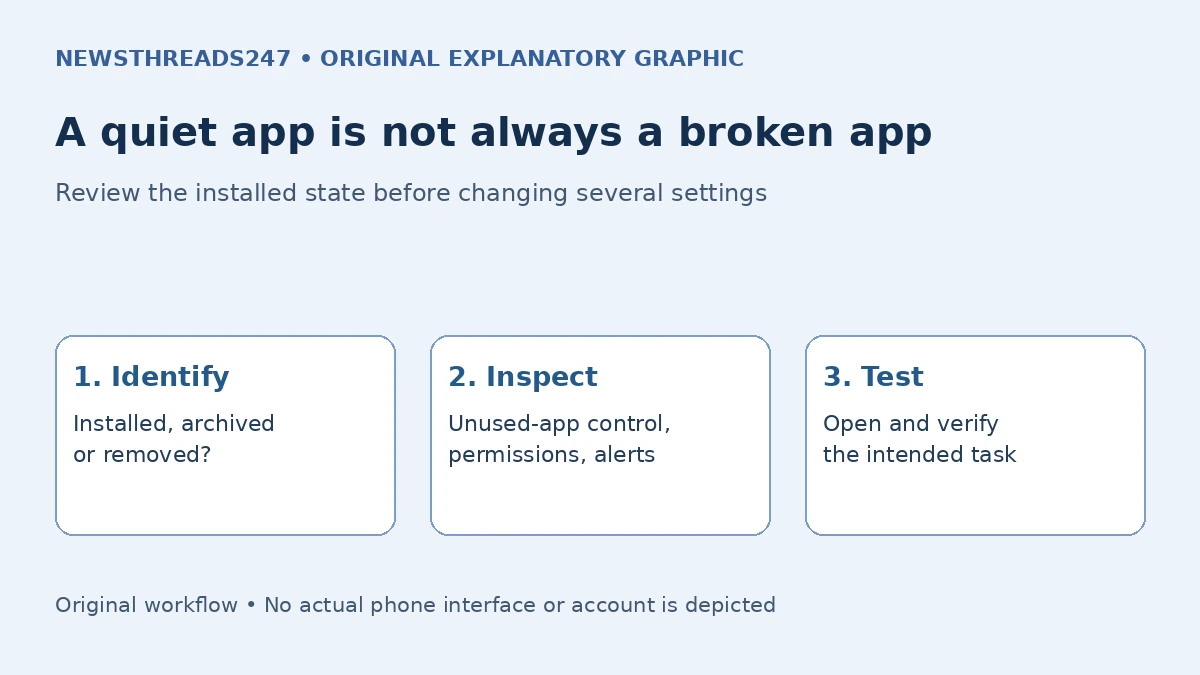
Android can restrict an app you have not used for a long time without you deliberately uninstalling it. Google’s unused-app guidance says this can remove temporary files, revoke permissions, stop background activity and stop notifications. Archiving is a different state: it removes the app’s software while retaining its icon and data for possible restoration. Neither action should be confused with an independent backup.
The useful question is therefore not simply “How do I turn unused apps off?” It is what you need the app to do next. An app used every day, one kept for occasional travel and one you no longer trust require different decisions. Start with the actual installed state and the controls on your device, then test one change at a time.
In this article — jump to a section
Separate the app’s state from its permissions
A missing notification does not by itself prove that Android has paused an app. The app may be archived, signed out, denied notification permission, affected by its own settings or experiencing a service problem. First locate it in Settings and inspect its App info. If the icon is faded or carries an archive marker, check whether restoration is needed before troubleshooting background operation.
Google’s unused-app guide describes the restrictions and the route through Apps → Unused apps. Names and menu locations differ across manufacturers and Android versions. Use Settings search or the manufacturer’s documentation if your phone does not show that exact wording; do not assume a missing switch means a fault.
The Android developer documentation on app hibernation explains why app behaviour depends on platform version and how an app interacts with the user. A guide cannot inspect those conditions on your phone. Avoid treating a fixed inactivity period mentioned for one implementation as a promise for every Android device.
Choose between pausing, archiving and removal
| Your aim | Control to inspect | Important limit |
|---|---|---|
| Reduce unused background activity | Pause app activity if unused, where offered | May affect permissions and notifications |
| Recover storage for an occasional-use app | Archive, where supported | Restoration needs the app store and app availability |
| Stop keeping an app you no longer need | Uninstall through the normal device controls | Check important data and account access first |
Google’s archiving instructions say an archived app loses software, permissions and temporary files while keeping its icon and data. Some manual-archive steps require Android 15 or later and supporting hardware. This means a button shown in a newer tutorial may legitimately be absent on an older phone.
Pausing unused activity and archiving are not interchangeable promises. One concerns how an unused app is allowed to operate; the other also concerns installed software and storage. Read the exact confirmation your device presents rather than selecting a similarly named option from a generic screenshot.
Restore and test before granting broader access
If you want an archived app again, Google describes selecting its faded icon to reinstall it, or using App info or the app-store details page. The relevant app store must still be installed, and the app must still be available to download. There must also be enough storage. Retained app data does not guarantee that an abandoned or withdrawn service will work in the future.
Once it opens, check the ordinary task you actually need. Can you sign in through the official app? Is the relevant document or booking available? Does the app request only permissions that make sense for that task? Grant a permission because the function needs it, not merely because an old tutorial says to allow everything.
For an installed app affected by unused-app restrictions, Google gives an exclusion control in App info. Consider an exception for a specific app only when you understand why continued background operation is needed. Disabling the protection for every app can remove a useful privacy safeguard without solving the actual fault.
Work through an occasional-use travel app
Imagine a fictional traveller who uses an airline app twice a year. Its icon is still on the home screen, so they assume it is ready. On departure morning they discover it is archived. The retained icon was a route to restoration, not proof that the software was already installed and usable offline.
A better preparation sequence is to check the app at home while there is time and connectivity: restore it if necessary, complete legitimate sign-in, confirm the booking and check what the airline allows to be saved independently. This is a planning example, not a claim about any particular airline’s app or boarding procedure.
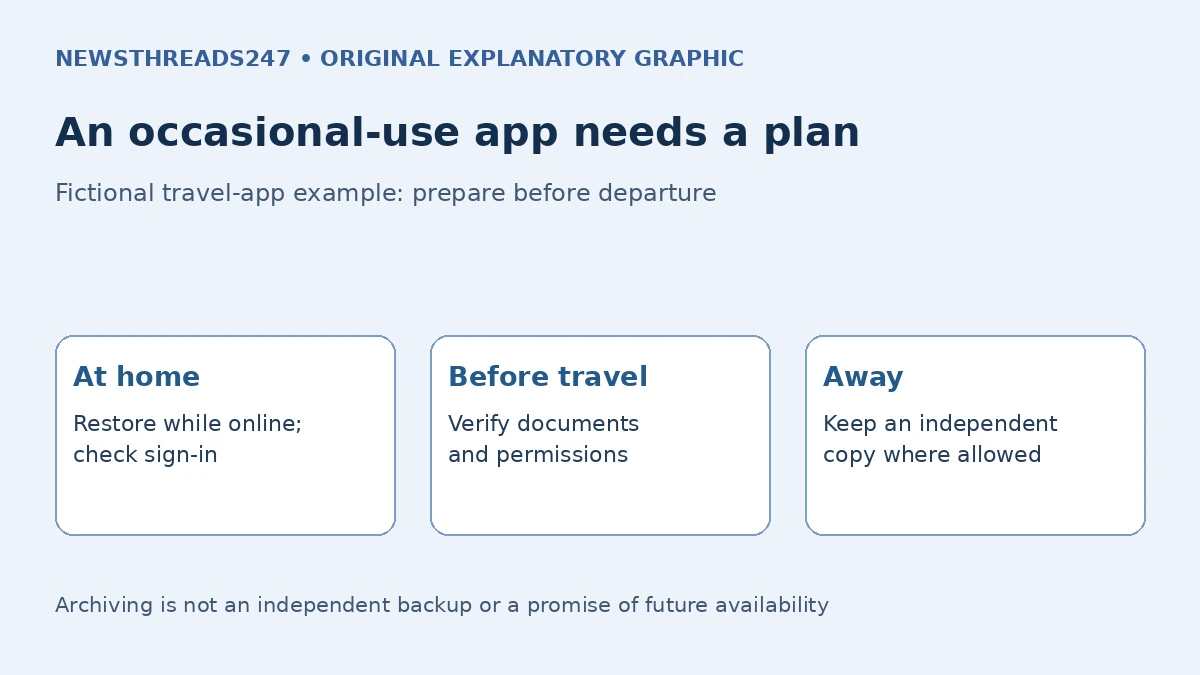
If a document matters, keep an appropriate independent copy where the service permits it and verify that it opens. Do not assume that archiving, app backup, a saved password and a downloadable document are the same protection. Our Android app and data restoration guide explains the separate backup question.
Treat work phones and essential services separately
A company-managed phone or work profile may restrict settings that a personal phone exposes. Samsung’s Android 13 Knox guidance documents management-mode and app exceptions for unused-permission controls. That is evidence of variation, not a universal instruction for other manufacturers.
If the control is unavailable on a managed device, ask the organisation’s support team. Do not remove the management profile, weaken security controls or install an unofficial “fix.” Tell support which app is affected, the device and Android version, whether it opens and which expected function fails. Leave passwords, one-time codes and private documents out of the report.
An app needed for important alerts deserves a direct test and the provider’s own advice. A generic unused-app setting is not a guarantee of reliable alarms, medical alerts, banking notifications or emergency communication. Arrange any necessary alternative through the responsible service rather than relying on one phone toggle.
Use a small verification routine
After a change, open the app, repeat its intended task and check the relevant permission and notification controls. If the problem persists, record what changed and what did not before trying another adjustment. This preserves useful evidence and avoids a situation where several unrelated settings have changed at once.
For occasional-use apps, review readiness before the date you need them. For apps you no longer use, decide deliberately whether keeping data and an icon has value. Storage recovered is only one outcome; privacy, restoration and practical access matter too.
Sources and maintenance: Source-based editorial checked 6 November 2026 against Google’s Android Help and developer guidance, with Samsung Knox used only for its stated managed-device example. Reverify after an Android or manufacturer update changes the controls, before an important use, or when an app is withdrawn. No phone testing or access to a reader’s account is claimed. All graphics are original conceptual aids, not official screenshots.