
Start with approximate location when an Android app only needs your general area. Consider precise access when the task depends on where you are within that area, such as finding your position at a particular junction. Then choose when the app may use location as a separate decision. This guide covers the per-app precision controls available on Android 12 and later; labels and paths vary by manufacturer and release.
In this article
Precision and timing answer different questions
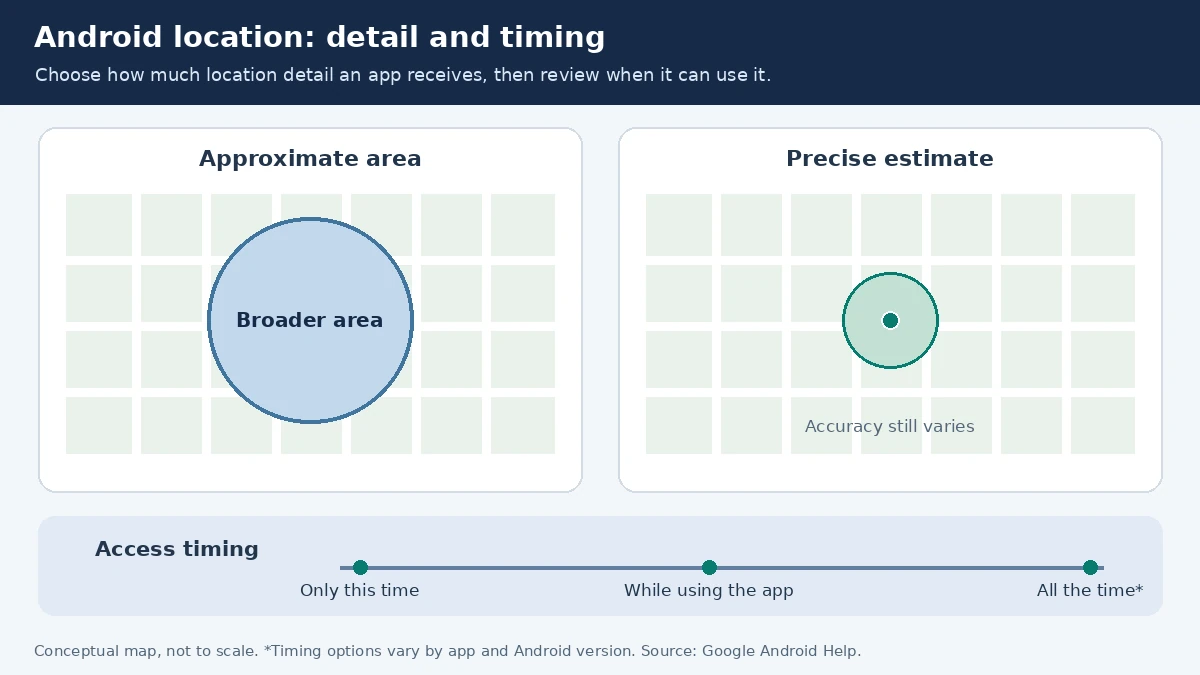
Android’s developer documentation explains that, on Android 12 and later, a user can grant approximate location even when an app requests precise access. Accuracy controls how detailed the location supplied to the app can be. The permission duration controls when access is allowed. Choosing less precision does not mean you have denied location altogether.
Read the two choices independently. “While using the app” with precise access is a different decision from allowing approximate access all the time. A weather widget might raise a timing question as well as an accuracy question. A route-planning app might need detail during a trip without needing the same permission for unrelated tasks. These are examples of how to assess a feature, rather than claims about the requirements of every app in those categories.
Before changing anything, finish any active trip or other important task and note the app’s current settings. Android can restart an app’s process when you downgrade precise access to approximate. Make the change at a convenient moment, then reopen the app. A restart at that point does not, by itself, prove that the app is broken.
Judge the result you need, not the app category
Imagine opening a weather app to decide whether to take a coat into town. If it can show the area you need through an approximate location or a manually selected town, there may be little practical reason to share a more detailed position for that task. Look at the forecast location shown in the app. A familiar town label is useful evidence about the chosen place; it is not a measurement of the app’s underlying accuracy.
Now imagine standing between two park entrances and asking an app to begin walking directions from your current position. A broad area may leave the starting point ambiguous. Precise access can be appropriate for this task, but still check the displayed position against your surroundings before following a route. Granting permission is not a guarantee that the phone will locate you correctly in every environment.
A delivery is another helpful distinction. Typing the correct address and confirming the entrance can sometimes communicate your destination better than relying on the phone’s current position. Follow the service’s actual instructions. Do not assume that granting precise location confirms a delivery address, flat number or safe place to leave an order.
Use a small, reversible check: change one app, reopen it, try the specific feature, and decide whether the result is adequate. Keep an alternative way to complete an important task. Avoid changing every app at once; otherwise it becomes harder to tell which decision affected the result.
Change one app’s permission and check again
Google’s Android Help guide gives a common route: touch and hold the app icon, open App info, then Permissions and Location. If location is allowed, look for “Use precise location.” Turn that control off to limit the app to approximate access, where the control is available. Review the timing choice on the same screen. If your phone uses different labels, consult the manufacturer’s instructions rather than searching for a nonexistent switch.
For a quick record, write down the app, the task, the accuracy choice, the timing choice and what happened when you tried it. “Local forecast still shows my town” is a useful observation. “This app is now private” is too broad a conclusion. If an app requests more access, read which feature it says needs it and decide whether you want that feature. You can also choose not to use it.
Do not treat “precise” as a promise of a fixed error radius. Android’s accuracy documentation describes estimates, with precise access allowing the best available location. Buildings, available signals and the device can still affect the result. This is why the practical check matters more than assuming a dot is exact.
What this setting does not settle
Per-app precision is different from the device’s Location Accuracy service. Google’s location-settings documentation describes Location Accuracy as using available signals to improve the device’s estimate. You can leave that service enabled while restricting an individual app to approximate access. If the concern is one app receiving unnecessary detail, review that app first rather than making a broader device change without understanding its effects.
This permission choice also does not answer every question about an app’s data practices. Review the app’s privacy information and any relevant account controls separately. A useful permission decision names its scope: “This app receives a less detailed device location,” rather than “Nobody can know where I am.” Avoid relying on a single toggle as a complete privacy plan.
Revisit the choice when your use of the app changes. A general local-information app may later add a feature you want that depends on your starting point. Conversely, an app you no longer use has little reason to retain a permission for an old task. Review new prompts as they arise instead of approving them automatically because an earlier request was reasonable.
The same habit applies to other device permissions: identify the feature, grant the access needed for it, and verify the result. Our guide to iPhone local-network permission illustrates a different permission on a different platform; its menu steps should not be copied to Android. Recheck this guide after a major Android permission change or when your manufacturer changes the relevant controls.
Cover image: original AI-generated editorial illustration. People and scenes are fictional; no real event, device capture or first-hand test is depicted. This guide explains linked official documentation and uses expressly labelled hypothetical examples.