
Technology troubleshooting guide — updated 22 November 2026. You delete 2 GB of photos, close the gallery and the phone still says ‘storage almost full.’ The camera stops recording, updates refuse to install, or the photo app seems to take up more space than before. Often the missing space has not vanished: it is held in recently deleted items, offline downloads, messaging attachments, app caches or a category called System Data or Other.
The fix begins with one question: Which storage is full? The phone’s physical memory, the photo app’s library, or your cloud account? They are not interchangeable. Deleting a file from one service can sometimes delete the only copy on all devices, while clearing unrelated caches may free almost nothing.
First identify the space hog; don’t install a cleaner app yet
On many Android phones, open Settings → Storage or Settings → Battery and device care → Storage. Names vary with the manufacturer and Android version. Review the biggest categories before deleting anything. Google documents the approach in its Android storage guide.
On an iPhone, open Settings → General → iPhone Storage. Allow the size breakdown to load. Apple explains that an app’s total may include the application itself as well as documents and related data; the built-in recommendation to offload unused apps can remove the application while retaining its documents. Reference: Apple’s iPhone Storage help.
Write down the three largest categories and the available free space. Take another reading after each action, rather than blindly clearing multiple apps and losing track of which change worked.
| What Storage shows | First action | Avoid doing blindly |
|---|---|---|
| Photos or videos | Inspect large originals, recently deleted albums and backup status | Deleting cloud-synced photos without confirming another copy |
| Apps | Sort apps by size; distinguish app binary from app documents and offline content | Clear app storage/data if it may contain local accounts or files |
| Downloads or offline media | Open the app that downloaded it; remove expired or unwanted files | Assuming a streaming download is stored in the camera roll |
| System Data / Other | Update software, restart and check if temporary storage settles; inspect large app caches | Deleting unknown system directories through third-party cleaner apps |
| Cloud storage full | Check iCloud or Google account storage separately from phone capacity | Treating a local clean-up as a cloud quota fix |
Why deleting photos may not immediately free the space
1. The photos are still recoverable in a trash or Recently Deleted area
On an iPhone, deleted photos remain in Recently Deleted for a recovery period; Apple’s current support document describes 30 days. During that period, the items have not necessarily been permanently removed. If you need the storage immediately, first make sure you have a separate verified backup before permanently deleting them. See Apple’s Recently Deleted guidance.
Google Photos and manufacturer gallery apps have their own trash behaviours and retention rules, which can change with backup status and product updates. Check the particular app’s current instructions. Google’s photo deletion help distinguishes deletion and restoration. Do not assume that emptying one gallery’s trash automatically clears every other copy.
2. Photos are synced with iCloud or Google Photos
If iCloud Photos is active, deleting a photo from one signed-in device also deletes it from other devices using that synced library. Apple explicitly warns about that in its iCloud storage guidance. Treat a synced library as one collection—not as a separate archive on each device.
For Google Photos, use its documented device-space-management flow only after you have confirmed that the photos are backed up in the intended Google account. It can remove device copies while leaving cloud-backed originals, but using the ordinary Delete operation is not the same thing. Our separate guide explains the distinction: Google Photos Free Up Space vs Delete.
Why Apps and System Data keep growing
Streaming video, map downloads, podcasts, music, messaging media, downloaded documents, browser files and creative-app project files often sit outside the camera roll. A messaging app can accumulate years of videos and voice notes; a streaming app can retain several offline series; an editing app may store exported copies in addition to the original videos.
On Android, inspect a large app’s Storage & cache screen where available. Clear cache removes temporary files; Clear storage/data can remove local app information and settings. Google explicitly distinguishes the two in its Android clean-up guidance. Do not clear data for authenticator apps, messaging apps, payment apps, or local projects unless you know how their contents will be restored.
On iPhone, Offload App removes the app but retains its documents/data; Delete App also deletes associated app data on the device. Whether data can be recovered later depends on the app and its backups. Apple’s storage article explains these choices. On either platform, temporary system storage may fluctuate while updates, indexing or app downloads run; do not mistake a fluctuating indicator for a precise promise of free space.
A safe 20-minute clean-up sequence
Minutes 0–3: check the baseline
Record free storage and the top categories. If a system update is pending, confirm your device has enough battery, reliable Wi-Fi and a recent backup before starting any major update.
Minutes 3–8: remove things you can download again
Start with old podcast episodes, video-streaming downloads, offline maps you no longer need and duplicate installers in the Downloads folder. Use each app’s own download management screen so it updates its storage accounting correctly. For Google Files, Files by Google help describes cleaning temporary and unwanted files. Review every proposed deletion.
Minutes 8–12: review large conversations and attachments
Open your messaging app’s storage management, identify large videos or documents, and export any items you may need later. Note that deleting a local media file and deleting a message for everyone are different operations. Some chats and downloads may be backed up separately.
Minutes 12–16: deal with photos deliberately
Confirm the backup account and view a few older files from another device or web interface. Then choose whether to use the photo app’s intended free up device space function or permanently delete items you truly no longer need. Do not empty trash as the first step when uncertain about your only backup.
Minutes 16–20: remeasure and restart if appropriate
Return to the Storage screen, wait for the calculation to refresh and note the new free space. Restarting can settle temporary states, but it is not a substitute for finding and removing the large files. If available space remains extremely low, avoid heavy new downloads until a backup and clean-up are complete.
A practical example: you deleted 300 photos but still cannot record video
Suppose a 128 GB phone has 1.8 GB free. You delete 300 small compressed photos amounting to only 400 MB; a 6 GB offline movie and a 3 GB video-editing project remain untouched. Even if the photo deletion is permanent, the camera may still complain about available space. Checking the app and video categories first would reveal a more meaningful saving without risking important memories.
Conversely, if 300 videos were recorded in high resolution, their size could be far larger than the photo count suggests. Sort by file size, not just by the number of thumbnails.
When you should stop and back up first
- Only copy: you cannot confirm that a photo, message history or document is stored somewhere else.
- Business or financial app: clearing local app data could remove receipts, downloads, cached authentication or recovery information.
- Device is failing: unusual errors, repeated crashes or overheating mean recovery/backup should take priority over experiments with cleaners.
- Unknown third-party tool: an app asks for broad permissions to delete ‘system junk’ but will not disclose exactly what it removes.
- Shared device: a family member may depend on apps or local files you did not create.
If nothing changes after cleaning
Check whether the phone has a software update waiting, whether a large app immediately re-downloads media, and whether a removable storage card is involved. If the system data category remains unexpectedly large, use the phone manufacturer’s official support steps. A last-resort factory reset is not a routine clean-up technique: first verify a complete, restorable backup of accounts, media and app data.
For cloud-library precautions, see our guide to turning off iCloud Photos without losing your only copy. That guide addresses syncing; this article is about identifying and reducing local storage consumption.
Sources and photography credits
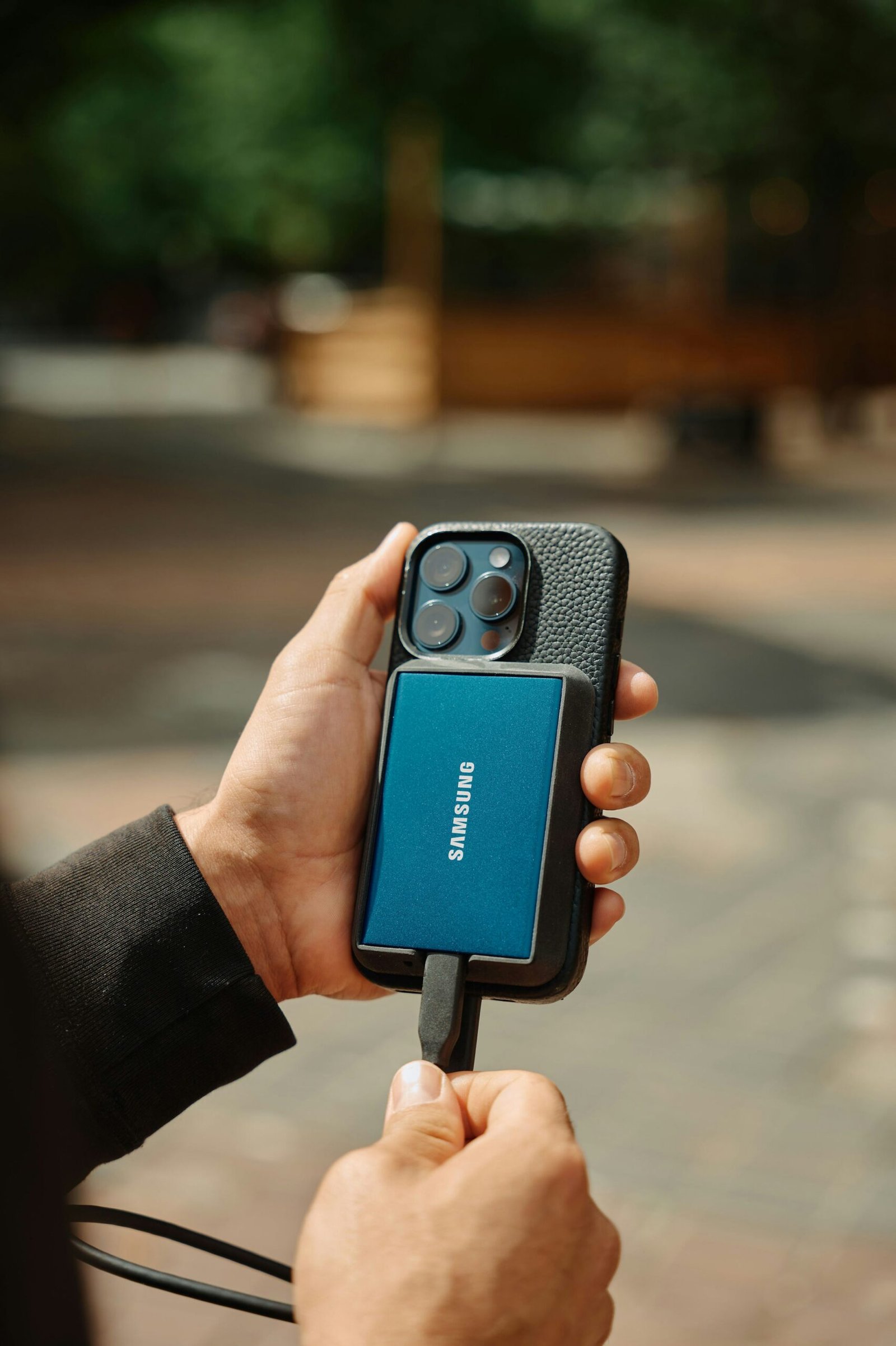
Android Help: free up storage; Android Help: clear cache versus data; Apple: iPhone Storage; Apple: Recently Deleted; Apple: iCloud storage; Google Photos deletion and restoration. Featured photograph by Karolina Grabowska; embedded photograph by Samsung Memory, both from Unsplash under the Unsplash License. Device screenshots and menu labels may vary by version. This guide does not recommend a third-party cleaner or any branded storage device.