
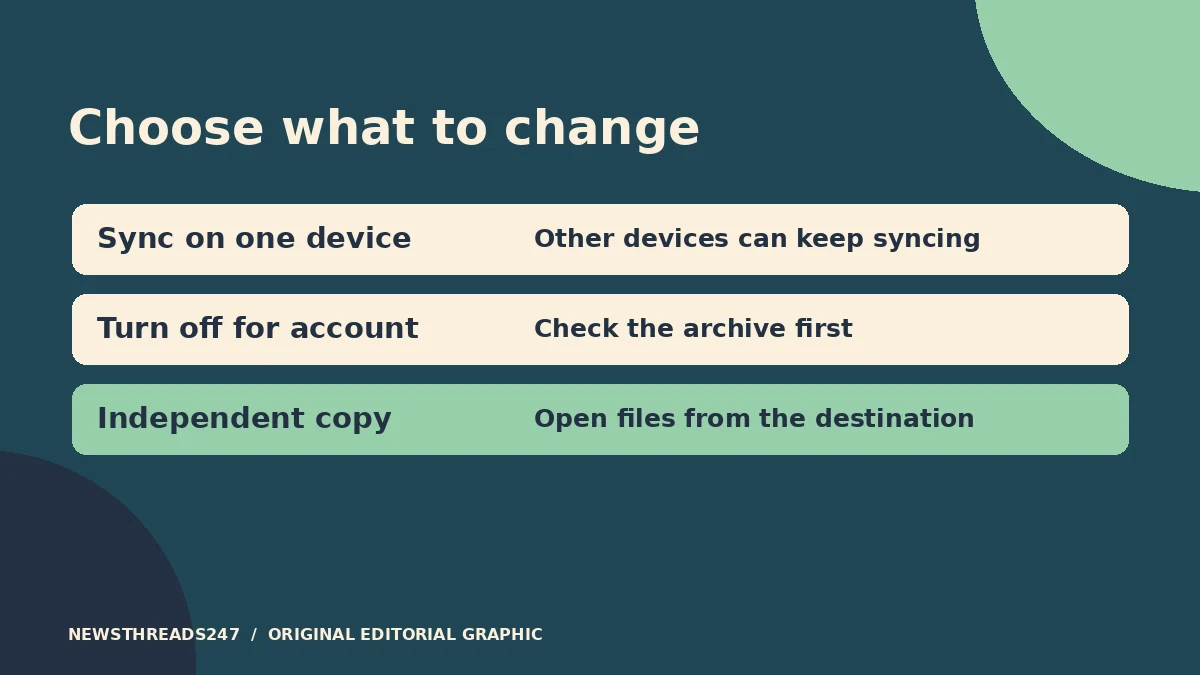
Before you turn off iCloud Photos, save and open an independent copy of the photos and videos you want to keep. Seeing thumbnails on an iPhone or Mac does not show that full-size originals are on that device. And turning off sync on one device is a different action from turning off and deleting iCloud Photos for the whole account.
In this article
Decide whether the change is for one device or every device
If you only want an old iPad to stop showing your library, the one-device setting is the relevant branch. According to Apple’s instructions for turning off iCloud Photos, new uploads, edits and deletions stop syncing to and from that device after you turn sync off there. Other devices can continue using the service. If you need photos on the device afterwards, follow Apple’s steps for keeping a copy instead of removing the photos from that device.
The account-wide option is more consequential. Apple says that, after you turn off iCloud Photos for the account, the photos and videos stored in iCloud are deleted after 30 days. That is Apple’s stated recovery window, not a backup plan. Leave the account-wide option alone while you check the archive. If you use an iCloud Shared Photo Library, pause and review the shared library instructions on the same Apple page before making an account-wide change. Consider who contributed items and who still needs them.
If your actual problem is a full device, decide whether you need to stop syncing at all. Apple’s guide to iCloud Photos explains Optimise Storage: the service can retain full-resolution originals in iCloud while the device keeps smaller versions when it needs the space. That can free device capacity; it does not create a second copy that can survive deletion from the synced library.
Choose a copy you can get back to
For a smaller set, Apple explains how to export unmodified originals from Photos on an iPhone or iPad, or download them through iCloud.com. Name the destination explicitly. A folder on a separate drive is easier to recognise and test than a folder that happens to be on the device. If you use a cloud folder instead, understand which service syncs it and whether you can still reach it after the iCloud change. An independent destination should not disappear as a side effect of the setting you are about to change.
For a large library on a Mac, Apple’s instructions describe the Photos setting to download originals to the Mac. Before starting, make sure there is enough free space and give it time to fetch the full library. A local library that still syncs is not yet independent. Use Apple’s archive and copy instructions to make a separate copy; choose an approach that preserves the format and organisation you actually need. For example, exporting unmodified originals preserves the original files, but does not by itself recreate the album arrangement or the look of all edits.
Decide what you would miss after a move. Include edited versions when the edits matter. Check video playback, special formats and important information such as dates or filenames with the app you expect to use. If a family member needs an album arranged a certain way, preserve its structure intentionally rather than assuming a folder of individual originals will show those albums.
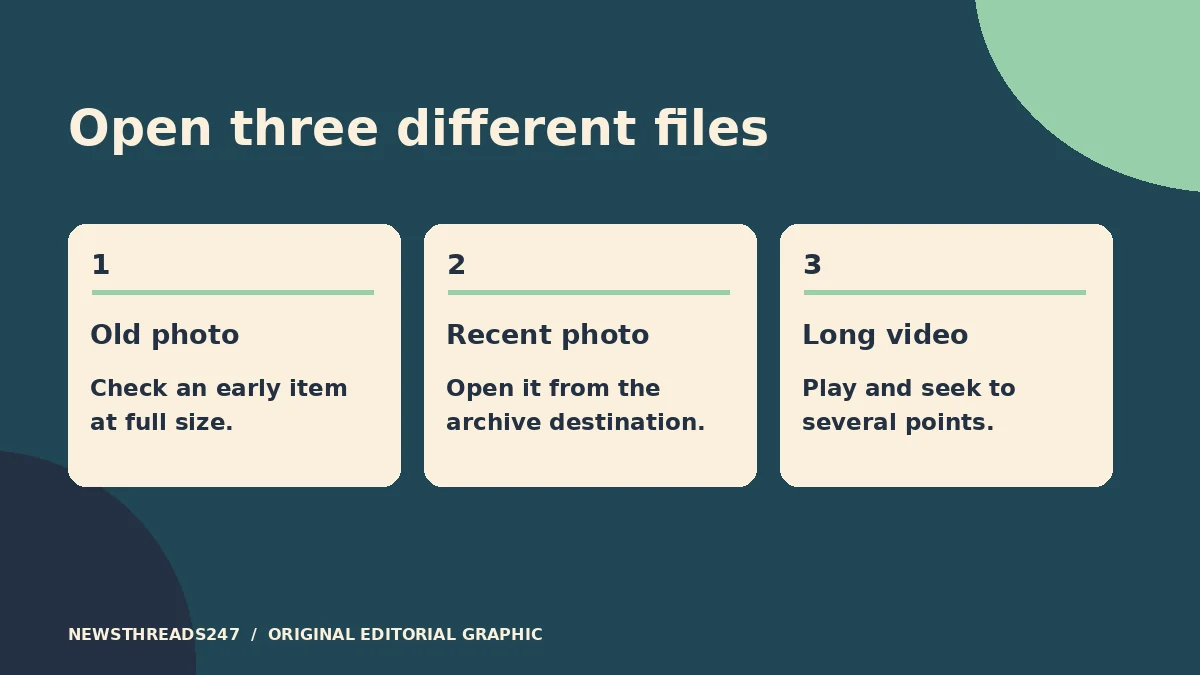
Prove the copy works while you still have the library
Imagine a library with old camera imports, recent phone photos and a few long family videos. Open a very old photo, a recent one and a larger video from the archive destination itself, rather than clicking those items in the live Photos library. Scrub to several places in the video. Inspect the photo at full size. If your archive is on a drive, safely disconnect and reconnect it and reopen the files. For a local archive, temporarily test without network access if you can do so without interrupting a download.
Samples help find obvious gaps. They do not prove that every item copied. Compare broad date ranges and item totals, allowing for exports that produce more than one file per item, and look for the content you’d least be able to replace. Where you exported in batches, note which months or albums each batch covered. If space ran out, the counts look wrong, or a video plays only from the live library, stop and investigate before switching anything off.
Don’t rely on the phone’s normal iCloud backup
Apple says iCloud Backup does not duplicate data that already syncs to iCloud, including iCloud Photos when the service is on. “My iPhone backed up overnight” therefore does not show there is a second restorable copy of the synced photo library. Keep the archive separately and check the service or drive you intend to rely on.
If Google Photos is also installed, the buttons there can have different effects. Our guide to Google Photos Free Up Space versus Delete explains that separate decision. Don’t use either app to delete files while you’re still establishing which copies exist.
Change the setting only after the archive check
Write down the device or account setting you intend to change, where the separate copy is, and the date you last opened files from it. If you cannot describe those three things, leave sync in place. If you are changing only one device, confirm afterwards that your other devices and iCloud library still show the items you expect, and that the separate copy still opens. Keep the archive through the transition.
Reopen Apple’s instructions after a major system update or before changing scope from a single device to the account. Menus can move; the distinction between a synced view and an independently usable copy is the check that matters.