
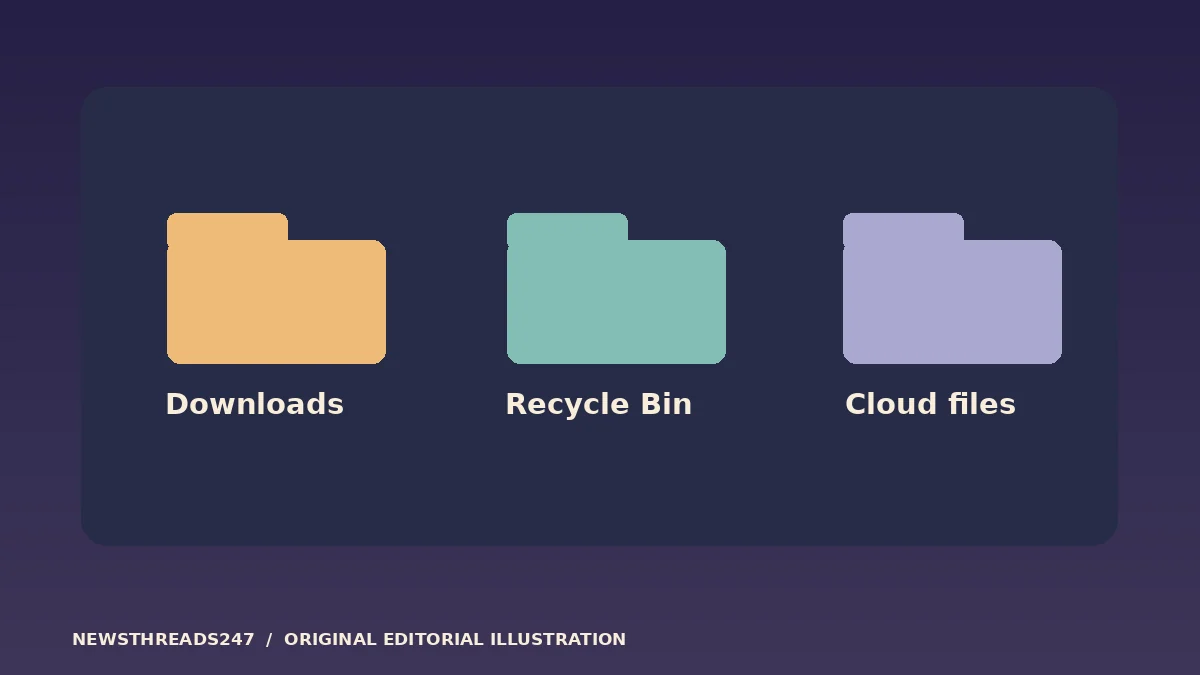
Before turning on Windows 11 Storage Sense, check Downloads, the Recycle Bin and cloud content separately. An age rule can delete old files from Downloads if you enable it. A OneDrive file made online-only can stay in your account but stop opening without a connection. Those changes can look alike when you check free space, but they have very different consequences.
In this article
Read the rules before running cleanup
Open Settings, then System, Storage and Storage Sense. Read the current settings before choosing Run Storage Sense now. Microsoft’s Storage Sense guide explains the separate rules for temporary files, the Recycle Bin, Downloads and cloud-backed content. It runs on the Windows system drive; use Storage settings to inspect other drives instead of assuming the same rules apply there.
A threshold is a cleanup instruction, not proof that a file is disposable. A folder named Downloads can contain an installer you could get again, a downloaded statement you still need or the only copy of a form. If you have not reviewed it, leave automatic Downloads cleanup off while you move important items to a folder you intend to maintain and back up.
Check how often cleanup runs. A schedule and an age rule answer different questions: one says when Windows checks, the other tells it what may qualify. Do not rely on a number of days as a guaranteed grace period. Managed PCs can also have settings set by an organisation; if a control is unavailable, check with the device administrator.
Make a deliberate Downloads and Recycle Bin choice
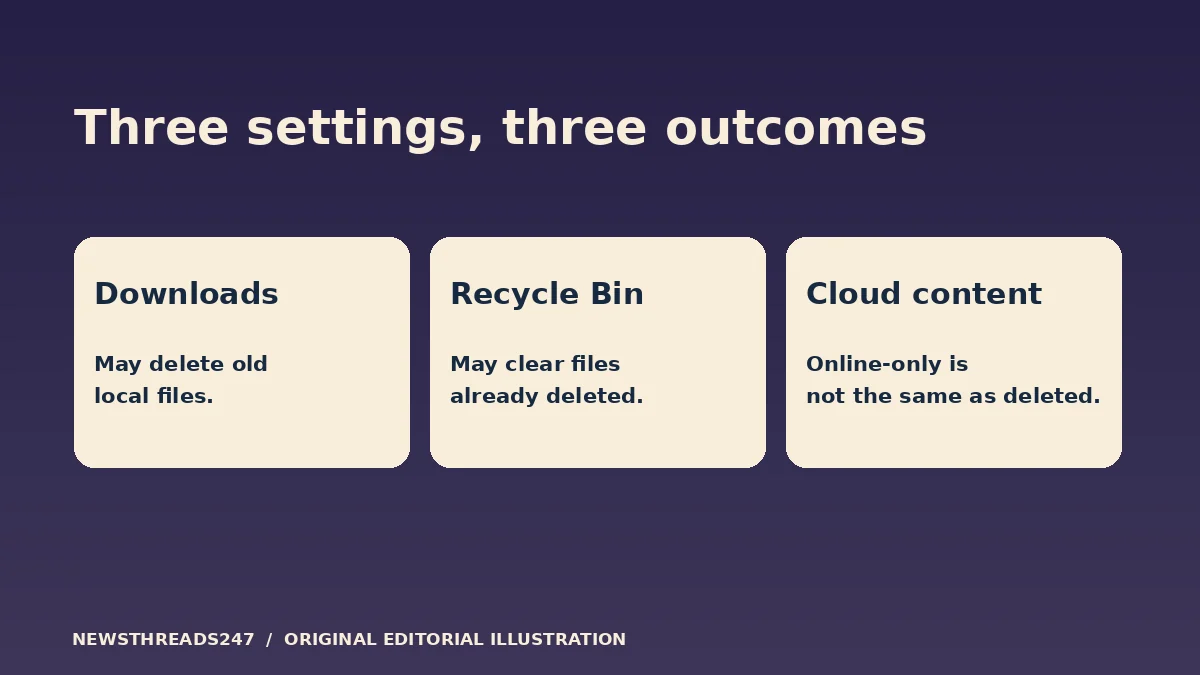
For Downloads, ask whether it functions as a temporary landing area or a filing cabinet. If it is the second, sort it before introducing automatic deletion. Move files you still need to a known location and confirm that those copies open. Then decide whether an age rule makes sense for what remains. The important step is to check the actual location: a similarly named folder on another drive is not necessarily the Downloads folder Storage Sense acts on.
The Recycle Bin rule applies to items you already deleted. Once the bin is cleared, ordinary Restore from the bin is no longer available. That is a reason to check it before a cleanup, especially if you moved or removed a large folder while making space. Keeping the Recycle Bin is not a substitute for a backup.
Imagine you downloaded a form two months ago, deleted an old project draft last week and synced a travel document through OneDrive. These items occupy storage in different ways. Check which rule applies to each before expecting a single cleanup setting to treat them alike.
Keep the OneDrive files you need offline
With OneDrive Files On-Demand, an online-only file can still appear in File Explorer, but opening it requires access to OneDrive. A locally available file has a downloaded copy. A file you mark Always keep on this device is intended to stay available offline and is exempt from Storage Sense making it online-only. Microsoft’s Files On-Demand instructions explain the states, and its icon guide shows how to tell them apart.
Before leaving Wi-Fi behind, mark the files you will need and wait for them to download. Check their status in File Explorer, then test opening one after disconnecting from the network. If it is an important folder, test an actual file inside it rather than assuming the folder name proves all its contents are local.
Do not confuse Free up space with Delete. Making a synced file online-only removes the downloaded copy without deliberately deleting the file from OneDrive. Deleting a synced file can propagate that deletion to OneDrive and other synced devices. If you already deleted a file, see our OneDrive recovery guide for the separate restore choices.
Use a small first cleanup and verify the result
Write down the current Downloads, Recycle Bin and cloud settings before making changes. For a first pass, leave automatic Downloads cleanup off if you have not sorted the folder. Choose whether to keep a longer Recycle Bin window, and pin any synced files you need offline. Check that OneDrive has finished syncing important changes before relying on a cloud copy.
After cleanup, check one file in each location you care about. Confirm an important Download is still where you expect it, and open a pinned OneDrive file without internet access. If space remains low, look at the Storage categories instead of repeating the same cleanup. A large app, an offline video collection and a folder full of downloads require different decisions.
Recheck after a new PC or account change
Keep a short note on what your PC is allowed to remove and where important files are backed up. A new Windows installation, a different OneDrive account or a change in work policy can change what is available. Review the settings when that happens, and compare with our Windows Backup and OneDrive guide before assuming synced files and a PC backup are the same thing.
The illustrations explain the choices; they are not screenshots. Use Microsoft’s current settings and your actual sync state rather than relying on a picture of someone else’s computer.