
A hotel, airport or café Wi-Fi network can show “Connected” while every website fails to load. That is not always an internet outage. Many public networks use a captive portal: a browser sign-in screen where visitors accept terms, enter a room number or complete an approved login before internet access is granted. The frustrating part is that the sign-in screen sometimes never appears.
The safest solution is to troubleshoot the actual login process rather than changing random security settings. This step-by-step guide covers Android, iPhone, iPad and Windows, with instructions linked to the companies’ official support pages. It does not instruct you to bypass a venue’s access controls or use untrusted login pages.
Table of contents
Why public Wi-Fi can connect without opening the internet
A captive network differs from a home Wi-Fi network. Your device may establish the local wireless connection first, then the venue’s router or gateway directs unauthenticated visitors to a sign-in page. Until you accept the terms or complete the required step, ordinary internet traffic may not work. Some hotels attach the login to a room or booking, while cafés may offer a terms screen without requiring an account.
If your device does not show the portal, there are several possible explanations: it missed the automatic sign-in notification, the previous login session expired, a browser or VPN is interfering with the redirect, or the venue’s own portal is temporarily unavailable. You cannot infer the cause from the Wi-Fi icon alone.
| What you see | First sensible check |
|---|---|
| Connected; “Sign in to Wi-Fi network” appears | Tap the network sign-in notification and inspect the venue’s legitimate portal |
| Connected; no sign-in page appears | Open a new browser tab; reconnect to that Wi-Fi if necessary |
| Page keeps looping after sign-in | Ask the venue whether its portal or account requires a fresh session |
| Every network fails, including a trusted hotspot | Investigate device-wide Wi-Fi, proxy or network settings separately |
First, try these five low-risk checks
- Confirm the official network name with venue staff. Similar-looking SSIDs can be created by anyone nearby; do not enter credentials on a guess.
- Join the correct network and wait for the prompt. A “Sign in to network” banner may appear in Android or an automatic captive-network window may appear on iPhone.
- Open a fresh browser tab. If the sign-in notification disappeared, opening a browser page may trigger the network’s own sign-in process.
- Reconnect to only that public network. If a saved portal session is stuck, disconnect and reconnect; use “Forget network” when appropriate and only if you know you can rejoin.
- Ask the venue whether its portal is online. If several guests have the same issue, changing your private settings is unlikely to fix the provider’s system.
On iPhone or iPad: use the network’s own sign-in prompt
Apple’s captive Wi-Fi support guide says to open Settings → Wi-Fi, select the network, and wait for its login page. If necessary, tap the information button beside the network and select Join Network. Apple also explains that cancelling or selecting “Without Internet” changes how the phone handles the network’s captive page; that is not the same as completing its login.
For an iPhone that remembers the hotspot but will not join automatically, Apple recommends checking Auto-Join. If your goal is to see the welcome screen again, the separate Auto-Login control may be relevant. Exact menus depend on iOS version. If a network requires sign-in through Google and the small captive-window flow cannot display it, Google’s support instructions for iPhone/iPad recommend opening a full Safari tab, for example at
https://captive.apple.com
, after reconnecting.
Do not copy a captive-portal address from a stranger. The safe path is to begin from the network you independently confirmed with staff and verify any requested personal details against the venue’s legitimate login procedure.
On Android or Pixel: reconnect to bring back the login notification
Google’s Pixel Wi-Fi troubleshooting article provides a dedicated sequence for public networks. Check for the notification asking you to sign in. If it never arrives, open a new browser window. When that fails, open the Internet settings, forget the particular network, toggle Wi-Fi off and on, join it again, and tap the new sign-in notification.
The wording varies by Android manufacturer: look for Settings → Network & Internet → Internet or a comparable Wi-Fi screen. Avoid a device-wide network reset as your first step; that can erase saved network settings and creates extra work when only one hotel hotspot is affected.
On Windows: distinguish a blocked login from a wider Wi-Fi fault
First confirm whether your Windows laptop has a Wi-Fi connection but no internet access. Reconnect to the named network and open a browser window. If the login still does not appear, ask venue staff whether the captive portal is active. Microsoft’s Windows Wi-Fi connection guide suggests checking network settings, proxy configuration and connection details when a broader connection problem persists.
Do not immediately run administrator commands, turn off security software or reset all network adapters on a shared or work computer. Organisation-managed devices may have approved proxies, security policies or VPN requirements. Contact IT support before changing them.
What about VPNs, private DNS and secure browsing?
A VPN or customised DNS service can sometimes affect a portal’s attempt to detect and display an authorised sign-in page. However, you should not indiscriminately disable privacy or security protections on an unverified network merely to make a page appear. First verify the SSID and its official login process. If your employer controls the VPN or proxy, seek its guidance instead of bypassing policy.
Use the genuine network’s published sign-in route and do not ignore browser certificate warnings or install an unexpected configuration profile. Avoid typing a main email password into a generic portal unless you have confirmed the real service handling that account sign-in. Public network access does not mean the hotspot is trustworthy; continue using secure, properly authenticated HTTPS sites.
Once connected, consider disabling automatic reconnection to unknown public hotspots you no longer use. Apple’s guide to forgetting Wi-Fi networks and Auto-Join explains how to control saved connections on its devices.
When should you stop troubleshooting and contact the venue?
Ask the operator for help when the portal requests a room number you do not have, billing details you did not expect, a password on an unverified webpage, or a certificate/profile installation that makes you uncomfortable. Also stop if the same login error occurs across several phones and laptops; the venue may need to reset a session or repair its own authentication system.
For a more general diagnosis of a broken wireless connection, use our Wi-Fi connected but no internet troubleshooting guide. To understand what a visitor can see on a home or office guest network, see the guest Wi-Fi isolation guide. Those are different problems from a missing public sign-in portal.
Frequently asked questions
Why does Wi-Fi say connected but the browser has no internet?
On a public captive network, you may be connected to the local access point but still need to accept terms or complete the venue’s sign-in process before gaining internet access.
Should I switch off my VPN to force the portal to open?
Not as a blind first step. Confirm the hotspot’s identity and seek venue or IT guidance first. Any temporary security change should be justified for a trusted network and reversed afterward.
Does forgetting the network delete my photos or documents?
No. Forgetting an individual Wi-Fi network removes that saved network’s connection details; it does not erase your device’s personal files. It may require you to re-enter the network password or complete login again.
Is the portal the same as a normal web login?
Not necessarily. Captive portals govern access to a particular network. A web login is for a separate online service. Avoid reusing passwords or handing over unrelated account credentials to a portal.
Official sources and limitations
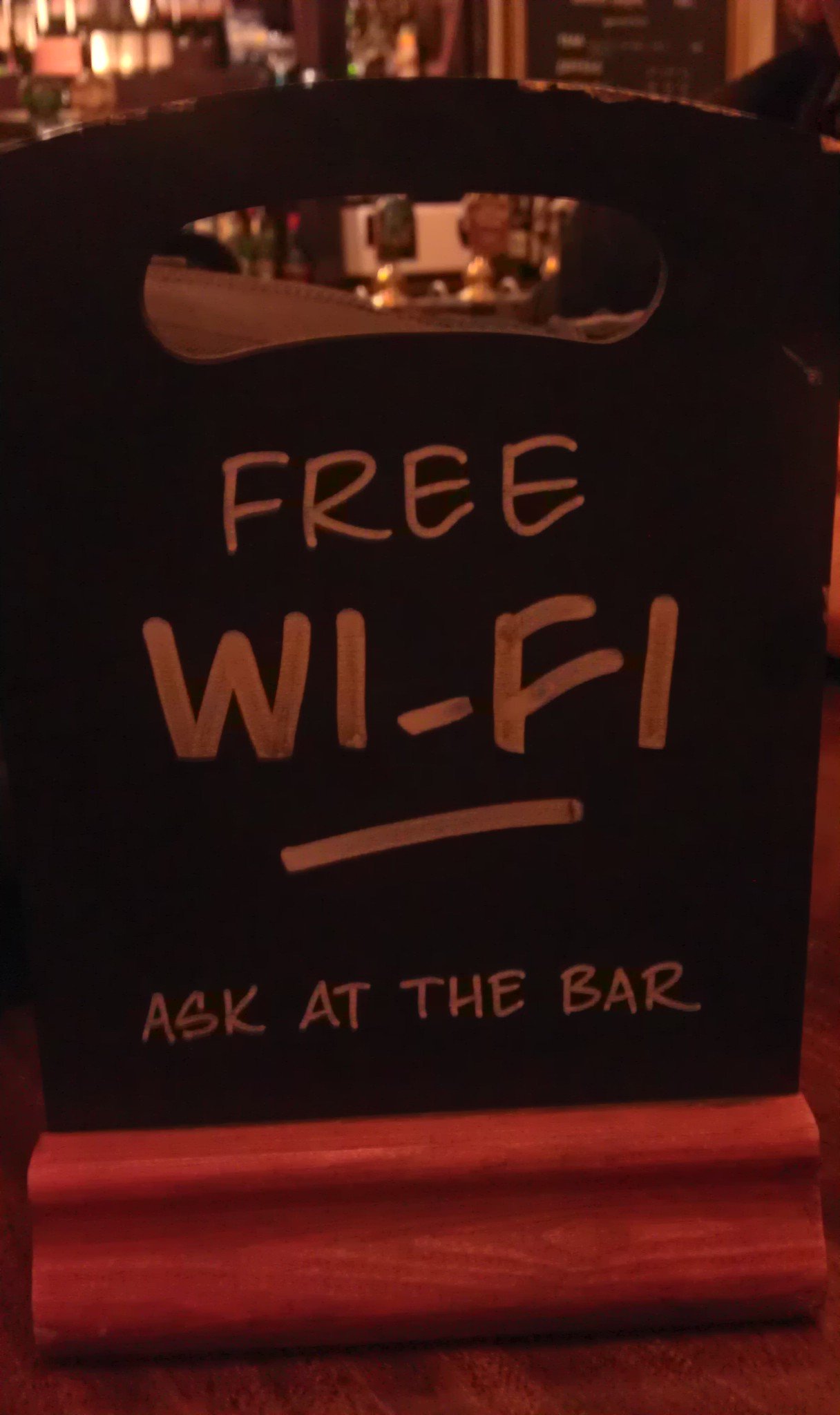
This explainer was checked against Apple captive Wi-Fi support, Google Pixel Wi-Fi troubleshooting, Google’s captive Google sign-in note and Microsoft Windows Wi-Fi guidance. The photos illustrate real devices and venues but do not depict a particular captive-portal session, tested hotspot, or guaranteed procedure for every venue.