
Your laptop is plugged into a USB-C charger, but Windows says “Slow charger” or the battery percentage barely moves. On a Mac, you may see the equivalent charging warning or notice the battery draining during heavy work. Before replacing the battery, examine the complete charging path: the laptop port, adapter, cable and any dock or monitor between them.
A USB-C connector fits many devices, but that does not mean every charger, cable and port can deliver the same electrical power. Microsoft and Apple both recommend checking the compatible charging equipment and the wattage appropriate to the specific laptop. The steps below help diagnose the problem without guessing a model-specific requirement.
Table of contents
First check: does the original charger still work?
If you still have the charger and cable that arrived with the laptop, try that combination in a working wall outlet and in the designated charging port. It is a useful comparison because the original components were selected for the machine’s charging design. If the original kit works normally but a small phone charger does not, the likely issue is power compatibility—not necessarily a defective battery.
Turn the laptop off before inspecting a connector or socket. Look for visible damage, looseness, scorch marks or bent metal. Do not poke into a USB-C port with metal tools or spray liquids into it. If the port or adapter becomes unusually hot, smells burnt or works only when you wiggle the cable, stop using the suspect component and arrange professional inspection.
| Link in the chain | What to verify | Possible outcome |
|---|---|---|
| Laptop charging port | Supported port and manufacturer specs | Data-only port cannot charge laptop |
| Power adapter | USB-C PD support and available wattage | Insufficient power; slower charging |
| Cable | Charging-power rating and condition | Limited output or intermittent charge |
| Dock or hub | Actual power passed through to laptop | Less power than the adapter’s label |
| Laptop workload | Charging while awake versus asleep | Battery may charge slowly under load |
Wattage is only one part of USB-C charging
Electrical power is measured in watts (W). A charger rating represents its capability under supported conditions, not a promise that every connected laptop will accept that output. Microsoft describes USB Power Delivery (USB PD) as a standard that can provide higher charging power when the computer, charger and cable all support the required level.
For example, a laptop designed to charge optimally with a 65W USB-C PD source may charge more slowly from a compatible 30W adapter, especially while doing heavy tasks. But do not assume that any random charger marked “65W” is automatically appropriate; its supported voltage profiles, port, cable and the laptop’s requirements still matter. Read the manufacturer’s specific model guidance before buying.
A multi-port charger also deserves a second look: the figure advertised on its package may describe a maximum or combined capacity rather than the output available from one port while several devices are attached. Consult that product’s documented per-port ratings, not just its headline number.
The cable may limit charging even if it fits
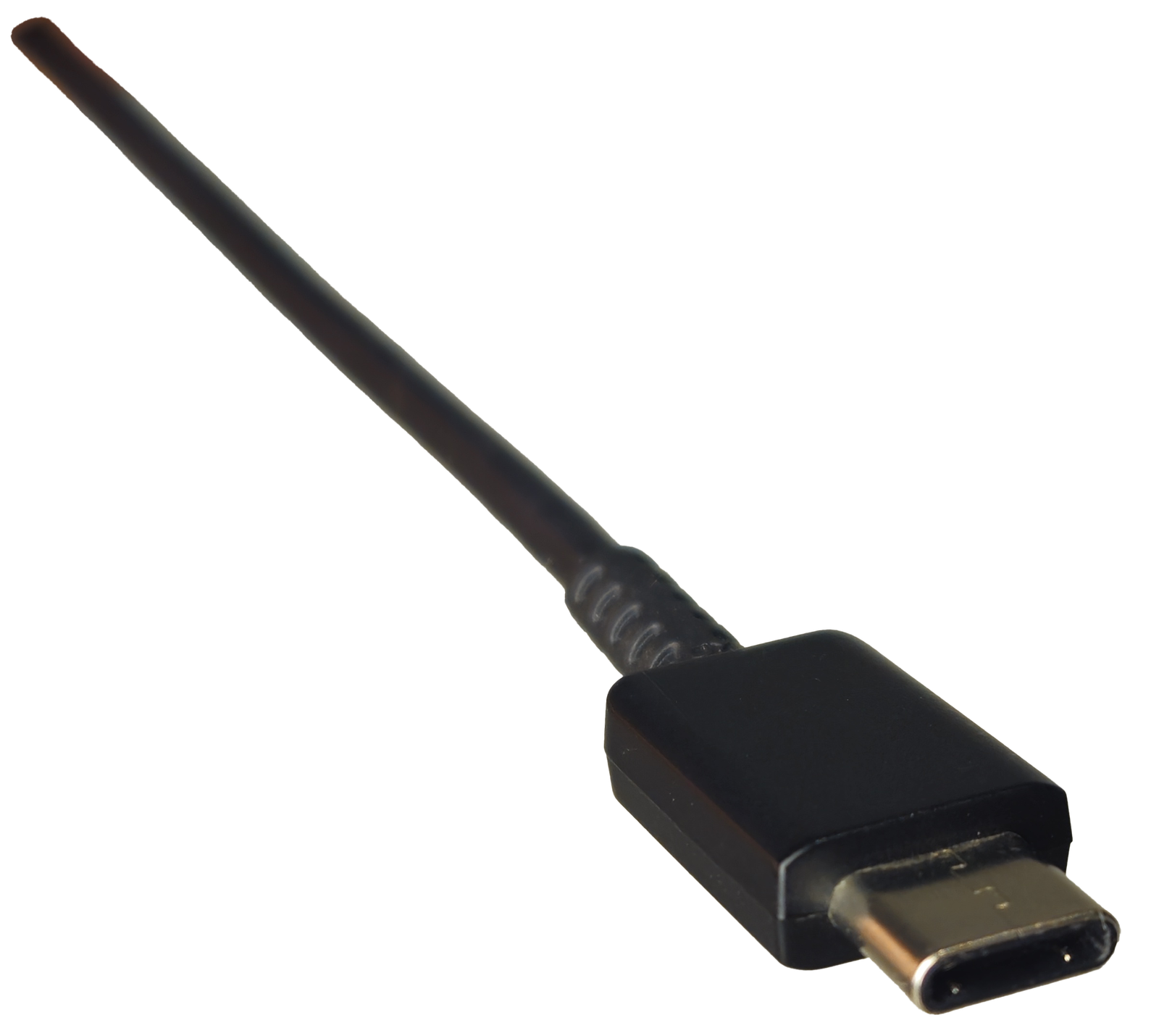
A USB-C cable can look identical to another cable and still have different charging and data capabilities. Some cables are designed mainly for low-power data or phone charging; others support higher USB PD wattages. Read a credible cable maker’s specifications or a verified certification mark instead of inferring capability from the connector’s shape, thickness or the colour of the plug.
Try a known-good charging cable of the appropriate rating, ideally the one supplied with the laptop. If the battery starts charging normally, the previous cable may be unsuitable or damaged. Do not use a frayed cable or a connector that must be held at an angle. For a separate explanation of why high-wattage cables can still transfer files slowly, see our USB-C cable data-speed guide.
Windows: read “Slow charger” as a power-path warning
Microsoft’s official charging guidance explains that Windows may report slow charging or discharging while plugged in when the adapter is incompatible, underpowered, connected through the wrong port or paired with an unsuitable cable. It advises trying the charger designed for the machine and, where appropriate, charging while the PC is sleeping or switched off.
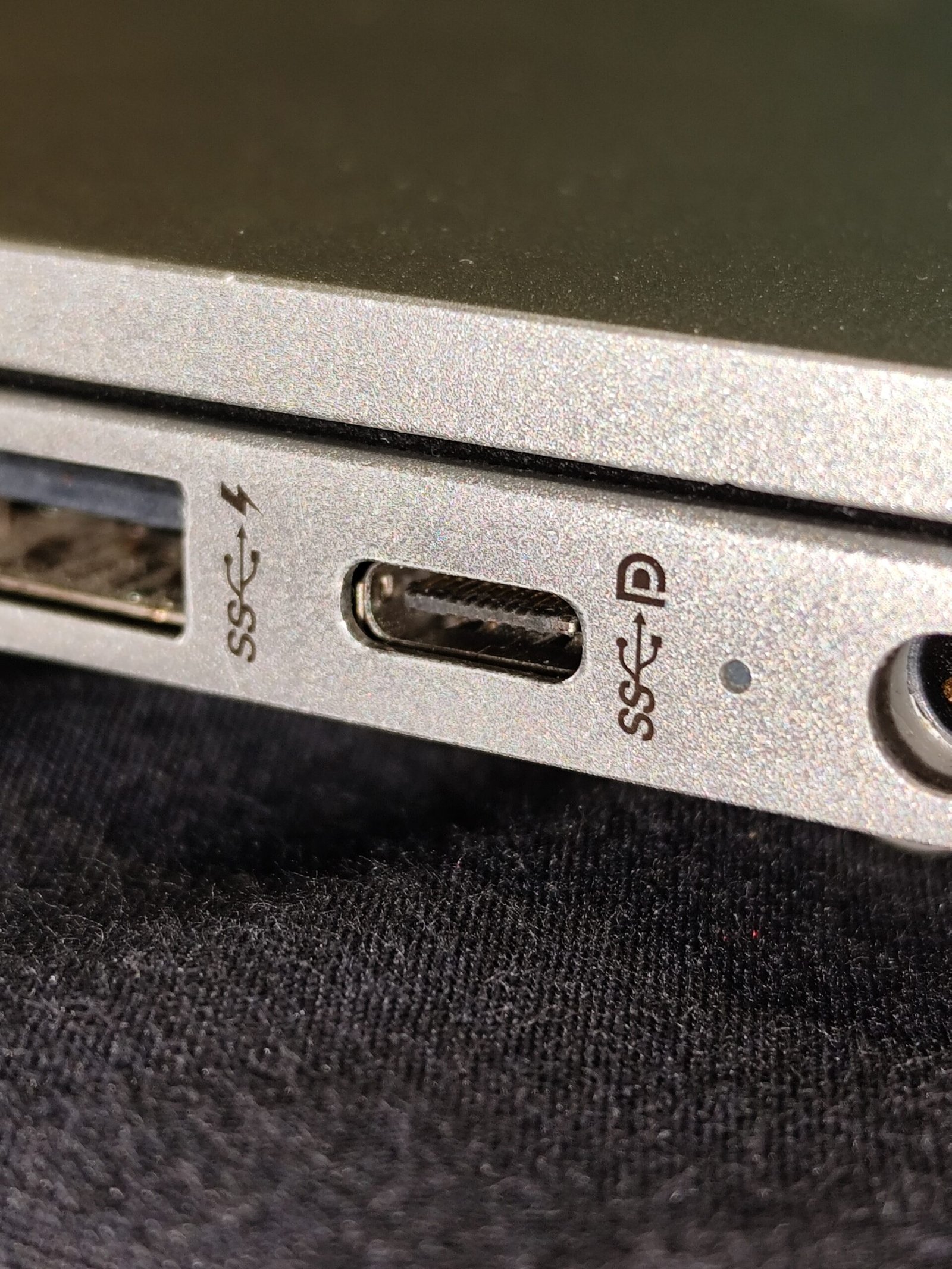
- Check the exact manufacturer model to identify which USB-C port accepts laptop charging; some ports are only for data or video.
- Test with a verified wall outlet, the recommended adapter and the known-good cable, without a dock or hub.
- If the battery percentage rises while the laptop is off but falls during heavy work, low available charging power may be a factor.
- If charging fails even with the original equipment, stop experimenting with incompatible power bricks and consult authorised service support.
Microsoft’s separate USB-C troubleshooting guide also notes that a dock, incompatible adapter or dirt preventing a proper connection can contribute to trouble. Do not force a plug or attempt invasive cleaning if the port appears damaged.
MacBook: check the adapter wattage rather than guessing
Apple’s Mac charging guidance describes the “Slow Charger” status and recommends a combination of adapter and cable that delivers at least the minimum wattage appropriate to the model. Some MacBooks can charge through either USB-C or MagSafe, depending on the model; a Mac charges from the available source providing the most power rather than drawing and adding the wattages of multiple chargers together.
To inspect the power reported by a connected adapter on eligible Mac models, Apple explains that you can open System Information → Power and look under AC Charger Information for wattage. Also consult your exact Mac model’s recommended wattages and cables. Apple notes that macOS may deliberately pause charging under some battery-health or charge-limit settings; a paused charge is not necessarily a cable failure.
If the Mac is not charging, Apple’s charging troubleshooting page recommends testing the outlet and cable and seeking service when a cable works only if moved or when the original power equipment fails. Follow your machine’s own manual rather than generalising across MacBook generations.
A USB-C monitor or docking station may supply less power than expected
A USB-C monitor can transport video, data and charging through one connection—but the monitor’s available USB PD output may be lower than your laptop needs. A dock also consumes part of its power budget, and the usable laptop charging output depends on that product’s documented pass-through specification. Do not confuse a dock’s AC adapter rating with the wattage it actually delivers to the computer.
Test the laptop’s direct charging connection first. If direct charging is normal but charging through a monitor is slow, compare the laptop’s recommended wattage with the monitor or docking station’s explicitly stated USB-C power delivery. Our separate USB-C monitor video troubleshooting guide addresses a related but distinct problem: monitors that charge a laptop yet show no video.
When to replace a cable, adapter or battery
Do not immediately buy a larger charger simply because the laptop seems slow. The correct fix depends on which link in the charging chain is deficient. If the known-good original cable restores charging, replace the unsuitable cable. If a charger’s output is insufficient for the laptop’s specified needs, choose a reputable compatible USB PD adapter with the manufacturer-recommended profiles. If an original adapter, original cable and correct port still fail, professional testing is more appropriate than guessing that a battery replacement is necessary.
The safest next step is a documented, compatible replacement or authorised support, especially for damaged ports, worn cables, electrical heat, burning smells or repeated disconnection. Do not treat USB-C as permission to connect improvised high-voltage supplies or modify a charger.
Frequently asked questions
Can I charge a 65W laptop with a 30W charger?
Some devices may accept a lower-power USB PD source and charge more slowly, especially when switched off. Others may refuse it or discharge during use. Check your model’s specifications; do not assume compatibility or a particular charging time.
Does a 100W USB-C cable guarantee 100W charging?
No. The laptop, adapter, cable and any intermediary device must all support the necessary power profile. The cable rating alone does not establish delivered wattage.
Can I charge a laptop from a USB-C monitor?
Only when the specific monitor offers suitable USB-C power delivery and the laptop accepts it. Confirm the monitor’s rated charging output and the laptop’s requirement.
Is slow charging always a worn-out battery?
No. An underpowered adapter, unsuitable cable, wrong port, dock limitations or heavy system load can also explain slow charging. Isolate those variables before drawing conclusions.
Sources and editorial note
This article is based on the Microsoft PC slow-charging guide, Microsoft USB-C troubleshooting, Apple laptop charging guidance, and Apple USB-C adapter troubleshooting. The article provides general diagnosis, not tested product recommendations. Photos illustrate real devices but do not verify a particular charger’s output or a current price.